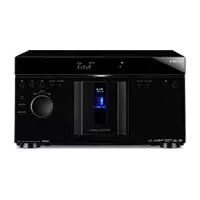
BDPCX960 - Blu-ray player SONY - Free user manual and instructions
Find the device manual for free BDPCX960 SONY in PDF.


| Product Type | Blu-ray/DVD/CD Player with 400-Disc Changer |
| Brand | Sony |
| Model | BDP-CX960 |
| Dimensions (approx.) | 430 x 430 x 130 mm |
| Weight (approx.) | 7.5 kg |
| Power Supply | 220-240 V, 50/60 Hz |
| Supported Disc Formats | BD-ROM, BD-RE/BD-R, DVD VIDEO, DVD±R/RW, CD, CD-R/RW, MP3, JPEG |
| Changer Capacity | Up to 400 discs |
| Video Outputs | HDMI, Component (Y/Pb/Pr), Composite Video |
| Audio Outputs | HDMI, Digital Optical/Coaxial, Analog Stereo (L/R) |
| Network Connectivity | Ethernet (LAN 100BASE-TX) |
| Special Features | BonusView/BD-Live, BRAVIA Sync, x.v.Color, PhotoTV HD, Random/Repeat Playback |
| External Memory | EXT port for USB key (local storage for BD-Live) |
| Maintenance and Cleaning | Clean the cabinet with a soft cloth slightly dampened with a neutral detergent solution. Do not use solvents. |
| Safety | Do not expose to rain or moisture. Unplug during thunderstorms. Do not block ventilation openings. |
| Spare Parts and Repairability | Refer all servicing to qualified personnel. Use only accessories specified by the manufacturer. |
| General Information | Manual available for download at notice-facile.com. Compatible with HD TVs and AV receivers. |
Frequently Asked Questions - BDPCX960 SONY
User questions about BDPCX960 SONY
0 question about this device. Answer the ones you know or ask your own.
Ask a new question about this device
Download the instructions for your Blu-ray player in PDF format for free! Find your manual BDPCX960 - SONY and take your electronic device back in hand. On this page are published all the documents necessary for the use of your device. BDPCX960 by SONY.
USER MANUAL BDPCX960 SONY
Operating Instructions.
Mode d'emploi
US
FR
4-148-375-15(1)
Printed in Malaysia

© 2009 Sony Corporation
WARNING
To reduce the risk of fire or electric shock, do not expose this apparatus to rain or moisture.
To reduce the risk of fire or electric shock, do not expose this apparatus to dripping or splashing, and do not place objects filled with liquids, such as vases, on the apparatus.
To reduce the risk of fire, do not cover the ventilation opening of the apparatus with newspapers, tablecloths, curtains, etc. Do not place the naked flame sources such as lighted candles on the apparatus.
As the main plug is used to disconnect the unit from the mains, connect the unit to an easily accessible AC outlet. Should you notice an abnormality in the unit, disconnect the main plug from the AC outlet immediately.
Do not install the appliance in a confined space, such as a bookcase or build-in cabinet.
Do not expose batteries or apparatus with battery installed to excessive heat such as sunshine, fire or the like.

This symbol is intended to alert the user to the presence of uninsulated "dangerous voltage"
within the product's enclosure that may be of sufficient magnitude to constitute a risk of electric shock to persons.

This symbol is intended to alert the user to the presence of important operating and
maintenance (servicing) instructions in the literature accompanying the appliance.
The unit is not disconnected from the mains as long as it is connected to the AC outlet, even if the unit itself has been turned off.
Important Safety Instructions
1) Read these instructions.
2) Keep these instructions.
3) Heed all warnings.
4) Follow all instructions.
5) Do not use this apparatus near water.
6) Clean only with dry cloth.
7) Do not block any ventilation openings. Install in accordance with the manufacturer's instructions.
8) Do not install near any heat sources such as radiators, heat registers, stoves, or other apparatus (including amplifiers) that produce heat.
9) Do not defeat the safety purpose of the polarized or grounding-type plug. A polarized plug has two blades with one wider than the other. A grounding type plug has two blades and a third grounding prong. The wide blade or the third prong are provided for your safety. If the provided plug does not fit into your outlet, consult an electrician for replacement of the obsolete outlet.
10) Protect the power cord from being walked on or pinched particularly at plugs, convenience receptacles, and the point where they exit from the apparatus.
11)Only use attachments/ accessories specified by the manufacturer.
12) Use only with the cart, stand, tripod, bracket, or table specified by the manufacturer, or sold with the apparatus. When a cart is used, use caution when moving the cart/ apparatus combination to avoid injury from tip-over.

13)Unplug this apparatus during lightning storms or when unused for long periods of time.
14) Refer all servicing to qualified service personnel. Servicing is required when the apparatus has been damaged in any way, such as power-supply cord or plug is damaged, liquid has been spilled or objects have fallen into the apparatus, the apparatus has been exposed to rain or moisture, does not operate normally, or has been dropped.
Owner's Record
The model and serial numbers are located at the rear of the unit. Record the serial number in the space provided below. Refer to them whenever you call upon your Sony dealer regarding this product.
Model No. BDP-CX960
Serial No.
CAUTION
The use of optical instruments with this product will increase eye hazard. As the laser beam used in this Blu-ray Disc/DVD player is harmful to eyes, do not attempt to disassemble the cabinet. Refer servicing to qualified personnel only.
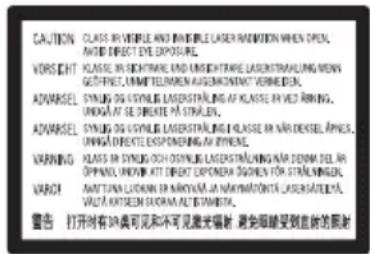
This label is located on the laser protective housing inside the enclosure.
For customers in the USA
The following FCC statement applies only to the version of this model manufactured for sale in the USA. Other versions may not comply with FCC technical regulations.
NOTE:
This equipment has been tested and found to comply with the limits for a Class B digital device, pursuant to Part 15 of the FCC Rules. These limits are designed to provide reasonable protection against harmful interference in a residential installation. This equipment generates, uses, and can radiate radio frequency energy and, if not installed and used in
accordance with the instructions, may cause harmful interference to radio communications. However, there is no guarantee that interference will not occur in a particular installation. If this equipment does cause harmful interference to radio or television reception, which can be determined by turning the equipment off and on, the user is encouraged to try to correct the interference by one or more of the following measures:
- Reorient or relocate the receiving antenna.
- Increase the separation between the equipment and receiver.
- Connect the equipment into an outlet on a circuit different from that to which the receiver is connected.
- Consult the dealer or an experienced radio/TV technician for help.
CAUTION
You are cautioned that any changes or modifications not expressly approved in this manual could void your authority to operate this equipment.
If you have any questions about this product, you may call; Sony Customer Information Service Center 1-800-222-7669 or http://www.sony.com/
For Customers in Canada
This Class B digital apparatus complies with Canadian ICES-003.
If this product is not working properly, please call 1-877-602-2008 for Peace of Mind Warranty Replacement service.
For other product related questions please contact our Customer Information Service Center at 1-877-899-7669 or write to us at: Customer Information Service 115 Gordon Baker Road, Toronto, Ontario, M2H 3R6
Precautions
- To avoid electrical shock, do not open the cabinet. Refer servicing to qualified personnel only.
- Keep the external memory away from children. If swallowed, promptly see a doctor.
Precautions
On safety
- To prevent fire or shock hazard, do not place objects filled with liquids, such as vases, on the player, or place the player near water, such as near a bathtub or shower room. Should any solid object or liquid fall into the cabinet, unplug the player and have it checked by qualified personnel before operating it any further.
- Do not touch the AC power cord with wet hands. Doing so may cause an electric shock.
On placement
- Place the player in a location with adequate ventilation to prevent heat build-up in the player.
- Do not place the player on a soft surface such as a rug that might block the ventilation holes.
- Do not place the player in a location near heat sources, or in a place subject to direct sunlight, excessive dust, or mechanical shock.
- If the player is brought directly from a cold to a warm location, or is placed in a very damp room, moisture may condense on the lenses inside the player. Should this occur, the player may not operate properly. In this case, remove the disc and leave the player turned on for about half an hour until the moisture evaporates.
- Keep the player and the discs away from equipment with strong magnets, such as microwave ovens, or large loudspeakers.
-
Do not place heavy or unstable objects on the player.
-
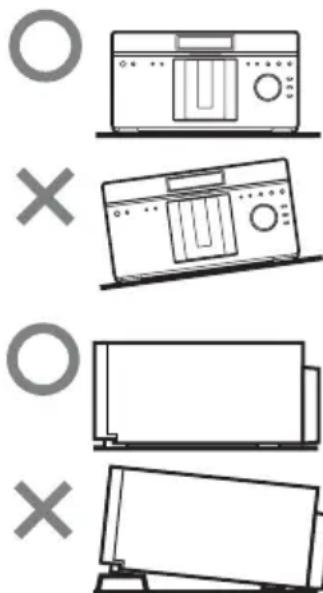
Do not install the player in an inclined position. It is designed to be operated in a horizontal position only.
- Do not place any objects other than discs on the disc tray. Doing so may cause damage to the player or the object.
- When you move the player, take out any discs. If you don't, the disc may be damaged.
- When you move the player, disconnect the AC power cord and all other cables from the player.
On transporting the player
Before transporting the player, follow the procedure below to return the internal mechanisms to their original positions.
1) Remove all the discs from the disc slots.
2) Press OPEN/CLOSE to close the front cover. Make sure that "NO DISC" appears on the front panel display.
3) Wait for 10 seconds, then press I/O to turn off the player. The player enters standby mode.
4) Disconnect the AC power cord.
On power sources
-
If you are not going to use the player for a long time, bc sure to disconnect the player from the wall outlet. To disconnect the AC power cord, grasp the plug itself; never pull the cord.
-
Observe following points to prevent the AC power cord being damaged. Do not use the AC power cord if it is damaged, as doing so may result in an electric shock or fire.
-
Do not pinch the AC power cord between the player and wall, shelf, etc.
- Do not put anything heavy on the AC power cord or pull on the AC power cord itself.
On adjusting volume
Do not turn up the volume while listening to a section with very low level inputs or no audio signals. If you do, the speakers may be damaged when a peak level section is played.
On cleaning
Clean the cabinet, panel, and controls with a soft cloth slightly moistened with a mild detergent solution. Do not use any type of abrasive pad, scouring powder or solvent such as alcohol or benzine.
On cleaning discs, disc/ lens cleaners
Do not use cleaning discs or disc/lens cleaners (including wet or spray types). These may cause the apparatus to malfunction.
On replacement of parts
In the events that this player is repaired, repaired parts may be collected for reuse or recycling purposes.
Notes about the discs
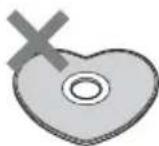
- Do not use the following discs.
-A disc with a label or sticker on it.
A disc that has cellophane tape or sticker adhesive on it. Tape or sticker
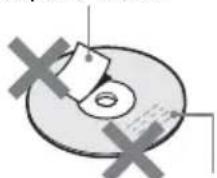
Adhesive material
-A disc that has a nonstandard shape (e.g., card, heart).

-8 cm (3-inch) disc adaptor. The player cannot play an 8 cm disc. Do not insert an 8 cm (3-inch) disc or an 8 cm (3-inch) disc adaptor. It may damage the player and disc.
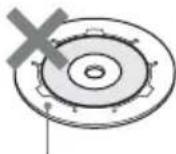

Adaptor 8 cm disc
-A lens cleaning disc.
If you have printed the disc's label, dry the label before playing.
- If burrs or adhesive material attach on the disc, the player may work unstably. In order to ensure stable operation, insert a disc after removing burrs or foreign objects. Burrs may be removed by rubbing the edge of the disc with the side of a pen or pencil. If a disc does not play, check for burrs on the disc and its two adjacent discs.
Extra
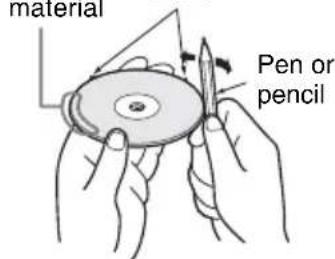
adhesive material
Burrs
- Do not insert discs other than those described in "Playable Discs" (page 80). Inserting a disc in a format not compatible may cause a malfunction.
To ensure stable operation
To keep the disc clean, handle the disc by its edge. Do not touch the surface.
Be careful not to leave fingerprints especially on Bluray Discs.
Dust, fingerprints, or scratches on the disc may cause it to malfunction.
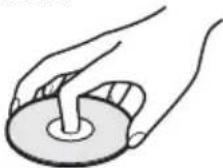
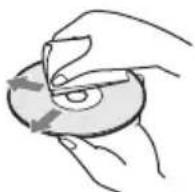
- Clean the disc with a cleaning cloth. Wipe the disc from the center out.
- Do not resurface the playing side of a disc to remove surface scratches.
- Do not use solvents such as benzine, thinner, commercially available disc/ lens cleaners, or anti-static spray intended for vinyl LPs.
- Do not expose the disc to direct sunlight or heat sources such as hot air ducts, or leave it in a car parked in direct sunlight as the temperature may rise considerably inside the car.
After removing a disc from the disc slot, store the disc in its case.
Copyrights and Trademarks
Manufactured under license from Dolby Laboratories. "Dolby", "Pro Logic", and the double-D symbol are trademarks of Dolby Laboratories.
Manufactured under license under U.S. Patent #s: 5,451,942; 5,956,674; 5,974,380; 5,978,762; 6,226,616; 6,487,535; 7,392,195; 7,272,567; 7,333,929; 7,212,872 & other U.S. and worldwide patents issued & pending. DTS is a registered trademark and the DTS logos, Symbol, DTS-HD and DTS-HD Master Audio | Essential are trademarks of DTS, Inc. © 1996-2008 DTS, Inc. All Rights Reserved.
- Java and all Java-based trademarks and logos are trademarks or registered trademarks of Sun Microsystems, Inc.
XMB," and "xross media bar" are trademarks of Sony Corporation and Sony Computer Entertainment Inc.
- This product incorporates High-Definition Multimedia Interface (HDMITM) technology. HDMI, the HDMI logo and High-Definition Multimedia Interface are trademarks or registered trademarks of HDMI Licensing LLC.
- "Blu-ray Disc" is a trademark.
- "Blu-ray Disc," "DVD+RW," "DVD-RW," "DVD+R," "DVD-R," "DVDVIDEO," and "CD" logos are trademarks.
- "BD-Live" and "BonusView" are trademarks of Blu-ray Disc Association.
- "x.v.Color" and "x.v.Color" logo are trademarks of Sony Corporation.
"BRAVIA" is a trademark of Sony Corporation.
- "PhotoTV HD" and the "PhotoTV HD" logo are trademarks of Sony Corporation.
- MPEG Layer-3 audio coding technology and patents licensed from Fraunhofer IIS and Thomson.
- Music and video recognition technology and related data are provided by Gracenote. Gracenote is the industry standard in music recognition technology and related content delivery. For more information, please visit www.gracenote.com. CD, DVD, Blu-ray Disc, and music and video-related data from Gracenote, Inc., copyright © 2000-present Gracenote. Gracenote Software, copyright © 2000-present Gracenote. One or more patents owned by Gracenote apply to this product and service. See the Gracenote website for a nonexhaustive list of applicable Gracenote patents. Gracenote, CDDB, MusicID, MediaVOCS, the Gracenote logo and logotype, and the "Powered by Gracenote" logo are either registered trademarks or trademarks of Gracenote in the United States and/or other countries.

gracenote.
- Other system and product names are generally trademarks or registered trademarks of the manufacturers. ^TM and ^ marks are not indicated in this document.
IMPORTANT NOTICE
Caution: This player is capable of holding a still video image or on-screen display image on your television screen indefinitely. If you leave the still video image or on-screen display image displayed on your TV for an extended period of time you risk permanent damage to your television screen. Plasma display panel televisions and projection televisions are susceptible to this.
If you have any questions or problems concerning your player, please consult your nearest Sony dealer.
About This Manual
- In this manual, "disc" is used as a general reference for BDs, DVDs, or CDs unless otherwise specified by the text or illustrations.
- Icons, such as BD at the top of each explanation indicate what kind of media can be used with the function being explained. For details, see "Playable Discs" (page 80).
- Instructions in this manual describe the controls on the remote. You can also use the controls on the player if they have the similar symbols as those on the remote.
- The on-screen display illustrations used in this manual may not match the graphics displayed on your TV screen.
- NEED-to-know information (to prevent incorrect operation) is listed under the icon. NICE-to-know information (tips and other useful information) is listed under the icon.
Table of Contents
WARNING 2
Precautions 3
About This Manual 6
Guide to Parts and Controls 9
Guide to On-screen Menu Display 15
Getting Started
Hooking Up the Player 17
Step 1: Connecting to Your TV 18
Connecting to an HDMI jack 19
Connecting to component video jacks (Y/P B/PR) 21
Connecting to an audio/video jack 22
Step 2: Connecting to Your AV Amplifier (Receiver) 23
Connecting to an HDMI jack 24
Connecting to digital jacks (OPTICAL/COAXIAL) 25
Connecting to audio L/R jacks 26
Step 3: Inserting an External Memory 27
Step 4: Connecting to the Network 28
When connecting to a broadband router directly 28
When connecting via a wireless LAN router 29
Step 5: Connecting the AC Power Cord 29
Step 6: Preparing the Remote 30
Step 7: Easy Setup 30
Step 8: Inserting Discs 33
Inserting a rental disc 34
Step 9: Loading Disc Information 35
Playback
Playing BDs/DVDs 36
Using the BD's or DVD's menu 38
Enjoying BonusView/BD-Live 38
Searching for a scene quickly (Scene Search) 39
Searching for a Title/Chapter 40
Adjusting picture and sound for videos 40
Playing Music CDs 42
Playing Music repeatedly 44
Playing Discs in random order (Shuffle Play) 45
Creating Playlists 45
Playing Photo Files 46
Playing a Slideshow 48
Organizing Discs
Loading the Disc Information 49
Loading the information of all discs 49
Loading a disc information 50
Editing a Disc/Title/File Information 51
Editing the video disc information 51
Editing the music disc information 51
Editing the photo disc name 52
Entering characters 52
BRAVIA Sync Features
About the BRAVIA Sync Features (HDMI connections only) 54
Remote Control Features
Operating the Player and Other Components 56
Changing the Remote Code to Operate Other Components 58
Changing the Command Mode 60
Settings and Adjustments
Using the Settings Display 61
Network Update 62
Video Settings 63
Audio Settings 66
BD/DVD Viewing Settings 68
Photo Settings 7
System Settings 71
Network Settings 73
Easy Setup 74
Resetting 74
Additional Information
Troubleshooting 75
Self-Diagnosis Function 79
Playable Discs 80
Video Output Resolution 82
Audio Output Signals 83
Specifications 84
Language Code List 85
Parental Control/Area Code 85
Terms and Conditions of Use and End User License Agreement 86
Software License Information 89
Glossary 98
Index 100
Before operating the player, please read "Terms and Conditions of Use and End User License Agreement" (page 86).
Guide to Parts and Controls
For more information, see the pages in parentheses.
Front panel
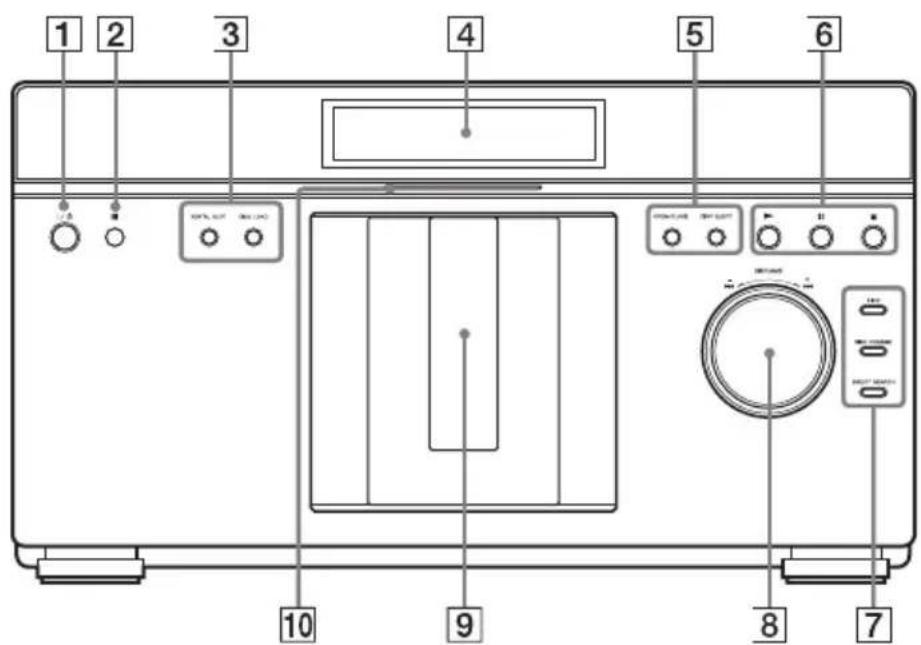
1 (on/standby) (page 30)
Turns on the player, or sets to standby mode.
2 Remote sensor (page 30)
3RENTAL SLOT (page 34)
Opens or closes the front cover to play a disc in slot number 1.
DISC LOAD (page 35)
Reads the disc information of all unknown discs, and loads it into the memory.
4Front panel display (page 10)
5 OPEN/CLOSE (page 33)
Opens or closes the front cover.
DISC EJECT (page 33)
Opens the front cover and ejects the disc.
6 play page 36
Starts playback.
II (pause) (page 36)
Pauses playback.
stop) (page 36)
Stops playback.
7+100 (page 33)
Skipping 100 disc slots ahead when selecting discs.
DISC CHANGE
Switches to the dial function for selecting the disc.
DIRECT SEARCH
Switches to the dial function for searching for a chapter/track.
DISC/AMS dial (page 33)
Selects a disc in DISC CHANGE mode. Searches for a chapter/track/scene in DIRECT SEARCH mode.
The selected mode indicator is lit in the front panel display.
9Front cover
Opens or closes when you insert or eject discs.
10Blu-ray Disc indicator
Lights up when a BD is recognized.
To lock the front cover (Child Lock)
You can lock the front cover to prevent it being opened by mistake.
When the player is turned on, hold down on the player for more than 10 seconds until "LOCKED" appears in the front panel display. The front cover is locked.
To unlock the front cover, hold down on the player until "UNLOCK" appears in the front panel display.
Front panel display
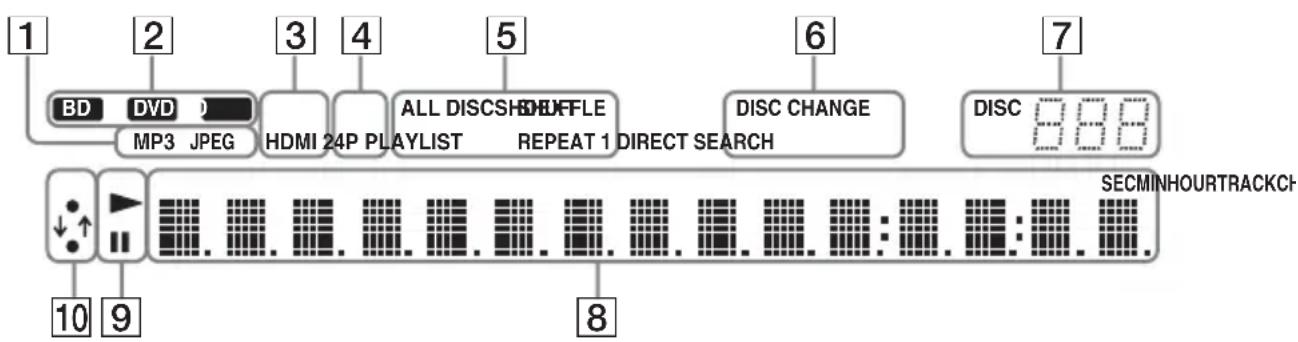
1File format
Displays the format of the currently playing file.
2Disc type
Displays the currently playing disc type.
3EXT (page 27)
Lights up when the external memory is recognized.
HDMI (page 19)
Lights up when an HDMI device is connected.
4HD (page 64)
Lights up when outputting 720p / 1080i/ 1080p video signals from the HDMI OUT jack or 720p / 1080i video signals from the COMPONENT VIDEO OUT jacks.
24P (page 65)
Lights up when outputting 1080p / 24Hz video signals of BD-ROMs.
5Play mode
Displays a currently playing play mode.
6 DISC CHANGE/DIRECT SEARCH
Displays either selected function mode for the dial.
7Disc slot number
Displays the number of the disc slot currently selected or playing back.
8Playback information (page 13)
Displays the disc/title/chapter/track number.
9,II
Lights up during playback or pause.
10Network connection indicator
Lights up when downloading the player's software.
For details on downloading the player's software, see page 62.
Rear panel
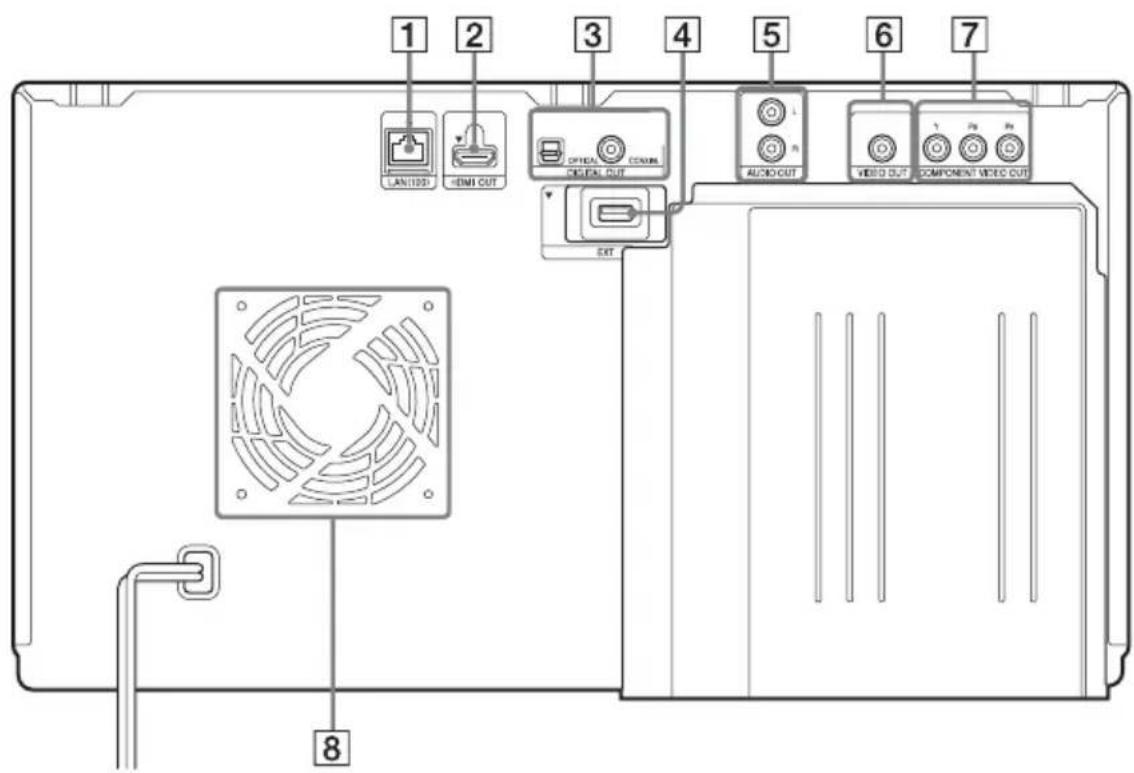
LAN (100) terminal (page 28)
2HDMI OUT jack (page 19, 24)
3 DIGITAL OUT (OPTICAL/ COAXIAL) jacks (page 25)
4EXT slot (page 27)
5 AUDIO OUT (L/R) jacks (page 22, 26)
VIDEO OUT jack (page 22)
7 COMPONENTVIDEO OUT (Y / P_B / P_R) jacks (page 21)
8 Ventilation holes The ventilation fan is inside the player.
Remote
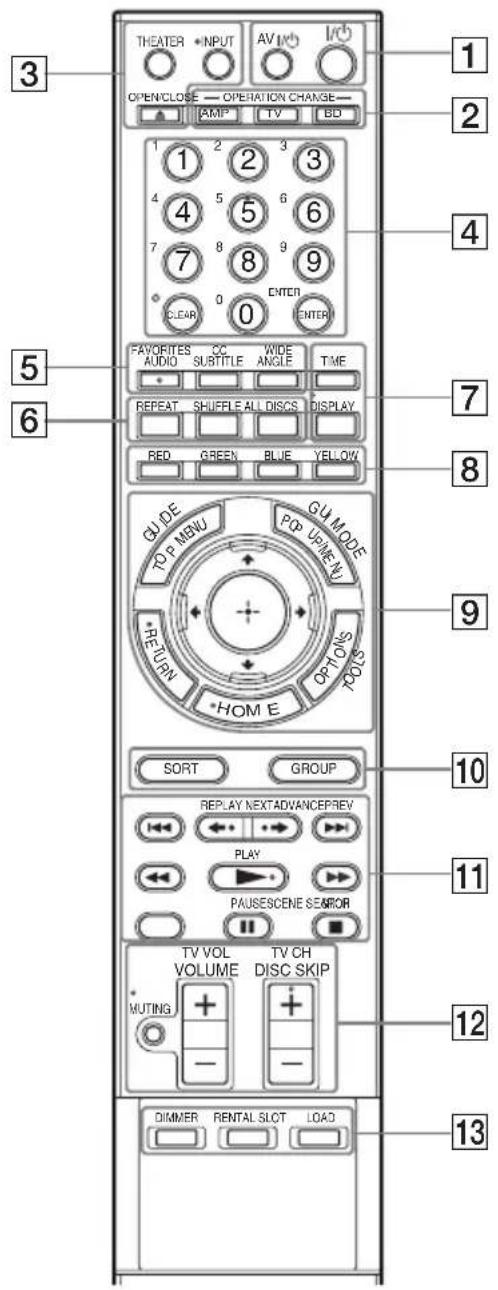
The number 5, AUDIO, TV CH +, and PLAY buttons have a tactile dot. Use the tactile dot as a reference when operating the player.
Button functions differ depending on the mode selected by the OPERATION CHANGE buttons.
BD,TV, AMPD indicate
functions available for each operation mode.
#
The available functions of the remote differ depending on the disc or the situation.
1 AVI/on/standby) (page 57)
TV AMP Turns on the connected TV or AV amplifier, or sets to standby mode.
I (on/standby) (page 30)
BD Turns on the player, or sets to standby mode.
Changes the operation mode to control the component by the remote.
BD Operates the player.
TV Operates a connected TV.
AMP Operates a connected AV amplifier.
3△OPEN/CLOSE (page 33)
BD Opens or closes the front cover.
INPUT (input select)
TV Switches between TV and other input sources.
THEATER (page 54)
TV Automatically switches to the optimum video mode for watching movies.
#
The THEATER button functions only when a Theater Mode-compatible TV is connected.
4Number buttons (page 38, 40, 58, 68, 69, 70)
BD TV AMP
Enters the title/chapter numbers, etc.
ENTER (page 38, 40, 58, 60)
BD Enters a selected item.
CLEAR/ (dot)
BD Clears the entry field.
TV Inputs "(dot) when inputting numerics.
5 AUDIO (page 68)/FAVORITES
BD SAEc is the language when multi-lingual tracks are recorded on a BD-ROM/DVD VIDEO.
Selects the sound track on CDs.
TV Displays the favorite TV channel list.
SUBTITLE (page 68)/CC
BD Selects the subtitle language when multi-lingual subtitles are recorded on a BD-ROM/DVD VIDEO.
TV Changes the subtitle of the TV.
ANGLE/WIDE
BD Switches to other viewing angles when multi-angles are recorded on a BD-ROM/DVD VIDEO.
TV Changes the aspect ratio of the connected TV.
6REPEAT
BD Plays music tracks repeatedly. Pressing repeatedly cycles through all track repeat, one track repeat, and off.
SHUFFLE
BD Plays all the music discs in random order. Pressing the button toggles between random playback on and off.
ALL DISCS
BD Plays all the music or photo discs in the player.
Plays all the music discs repeatedly or randomly during Repeat Play or Shuffle Play.
The ALL DISCS indicator lights up in the front panel display.
To cancel, press the button again.
7 TIME
BD Displays the elapsed/remaining playback time in the front panel display. Each time you press the button, the display changes as follows.
When playing a BD-ROM/DVDVIDEO
Elapsed time of the current title Remaining time of the current title
When playing a CD
Elapsed time of the current track Remaining time of the current track Elapsed time of the current disc Remaining time of the current disc
DISPLAY (page 15)
BD TV AMP
When playing a video or photo
Displays the disc or file information on the screen.
When playing music
Displays the playback information on the front panel display.
Each press changes the display as follows:
Playing time Track name Album name
When displaying the home menu
Displays the currently selected category icon/group name/sorting order and operation guide.
Color buttons (RED/GREEN/ BLUE/YELLOW)
BD Short cut keys for selecting items on some BD's menus (can also be used for BD's Java interactive operations).
9TOP MENU (page 38)/GUIDE
BD Opens or closes a BD's or DVD's Top Menu.
TV Displays the Digital Electronic Program Guide (EPG).
POP UP/MENU (page 38)/GUI MODE
BD Opens or closes a BD-ROM's Pop-up Menu or the DVD's menu.
AMP Switches the menu display mode between GUI MODE and DISPLAY MODE.
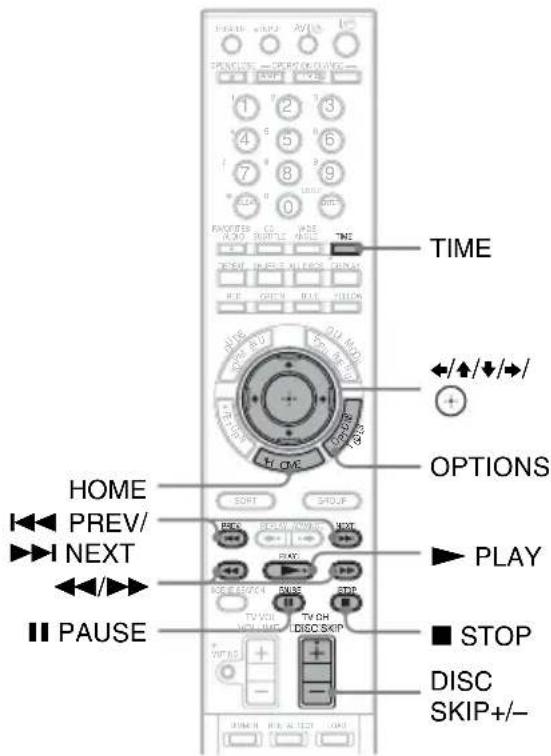
OPTIONS (page 37, 43, 47)/ TOOLS
BD TV AMP
The options menu that can be selected appears on the screen.
HOME (page 15, 36, 61)
BD TV AMP
Enters or exits the home menu.
RETURN
BD TV AMP
Returns to the previous display.
←/↑/↓/→
BD TV AMP
Moves the highlight to select a displayed item.
(enter)
BD TV AMP
Enters the selected item.
10SORT
BD Changes the title order. Each time you press the button, the list is sorted by the selected item.
GROUP
BD Displays titles by category. Each time you press the button, the list is switched by the selected category.
11 PREV/NEXT (previous/ next)
BD Skips to the previous/next chapter, track, or file.
To go to the beginning of the previous track, press PREV twice.
REPLAY/ADVANCE (instant replay/instant advance)
BD Replays the scene/briefly fast forwards the scene.

(fast reverse/fast forward)
BD Fast reverses/fast
forwards the disc when pressed during playback.
Each time you press the button, search speed changes as follows*:
Playback direction
1 (× 10) 2(× 30) 3
(×120)
Reverse direction
(× 1) 1(× 10) 2(× 30)
3 (×120)
When you press and hold the button, fast forward/fast reverse continues at the selected speed until you release the button.
- Search speed does not change when playing CDs.
Speed multiple values are approximate.
- To resume normal playback, press
▶PLAY.
To play in slow, freeze frame (playback direction only)
Plays BDs/DVDs in slow motion when
is pressed for more than one second in pause mode.
Plays one frame at a time when is pressed briefly in pause mode.
- To resume normal playback, press
▶PLAY.
▶PLAY (page 36)
BD Starts or re-starts
playback.
Plays a slideshow when a disc containing JPEG image files is inserted.
SCENE SEARCH (page 39)
BD Switches to Scene Search mode, which lets you move quickly between scenes within the title currently being played back.
IIPAUSE (page 37)
BD Pausds or re-starts playback.
STOP
BD Stops playback and remembers the stop point (resume point) (page 37, 44).
12 MUTING (page 57)
TV AMP
Turns off the sound
temporarily.
VOLUME/TV VOL + / - (page 57)
BD TV
AMP
Adjusts the volume.
DISC SKIP (page 37, 44, 47)/TV CH (channel) +/-
BD Selects the disc you want to play. Press DISC SKIP + / - repeatedly until you find the disc you want to play. When you release the button, playback of the selected disc starts.
TV Selects the TV channels up and down.
13 DIMMER
BD Adjusts the lighting of the front panel display.
RENTAL SLOT (page 34)
BD Opens or closes the front cover to play a disc in slot number 1.
LOAD (page 49)
Reads the disc information of all unknown discs, and loads it into the memory.
Guide to On-screen Menu Display
Home menu display
The "home menu" appears when you press HOME, and provides entries to select a disc or setting item.
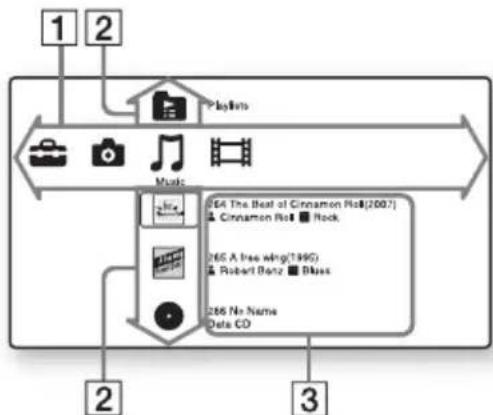
1 Category icons
“Video”: Lists the discs containing video.
“Music”: Lists the discs containing music.
Photo":Lists the discs containing photo.
"Setup": Lists the setting items.
2Discs, Playlists
The disc icons indicate as follows.
Other Discs': Group of invalid discs or an update disc
"Unknown Discs": Group of unidentified discs
"Playlists": Group of music playlists
- (disc icon): Discs whose jacket picture cannot be acquired from Gracenote Database.
3Disc information icons
To display information at the top and bottom of the screen
Press DISPLAY. Press the button again to turn off the display.
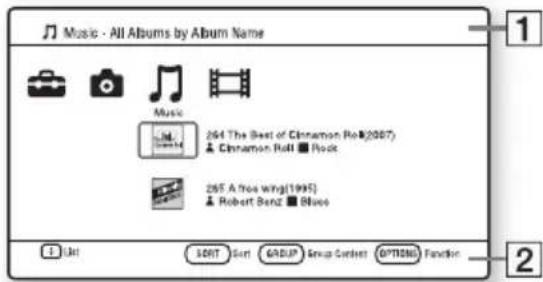
1Header information
Displays the currently selected category/ folder name and list type (group name/ sorting order)
2Footer information
Displays available buttons and their functions
Screen displays during playback
For video and photo playback, the display turns on/off by pressing DISPLAY.
The displayed information differs depending on the disc type and player status.
When playing a BD-ROM/DVD VIDEO
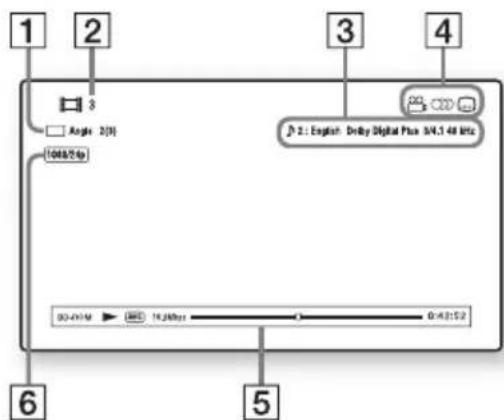
1 The currently selected angle
2 Title number or name
The currently selected audio or subtitle setting
4 Available functions (angle/ audio/subtitle)
5Playback information Displays Disc type/Play mode/Video codec/Bit rate/Playing status bar/ Playing time (Remaining time*)
6 Output resolution/Video frequency
- Displayed when you press TIME repeatedly.

- You can also check the playback information in the front panel display (page 10).
- Press SUBTITLE, AUDIO, or ANGLE, and you can check each type of information.
When playing a photo file
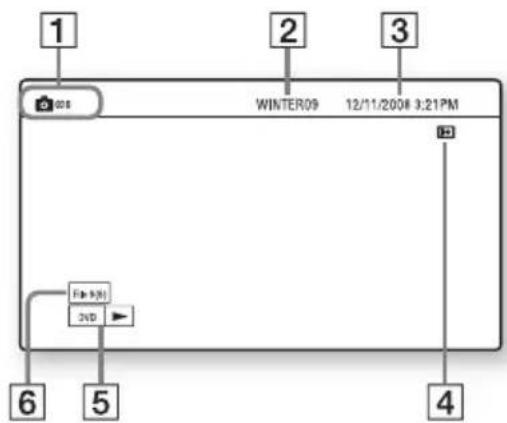
1File name
2Album name
3Shooting date
4 Rotating status
5Disc type/Playing status
Current file number/total number of files
When playing a music CD/MP3 audio track
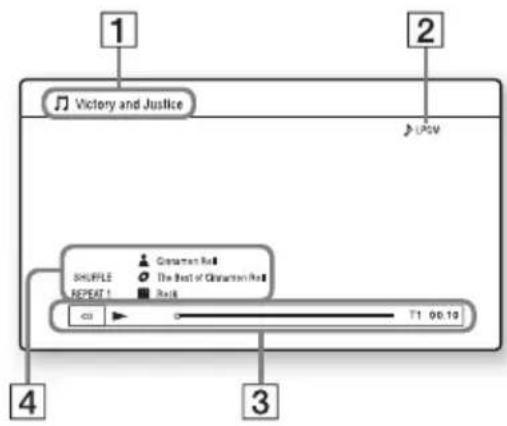
1 Track/file name
2 Audio mode
3Playing information Displays Disc type/Playing status bar/ Track number/Playing time
4 Track information Displays Artist name/Album name/ Genre name/Play mode
Hooking Up the Player
Check that you have the following items.
Audio/video cord (phono plug × 3 1)
- Remote commander (remote) (1)
Size AA (R6) batteries (2)
Follow steps 1 through 9 to hook up and adjust the settings of the player. Do not connect the AC power cord until you reach "Step 5: Connecting the AC Power Cord" (page 29).
Getting Started
Step 1: Connecting to Your TV
The player has the following video jacks. Connect the player to your TV according to the input jack on your TV.
If you connect the player to your TV using an HDMI cable, you can enjoy high quality digital pictures and sound through the HDMI OUT jack.
Jack type Video resolution Hookup
| High quality | Digital | HDMI OUT | High Definition: 1080/24p, 1080p, 1080i, 720p Standard Definition: 480p, 480i | See “Connecting to an HDMI jack” (page 19). |
| Analog | Y PB PR COMPONENT VIDEO OUT | High Definition: 1080i, 720p Standard Definition: 480p, 480i | See “Connecting to component video jacks (Y/PB/PR)” (page 21). | |
| VIDEO OUT | Standard Definition: 480i | See “Connecting to an audio/video jack” (page 22). | ||
| Standard quality | ||||
#
- Plug in cables securely to prevent unwanted noise.
Refer to the instructions supplied with the components to be connected. - You cannot connect this player to a TV that does not have a video input jack.
- Do not apply too much pressure on the connecting cables. Pushing against the cabinet wall, etc., may damage the cable.
To connect to a TV with DVI input
Use an HDMI-DVI converter cable (not supplied). A DVI jack will not accept audio signals, so you need to use another audio connection in addition to this connection (page 23).
Furthermore, you cannot connect the HDMI OUT jack to DVI jacks that are not HDCP compliant (e.g., DVI jacks on PC displays).
Connecting to an HDMI jack
Connect the player and your TV using an HDMI cable to enjoy high quality digital pictures and sound through the HDMI OUT jack.
If you connect a Sony TV that is compatible with the "Control for HDMI" (BRAVIA Sync) function (page 54), refer to the operating instructions supplied with the TV.
If you connect a 1080/24p- or 1080p-compatible TV, use a High Speed HDMI cable.
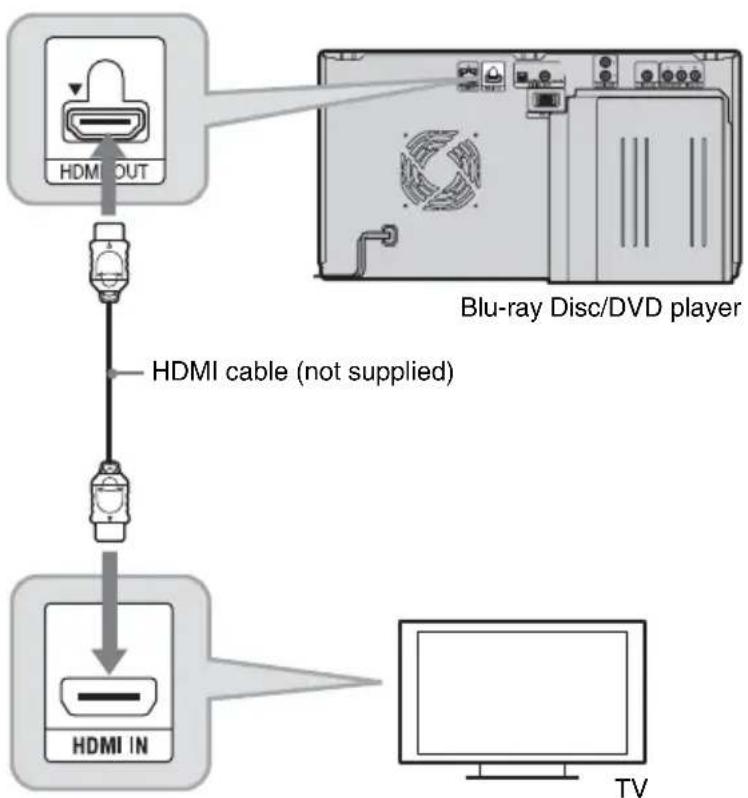
Notes on connecting to the HDMI OUT jack
Observe the following as improper handling may damage the HDMI OUT jack and the connector.
- Carefully align the HDMI OUT jack on the rear of the player and the HDMI connector by checking their shapes. Make sure the connector is not upside down or tilted.
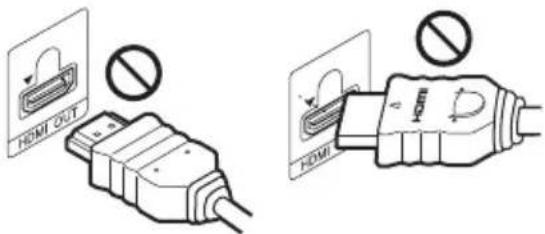
- Be sure to disconnect an HDMI cable when moving the player.
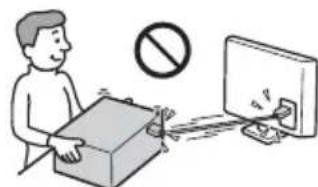
- If you place the player on a cabinet with an HDMI cable connected, do not apply too much pressure to the cabinet wall. It may damage the HDMI OUT jack or the HDMI cable.
- When connecting or disconnecting, do not screw in or rotate the HDMI connector.
#
- Not all high definition television sets are fully compatible with this product and may cause artifacts to be displayed in the picture. In the case of 480i / 480p / 720p / 1080i / 1080p scan picture problems, it is recommended that the user switch the connection to the VIDEO OUT jack. If there are questions regarding our TV set compatibility with this model 480i / 480p / 720p / 1080i / 1080p Blu-ray Disc/DVD player, please contact our customer service center.
- If the picture is not clear, unnatural or not to your satisfaction, change the video output resolution in step 3 of "Output Video Format" under the "Video Settings" setup (page 64).
- Be sure to use only an HDMI cable that bears the HDMI logo.
Connecting to component video jacks (Y / P_B / P_R)
Connect the COMPONENT VIDEO OUT jacks of the player and your TV using a component video cable or three video cables (not supplied) of the same kind and length. You can enjoy high-quality pictures.
Be sure to connect to the AUDIO OUT (L/R) jacks using the audio/video cord.
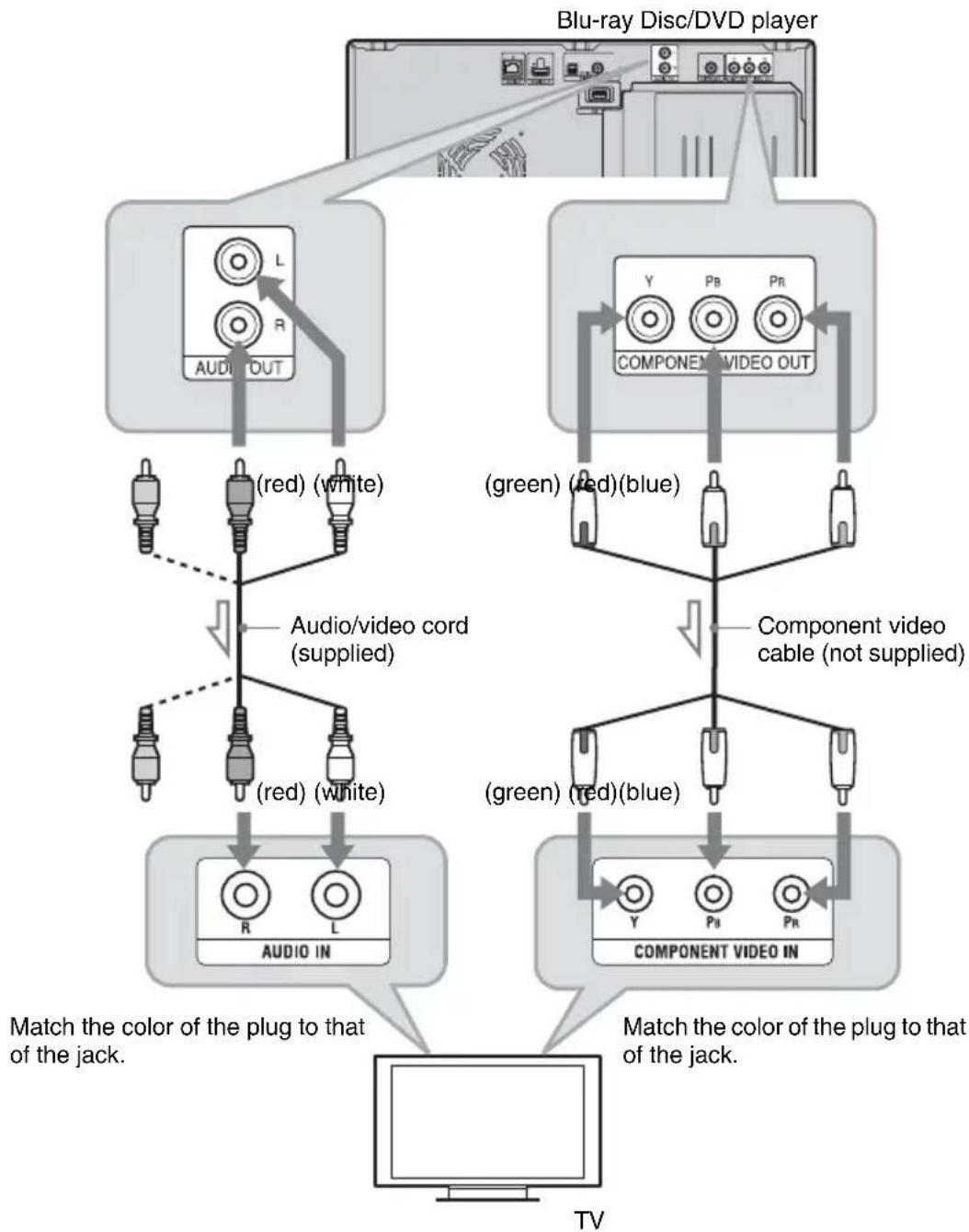
Signal flow

When you connect the player and TV using a component video cable, disconnect the video plug (yellow) of the audio/video cord.
Connecting to an audio/video jack
Connect the VIDEO OUT jack and AUDIO OUT (L/R) jacks of the player and your TV using the audio/video cord. You can enjoy standard quality pictures and sound.
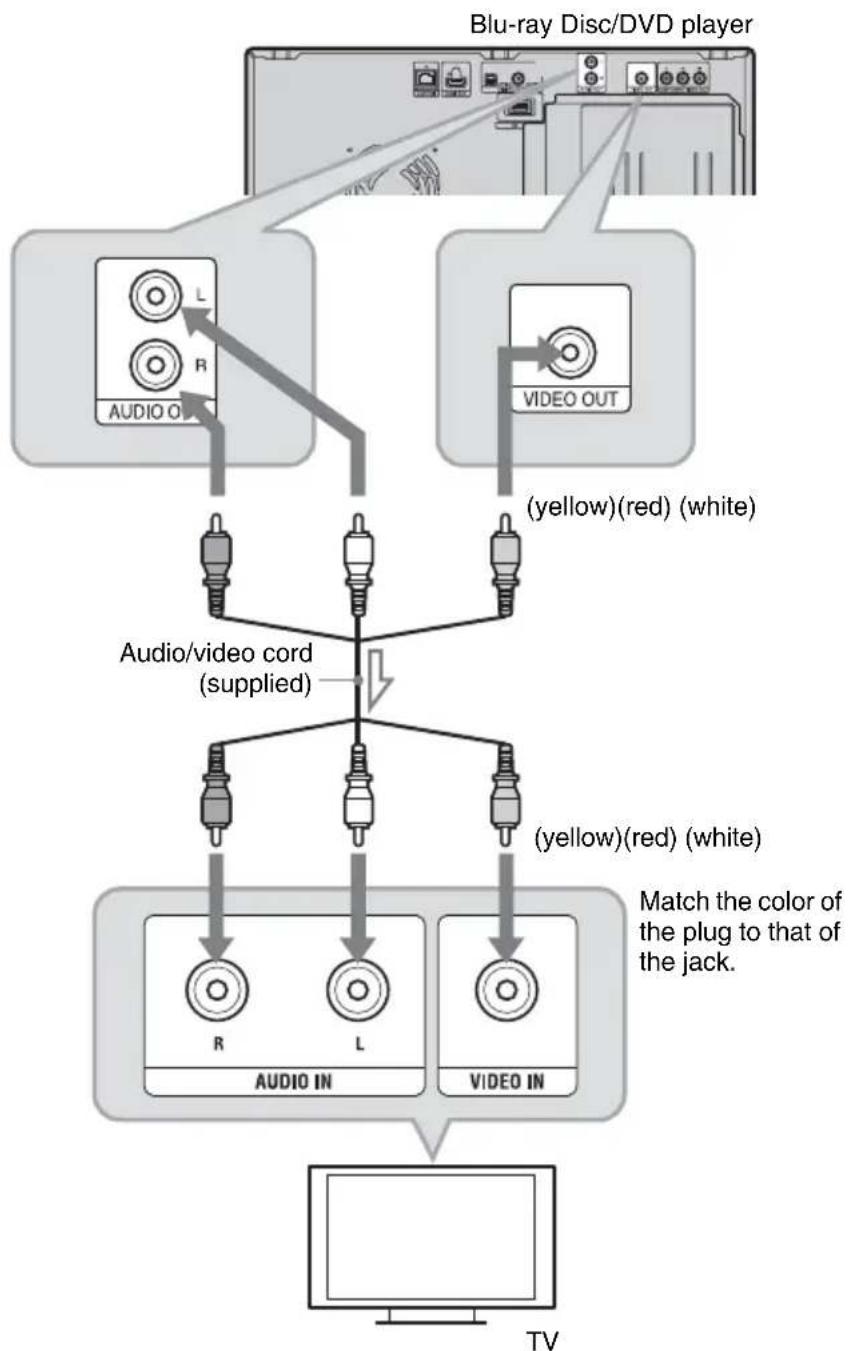

: Signal flow
Step 2: Connecting to Your AV Amplifier (Receiver)
AV amplifier (receiver) and cable requirements differ as follows, depending on the source. To enjoy BD high quality sound, set "BD Audio Setting" to "Direct" in the "Audio Settings" setup (page 66).
To enjoy secondary audio and interactive audio, set "BD Audio Setting" to "Mix" in the "Audio Settings" setup (page 66).
| To enjoy Source AV amplifier (receiver) | Cable (hookup) | ||
| 7.1 channel audio | Dolby TrueHD Dolby TrueHD-compatible AV amplifier (receiver) | HDMI cable* (page 24) | |
| Dolby Digital Plus | Dolby Digital Plus-compatible AV amplifier (receiver) | ||
| DTS-HD (DTS-HD High Resolution and DTS-HD Master Audio) | DTS-HD-compatible AV amplifier (receiver) | ||
| LPCM 7.1 channel LPCM-compatible AV amplifier (receiver) | |||
| 5.1 channel audio | Dolby Digital Dolby Digital-compatible AV amplifier (receiver) | HDMI cable (page 24), Digital optical/coaxial cord (page 25), | |
| DTS DTS-compatible AV amplifier (receiver) | |||
| Stereo audio — Stereo audio- | Stereo audio cord (page 26) | ||
- When "BD Audio Setting" is set to "Direct" in the "Audio Settings" setup, audio signals decoded by the AV amplifier (receiver) are output.

- The supported audio formats of BDs/DVDs are specified on the back of each package.
- For details on audio output signals, see "Audio Output Signals" on page 83.

- When you connect the player to your AV amplifier (receiver) using an HDMI cable, do one of the following:
- Connect your AV amplifier (receiver) to your TV using an HDMI cable, or
- Connect the player to your TV using a video cable other than an HDMI cable (component video cable or audio/video cord).
- If you connect a component that does not conform to the selected audio signal, a loud noise (or no sound) will come from the speakers, which could damage your ears or the speakers.
Connecting to an HDMI jack
If your AV amplifier (receiver) has an HDMI input, you can enjoy surround sound. If you connect a Sony AV amplifier (receiver) that is compatible with the "Control for HDMI" function (page 54), refer to the operating instructions supplied with the AV amplifier (receiver).
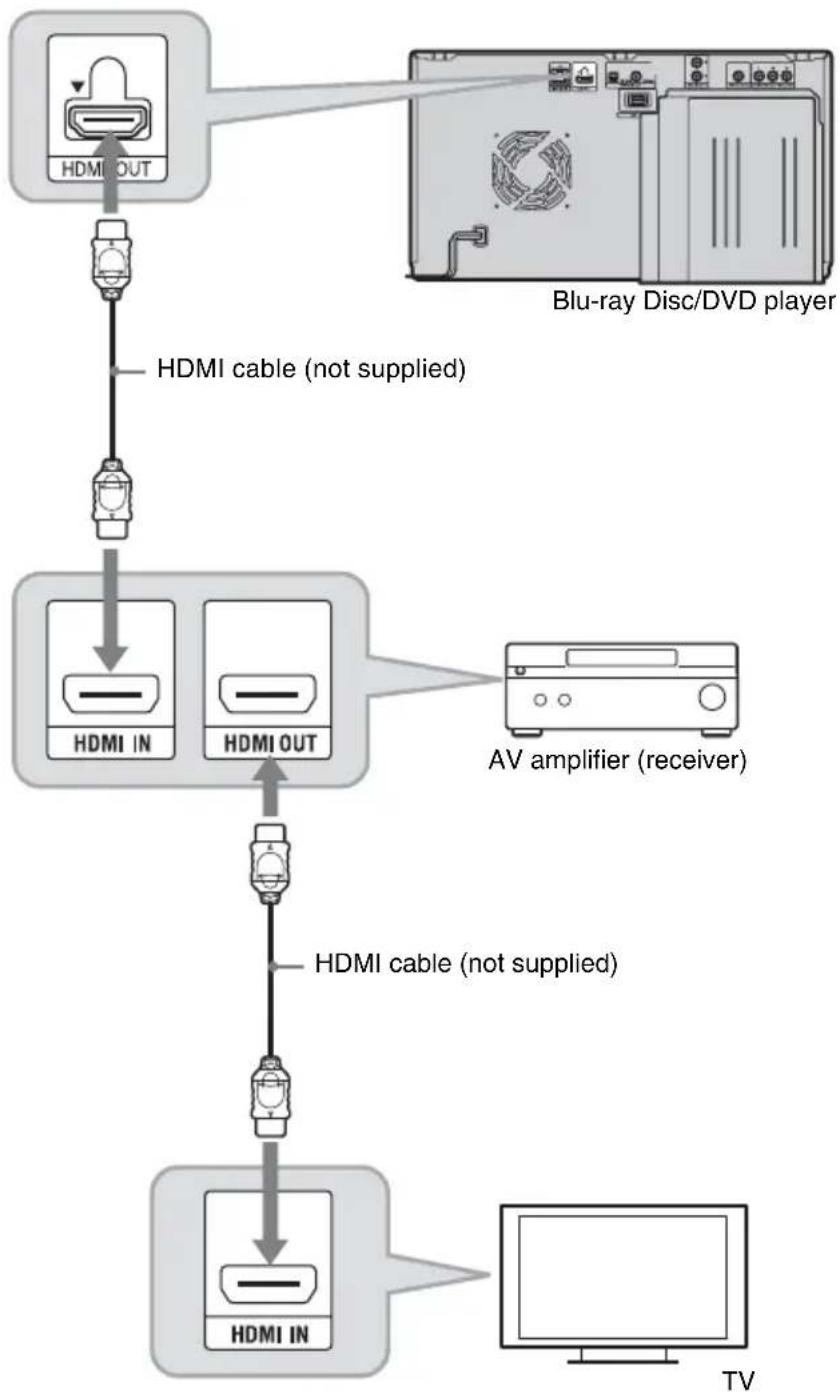

Make the following settings to enjoy higher quality sound from the connected AV amplifier (receiver).
- Set "Audio Output Priority" to "HDMI" in the "Audio Settings" setup (page 66).
- Set "Audio (HDMI)" to "Auto" in the "Audio Settings" setup (page 66).
- Set "BD Audio Setting" to "Direct" in the "Audio Settings" setup (page 66).

Not all HDMI-compatible AV amplifiers (receivers) accept 8ch Linear PCM signals. Refer also to instructions supplied with the connected AV amplifier (receiver).
Connecting to digital jacks (OPTICAL/COAXIAL)
If your AV amplifier (receiver) has a Dolby Digital, Dolby Pro Logic, or DTS decoder and a digital input jack, you can enjoy Dolby Digital (5.1ch), Dolby Pro Logic (4.0ch), or DTS (5.1ch) surround effects.
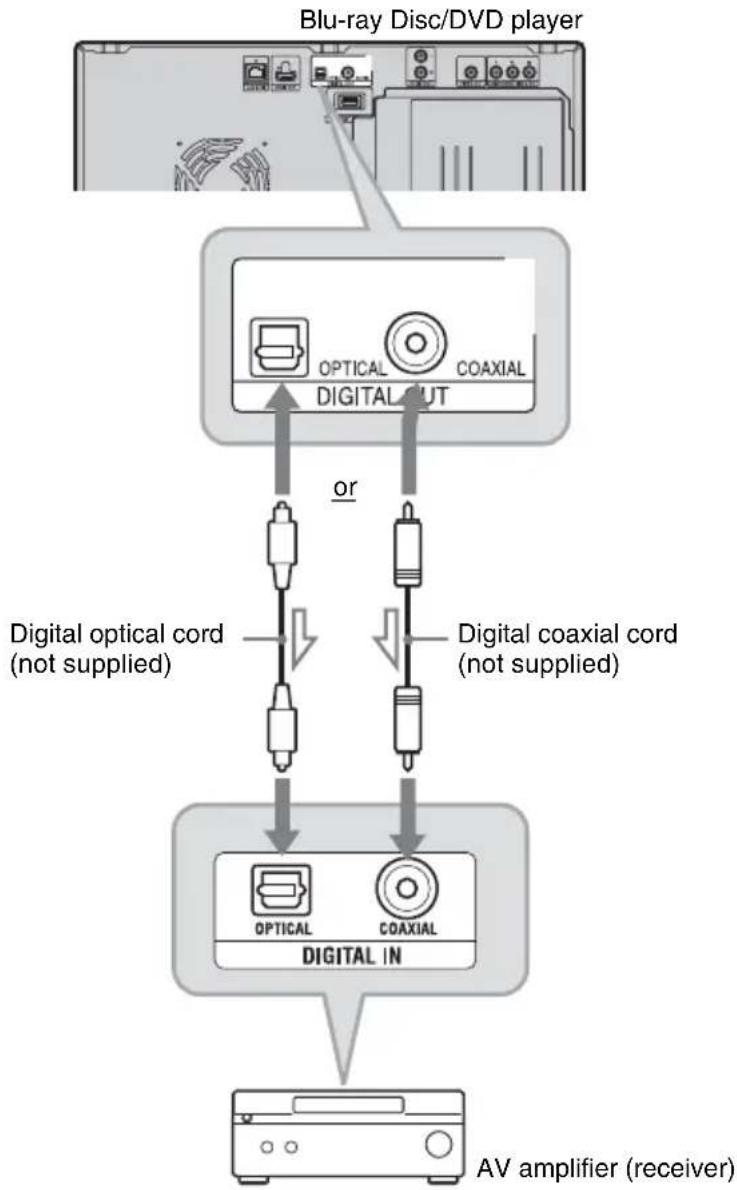

Signal flow
1 Connect the digital jack of the player and your AV amplifier (receiver).
2 Set "Audio Output Priority" to "Coaxial/Optical" in the "Audio Settings" setup (page 66).
3 Make the appropriate settings in "Dolby Digital" and "DTS" under the "Audio Settings" setup (page 67). Otherwise, no sound or a loud noise will come from your speakers.
Connecting to audio L/R jacks
If your AV amplifier (receiver) only has L and R audio input jacks, use this connection.
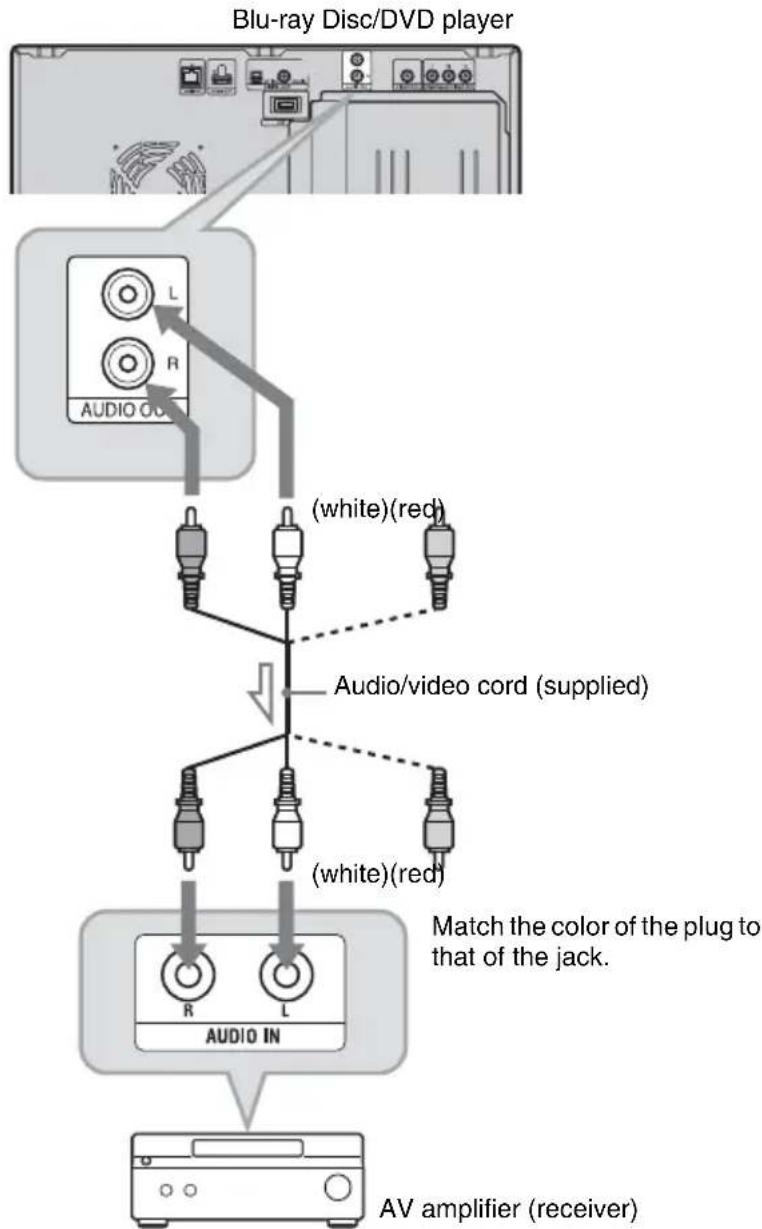
Signal flow
Step 3: Inserting an External Memory
To enjoy additional content (such as BonusView/BD-Live) on certain Blu-ray Disc titles, you will need to use an external memory (not supplied).
Insert the external memory device (1 GB or larger USB flash memory, such as Sony USM2GL or USM2GH) into the EXT slot as your local storage.
Insert the external memory into the EXT slot as far as it will go.
Check that the EXT indicator lights up in the front panel display when turning the player on.
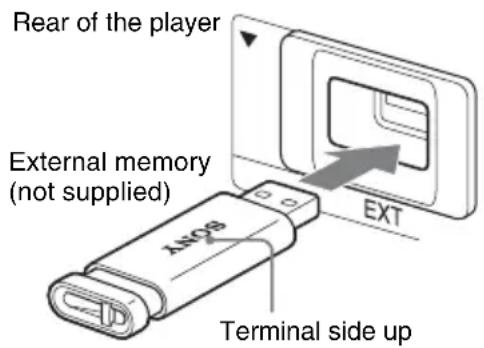
To remove the external memory
1 Press / to turn the player off.
2 Pull the external memory out from the EXT slot.
#
- Do not connect anything other than a USB flash memory, such as an HDD, etc., to the EXT slot.
- Insert the external memory straight. If you force the external memory into the slot, this will cause damage to both the external memory and the player.
- Keep the external memory away from small children to prevent them from accidentally swallowing it.
- Do not apply too much pressure to the external memory in the slot, as it may cause a malfunction.
- The Sony USM2GL (available as of September 2009) is recommended.
- Other USB flash devices may support this function. However we cannot guarantee compatibility with all USB flash memory devices.
- When inserting a USB flash memory, check the insertion direction before inserting it.
- Some USB flash memory devices may stick out from the EXT slot. Do not force into the slot or apply pressure to the protruding portion of the USB flash memory.
- To avoid data corruption or damage to the external memory, turn the player off when inserting or removing the external memory.
- If the EXT indicator does not light up, turn the player off, remove and re-insert the external memory, then turn the player on again.
- The external memory is used as the local storage for Bonus View/BD-Live. Insert a blank external memory, or one containing nothing other than photo or music files, to avoid corrupting the contained data.
Step 4: Connecting to the Network
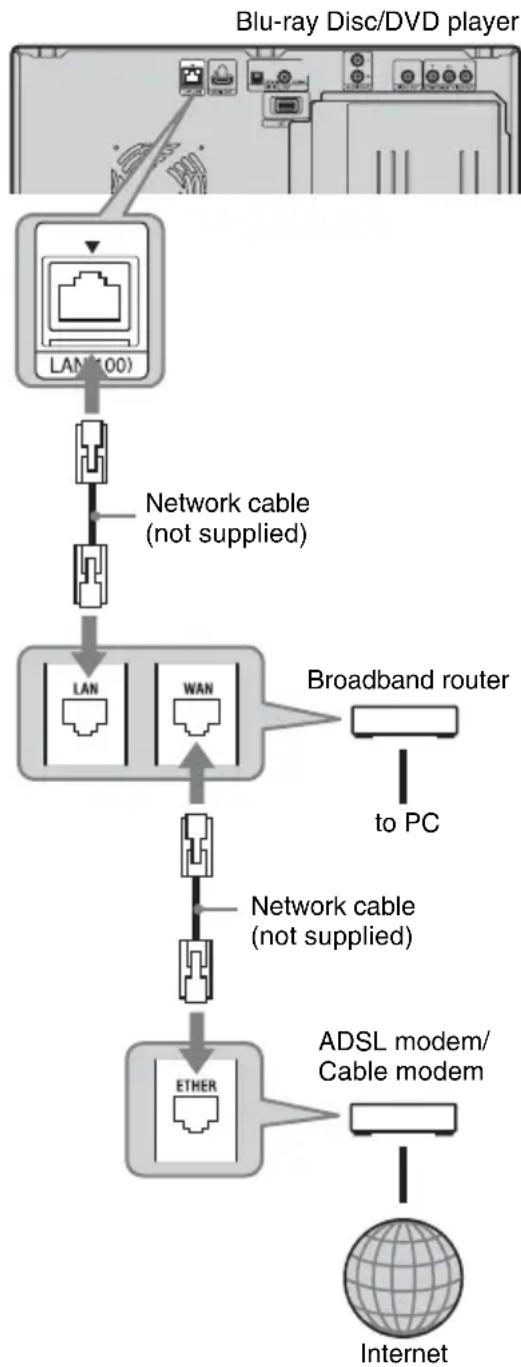
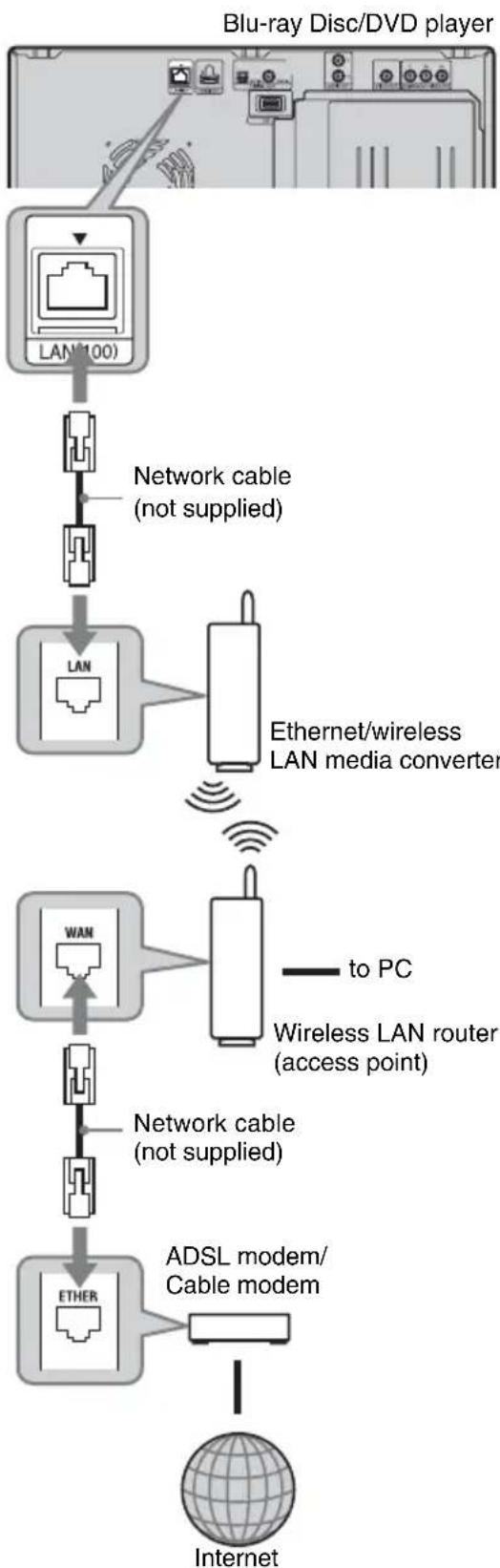
Connect the LAN (100) terminal of the player to your Internet source using a network cable to receive disc information or update the player's software. You can also enjoy the BD-Live function (page 38).
1 Connect the LAN (100) terminal of the player to your Internet source.
Methods to connect to your Internet source include:
- Connecting to a broadband router directly
- Connecting via a wireless LAN router Refer also to the instructions supplied with the broadband router or the wireless LAN router.
2 Make the appropriate settings in "Internet Settings" under the "Network Settings" setup (page 73).
To update the player's software using the network
See "Network Update" (page 62) and "Software Update Notification" (page 72).
To enjoy the BD-Live function
See "Enjoying BonusView/BD-Live" (page 38).
#
- Do not connect a phone line to the LAN (100) terminal, as it may cause a malfunction.
- For optimal performance of BD-Live functions, we recommend using an Internet connection with an effective speed of 1 Mbps or greater.
- To allow Internet connections from BD contents, select "Allow" in "BD Internet Connection" during Easy Setup (page 30). To change the setting, see page 70.
When connecting to a broadband router directly
About network (LAN) cables
Depending on the modem or router, the type of network (LAN) cable, straight or crossing, differs. For details on network (LAN) cables, refer to the operating instructions supplied with the modem or router.
When connecting via a wireless LAN router
Step 5: Connecting the AC Power Cord
After all other connections are complete, plug the player and TV power cords into an AC outlet.

Do not connect the LAN terminal of the player to the LAN terminal of the PC.
Step 6: Preparing the Remote
You can control the player using the supplied remote.
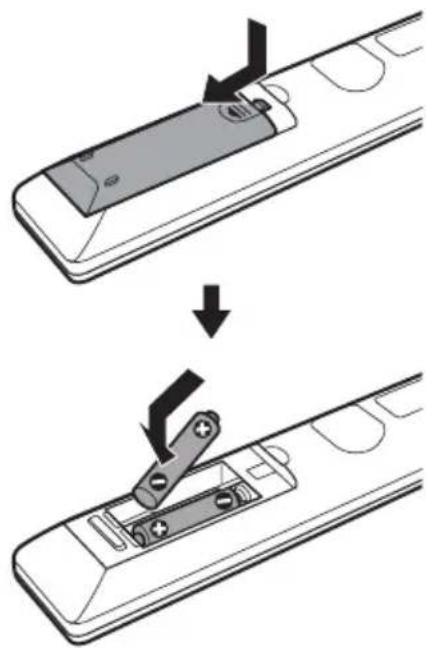
Inserting batteries into the remote
Insert two Size AA (R6) batteries by matching the and ends on the batteries to the markings inside the battery compartment. When using the remote, point it at the remote sensor in the player (page 9).
6
- Use the batteries correctly to avoid possible leakage and corrosion. Should leakage occur, do not touch the liquid with bare hands. Observe the following:
- Do not use a new battery with an old battery, or batteries of different manufacturers.
- Do not attempt to recharge the batteries.
- If you do not intend to use the remote for an extended period of time, remove the batteries.
- If battery leakage occurs, wipe out any liquid inside the battery compartment, and insert new batteries.
- Do not expose the remote sensor (marked the front panel) to strong light, such as direct sunlight or a lighting apparatus. The player may not respond to the remote.
Step 7: Easy Setup
Follow the steps below to make the minimum number of basic adjustments to use the player. If you do not complete Easy Setup, it will appear each time you turn on your player.
Make the settings below in the following order.
When turned on for the first time
Wait for a short while before the player turns on and starts Easy Setup.
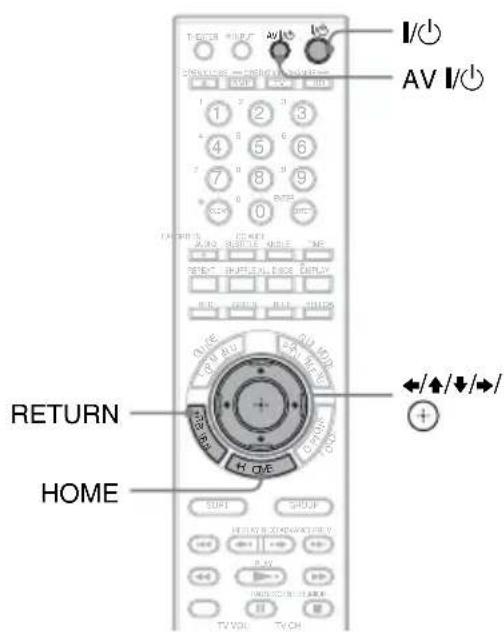
1 Press AV I/O to turn on the TV.
2 Press I/O to turn on the player.
The player turns on after a moment.
3 Switch the input selector on your TV so that the signal from the player appears on your TV screen.
The display for OSD language selection appears.
- If the display for OSD language selection does not appear, press HOME, and select "Easy Setup" in "Setup" (page 74). Then, select "Start," and press
4 Select a language for the on-screen displays using / , and press
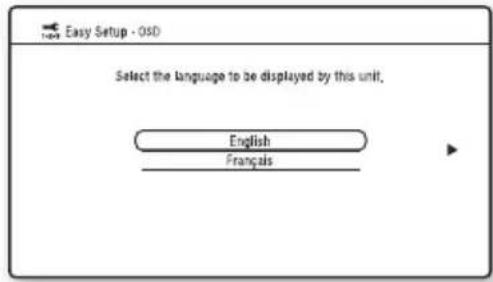
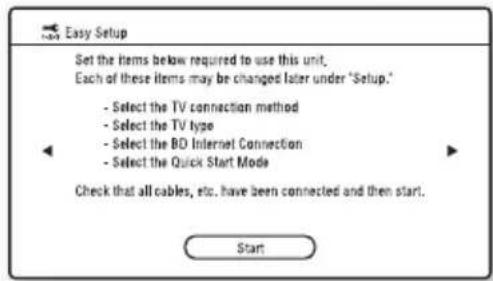
The initial settings message appears.
5 Select "Start," and press .+
6 Select the cable type used to connect the player to your TV, and press
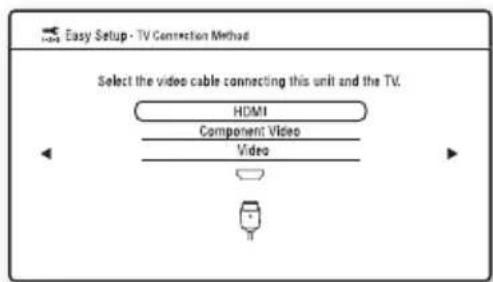
Select "HDMI" when connecting your TV using an HDMI cable, and go to step 7.
#
When connecting the HDMI OUT jack and other video output jacks at the same time, select "Component Video."
Select "Component Video" when connecting your TV using a component video cable, and go to step 7. Select "Video" when connecting your TV using a video cord, and go to step 8.
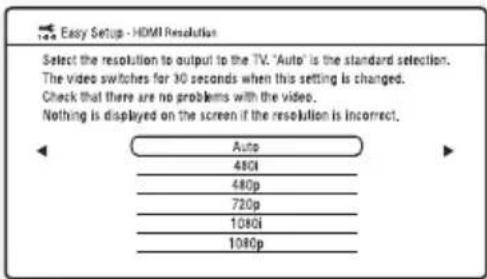
7 Select a video output resolution for the connected TV, and press
For details about the video output resolution, see page 65.
When you select "HDMI" in step 6
#
When "Auto" or "1080p" is selected and the HDMI OUT jack and other video output jacks are connected at the same time, video signals may output from the HDMI jack only.
When connecting other equipment at the same time, press RETURN to return to step 6 and change the "TV Connection Method" setting.
When you select "Component Video" in step 6
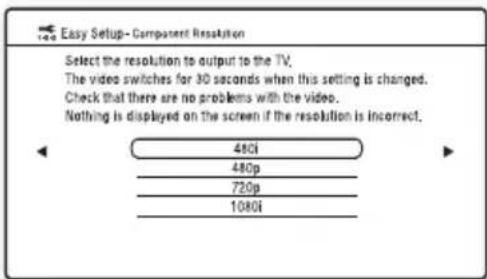
Follow the on-screen instructions and go to the next step.
#
If the picture is distorted or no picture appears, wait for about 30 seconds without pressing any buttons. The display returns to the resolution setting screen.
If the selected video output resolution is incorrect, no picture will appear on the screen when you press any button within those 30 seconds. In this case, press on the player for more than 10 seconds to reset the video output to the lowest resolution. To change the video output resolution, set "Output Video Format" in the "Video Settings" setup (page 64).
8 Select the aspect ratio that matches your TV, and press
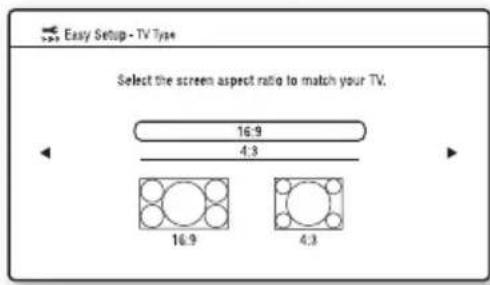
Select "16:9" when connecting to a wide-screen TV or a TV with a wide mode function.
Select "4:3" when connecting to a 4:3 screen TV without a wide mode function.
9 (Only when connecting your TV using an HDMI cable) Set the "Control for HDMI" function to "On" or "Off," and press
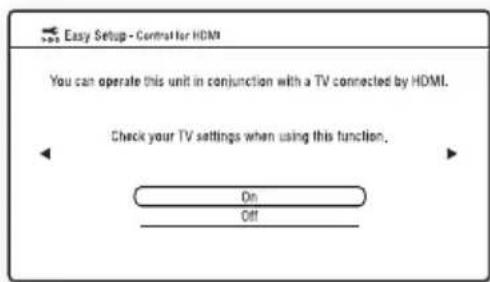
Select "On" to use the "Control for HDMI" function when connecting Sony components that are compatible with the "Control for HDMI" function (page 54). If you do not use the "Control for HDMI" function, select "Off."
10 Select "Allow" to allow Internet connection from BD contents, and press
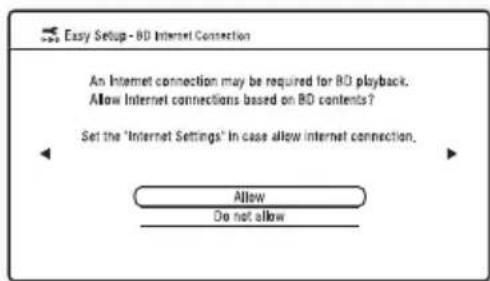
Select "Do not allow" to not allow Internet connection from BD contents.
11 Set "Quick Start Mode" to "On" or "Off," and press
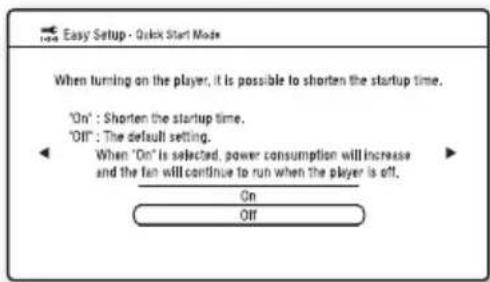
For details about "Quick Start Mode," see page 71.
12 Select "Finish," and press
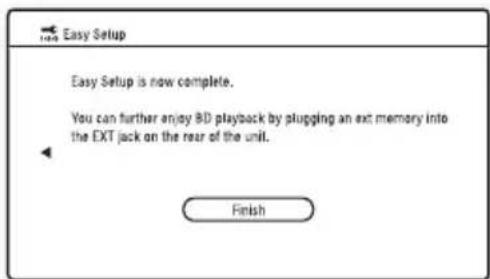
#
-
You can reset settings to their factory defaults (page 74).
-
You can run "Easy Setup" again from "Easy Setup" in "Setup" (page 74).
Step 8: Inserting Discs
You can insert up to 400 discs into this player.
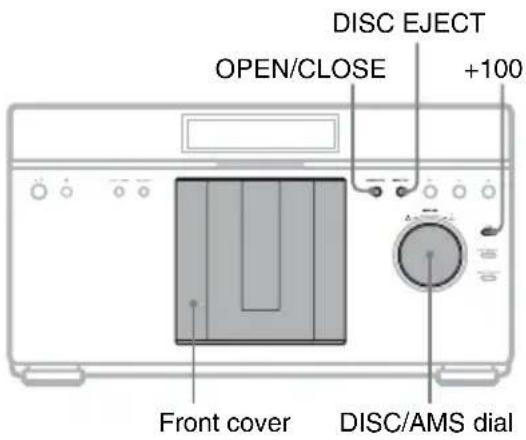
1 Press OPEN/CLOSE.
The front cover opens.
2 Turn the DISC/AMS dial until you find the disc slot where you want to insert a disc.
You can check the disc slot number indicated on the front panel display or by the slot.
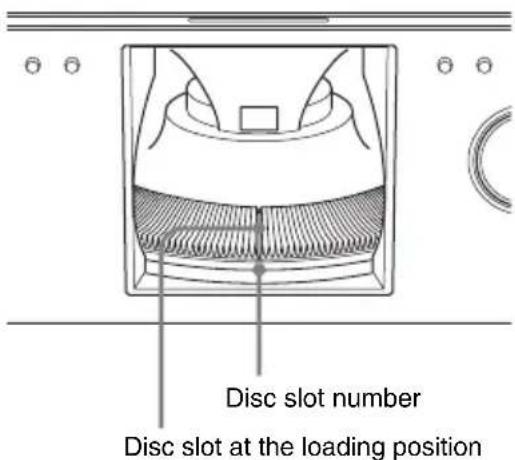
3 Insert a disc with the label side facing right.
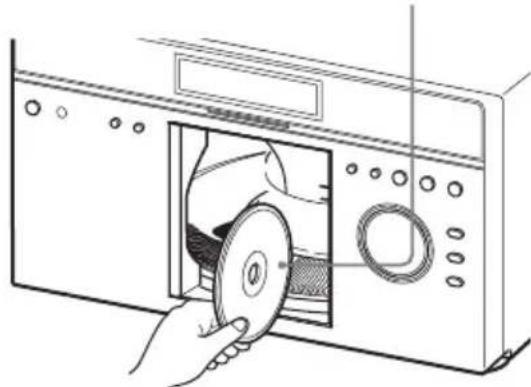
Label facing right (playback side on double-sided disc facing left)
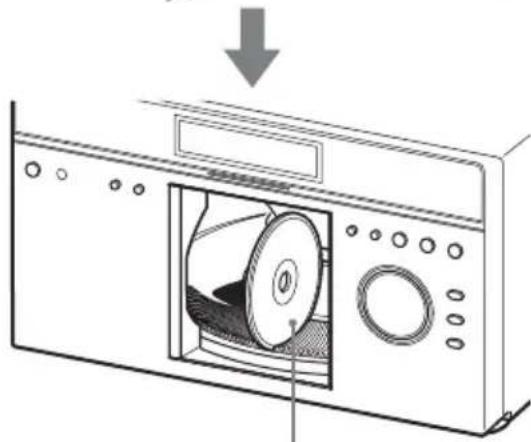
Insert the disc all the way into the slot until it is completely seated.
4 Repeat the above steps to insert more discs.
5 Press OPEN/CLOSE.
The front cover closes. The turntable turns and the disc slot last selected is set to the playing position.

To skip 100 disc slots ahead, press +100 on the player.
After the front cover is closed, the disc inserted in the slot at the loading position will be automatically loaded and set to the playing position.

- Make sure you have inserted the disc into each slot at a right angle to the turntable. If the disc is not inserted properly, it may damage the player or the disc.
- If you drop a disc into the player and/or the disc does not go into the slot correctly, consult your nearest Sony dealer.
-
Make sure the turntable comes to a complete stop before inserting or removing discs.
-
The front cover closes automatically when you press PLAY. Be careful not to put your hand into the player after pressing PLAY, otherwise your hand may be caught in the front cover.
To remove discs
1 While checking the disc slot number indicated on the front panel display or by the slot, turn the DISC/AMS dial until you find the disc you want to remove.
2 Press DISC EJECT. The selected disc is set to the loading position and the front cover opens. The disc in the selected slot moves up.
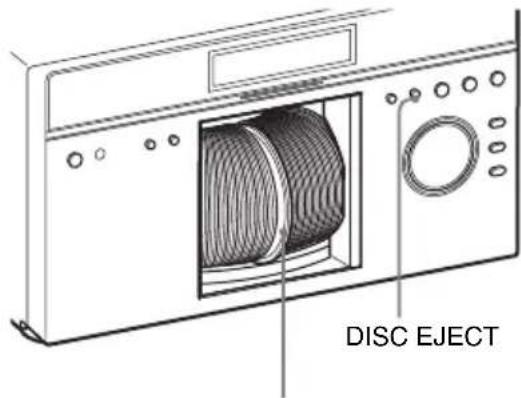
Ejected disc
3 Remove the disc. Repeat the above steps to remove other discs.
4 Press OPEN/CLOSE. The front cover closes.
You can remove the current disc by directly pressing DISC EJECT on the player.
- Do not turn the turntable by hand.
- Do not reach inside of the turntable compartment. Always follow the correct steps for inserting and removing discs.
- When transporting the player, remove all discs from the player. Failure to remove the discs may cause damage to the player.
- When closing the front cover, be careful not to let anything get caught between the door and the player.
Inserting a rental disc
By pressing RENTAL SLOT, slot number 1 is set to the loading position for easy playback/removal of a rental disc.
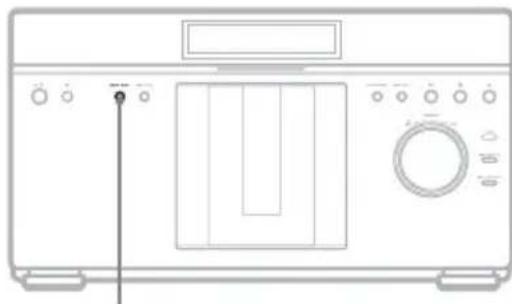
RENTAL SLOT
1 Press Rental SLOT.
Slot number 1 is set to the loading position and the front cover opens.
2 Insert a disc.
3 Press Rental SLOT.
The front cover closes and slot number 1 is set to the playing position.
To remove the disc
1 Press Rental Slot.
Slot number 1 is set to the loading position and the front cover opens.
2 Remove the disc.
When the front cover opens, pressing RENTAL SLOT sets slot number 1 to the loading position.
Step 9: Loading Disc Information
The player reads the disc information of all the unknown discs and loads it all into memory so that disc type, titles, and other text information can be displayed on the list.
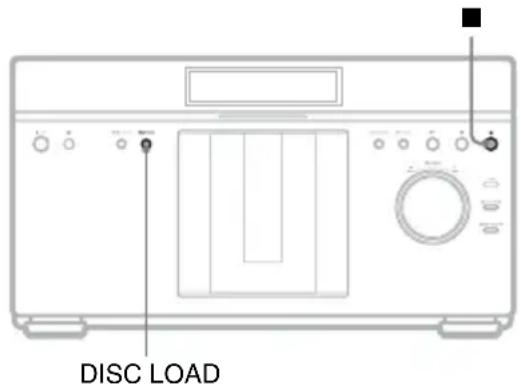
Press DISC LOAD when the player's home menu is displayed on the TV screen.
Loading starts.
The player accesses the Gracenote Database for disc information.
When loading finishes, the title list appears.
To cancel loading
Press (stop).
The loaded data is saved.

- Discs whose information is not in the Gracenote Database will be indicated as "No Name" in the title list.
- The player cannot load disc information during playback. You need to stop playback and display the home menu before pressing DISC LOAD. When viewing a photo or video, press (stop). When playing music, press RETURN.
- Loading disc information for approx. 300 or 400 discs at one time may take a long time to complete. Loading time also depends on your network speed.
- Discs that failed to register at the time of loading are indicated as "Unknown Discs" in the title list. You can register them manually (page 50).
Playback
Playing BDs/DVDs
BD DVD
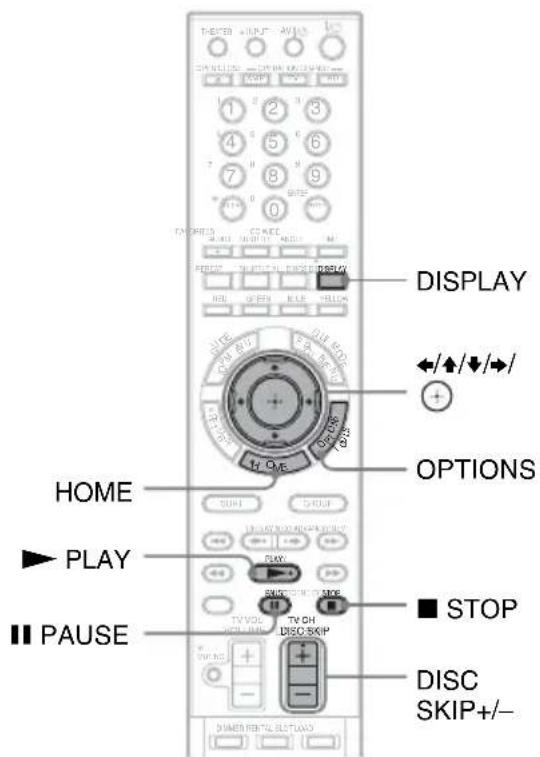
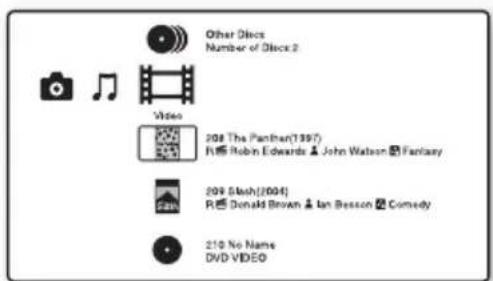
1 Switch the input selector on your TV so that the signal from the player appears on your TV screen.
2 Press HOME.
3 Select (Video) using
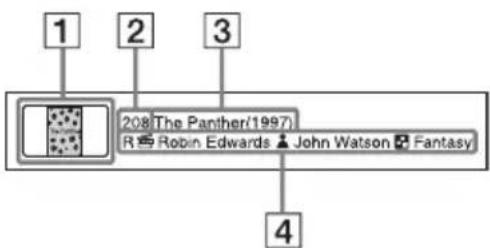
Guide to Disc Information
1Disc jacket
Slot number
3Title (Release year)
4Rating/ Director name/ Cast name/Genre
4 Select a disc using / , and press PLAY.
To select a title
When you play BDs or DVDs recorded on other equipment, you can select a title.
1 Follow steps 1 to 3 of "Playing BDs/ DVDs" (page 36).
2 Select a disc using / , and press . The titles appear.
3 Select a title using / , and press PLAY.
Available OPTIONS
The options menu appears when you press OPTIONS. The available items differ depending on the situation.
1 Press OPTIONS.
The options menu appears.
2 Select an item using / , and press .
Available OPTIONS on the list screen
| Items Details | |
| Load All Discs Loads all disc information. | |
| Sort By Changes the title order. • Title Name • Slot Number • Release Year | |
| Group Content | Displays titles by categories. • All Titles • By Genre • By C a s t • By Director |
| Play Resumes playback from the stop point. Resume Play is canceled when: - The disc is changed. | |
| Start | Starts version up (page 63). |
| Edit | Edits the disc information (page 51). |
| Load | Loads disc information (page 49). |
| Eject | Ejects the disc. |
Available OPTIONS during playback
| Items Details | |
| A/V Settings | Adjusts settings for picture and sound. • Video Settings (page 40) • Audio Settings (page 42) |
| Play from beginning | Plays the title from the beginning. |
| Top Menu | Displays the disc's Top Menu (page 38). |
| Menu/Popup Menu | Displays the BD-ROM's Pop-up Menu or DVD's menu (page 38). |
| Stop | Stops playback. |
| Title Search | Searches for a title and starts playback from the beginning (page 40). |
| Chapter Search | Searches for a chapter and starts playback from the beginning (page 40). |
| Eject | Ejects the disc. |
Various video playback operations
| Buttons | Operations |
| ▶ PLAY | Starts playback from the point where you pressed STOP. |
| ■STOP | Stops playback. |
| IIPAUSE | Pauses playback. |
| DISC SKIP+/- | Changes the disc. |
| DISPLAY | Displays the disc information. |
Using the BD's or DVD's menu
BD
DVD
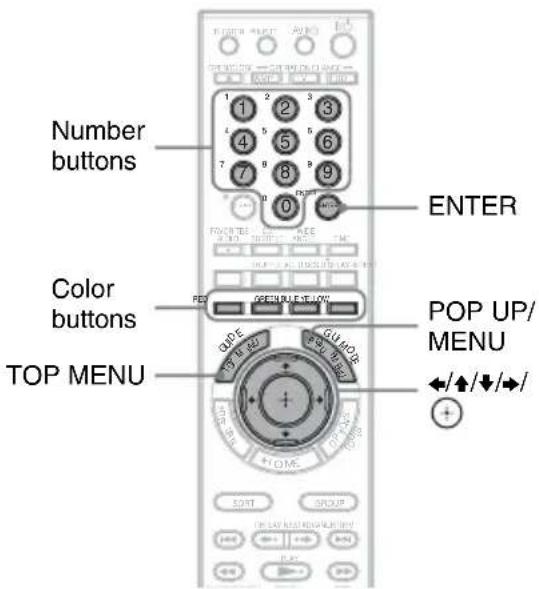
To display Top Menu
When you play a BD or DVD, you can display the Top Menu.
1 Press TOP MENU during playback. The Top Menu appears.
2 Select an item using / /
To display Pop-up Menus
Some BD-ROMs contain Pop-up Menus that appear without interrupting playback.
1 Press POP UP/MENU during playback. The Pop-up Menu appears.
2 Select an item using / / , the color buttons or the number buttons, and follow the on-screen instructions.
Enjoying BonusView/BD-Live
BD
Some BD-ROMs have bonus contents and other data that can be downloaded to the external memory (local storage) for enjoyment.
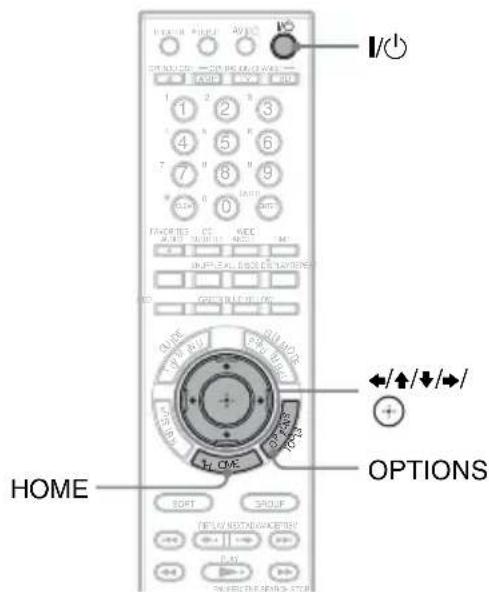
1 Turn the player off.
2 Insert the external memory (not supplied) into the EXT slot on the rear of the player.
The external memory is used as the local storage.
Make sure that the external memory is properly inserted into the player (page 27).
3 Connect the player to a network (page 28).
4 Turn the player on.
5 Set "BD Internet Connection" to "Allow" in the "BD/DVD Viewing Settings" setup (page 70).
6 Insert a BD-ROM with BonusView/BDLive.
The operation method differs depending on the disc. Refer to the instruction manual supplied with the disc.
To delete data in the external memory
You can delete unnecessary data.
1 Press HOME.
2 Select (Video) using
3 Select "BD Data" using / , and press.
4 Select the disc name, and press OPTIONS.
5 Select "Erase," and press.
6 Select "OK," and press. The data of the selected disc will be deleted.
#
To delete all data in the external memory at once, select "Erase All" in step 5.
- Press instead of OPTIONS in step 4 to skip step 5.
#
Depending on the BD-ROM, the disc name may not be displayed.
Searching for a scene quickly (Scene Search)
DVDE
You can move quickly between scenes within the title currently being played back.
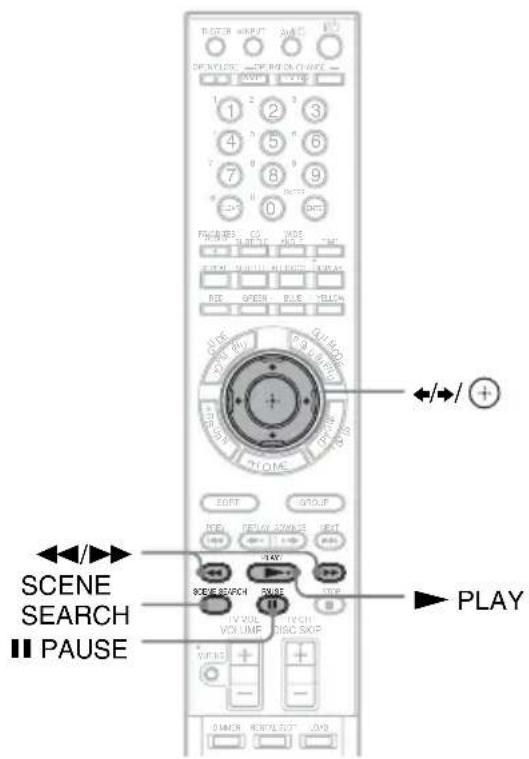
1 Press SCENE SEARCH during playback or in pause mode.
Playback pauses and a bar with a scene indicator (square-shaped - indicates the current point) appears at the bottom of the screen.
2 Move the scene indicator to the scene you are searching for using or /
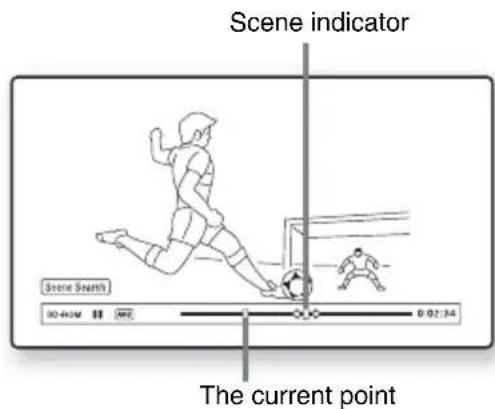
The scene indicator on the bar is displayed around the playing point.
3 Release the button at the point you want to watch.
The scene at which you released the button is displayed in pause mode. To search for a scene again, move the scene indicator using or / .
4 Press SCENE SEARCH, ,▶ PLAY, or IIPAUSE.
Playback starts.
To cancel Scene Search mode
Press SCENE SEARCH, PLAY, or PAUSE.
Playback starts from the point you pressed the button.
#
- The Scene Search function is available for titles longer than 100 seconds and shorter than 100 hours.
The Scene Search function may not be available, depending on the disc.
Searching for a Title/Chapter
BD
DVD
You can search for a chapter if the title contains chapter marks.
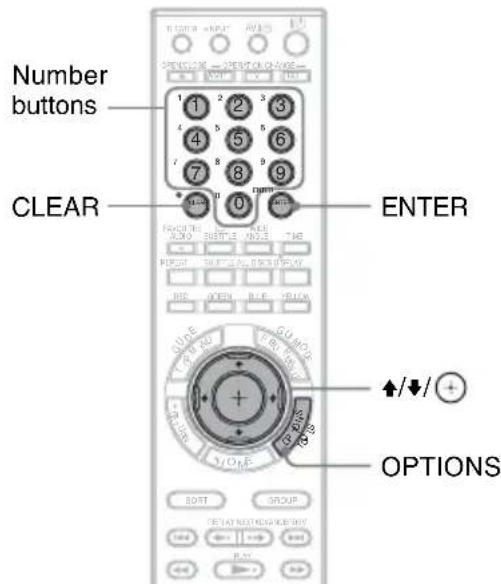
1 Press OPTIONS during playback or in pause mode.
The options menu appears.
2 Select a search method using / , and press
"Title Search" (for BD-ROMs/DVD VIDEOs)
"Chapter Search"
The display for entering the number appears.
Example: Chapter Search
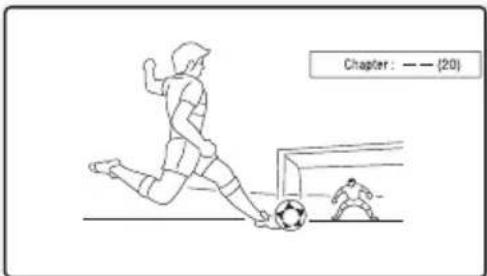
3 Enter the number of the title or chapter using the number buttons.
If you make a mistake, press CLEAR, and re-enter another number.
4 Press ENTER.
After a while, the player starts playback from the selected number.
Adjusting picture and sound for videos
BD
DVD
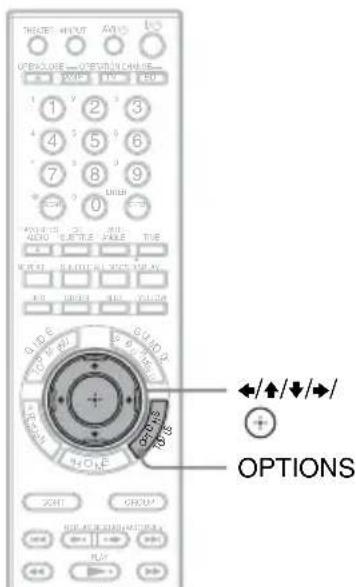
To adjust the picture
1 Press OPTIONS during playback. The options menu appears.
2 Select "A/V Settings" using / , and press .
3 Select "Video Settings" using / , and press The "Video Settings" screen appears.
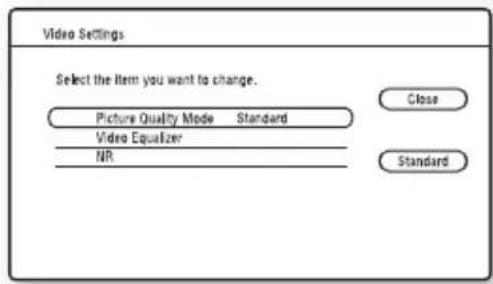
4 Select an item using / , and press . The default settings are underlined.
| Items Details | |
| Picture Quality Mode (Standard/ Brighter Room/ Theater Room/ Memory) | Selects the picture settings for different lighting environments. |
| Video Equalizer | This setting is selectable when “Picture Quality Mode” is set to “Memory” (see ““Video Equalizer” elements” on page 41). |
| NR (Noise Reduction) | Reduces the noise in the picture (see ““NR” elements” on page 41). |
5 Select or adjust the settings using / / / and press To adjust any other items, repeat steps 4 and 5.
#
- Set the picture setting of your TV to "Standard" before changing the "Picture Quality Mode" settings.
- "Video Settings" is not available when the connected TV is set to Theater Mode (page 54).
Depending on the disc or the scene being played, "FNR," "BNR" or "MNR" effects may be hard to discern.
"Video Equalizer" elements
1 Select "Video Equalizer" in step 4 above, and press
2 Select an item, and press.
| Items Details | |
| Contrast ((weak) -3 ~ 0 ~ 3 (strong)) | Changes the contrast. |
| Brightness ((dark) -3 ~ 0 ~ 3 (bright)) | Changes the overall brightness. |
| Chroma ((light) -3 ~ 0 ~ 3 (deep)) | Deepens deep colors, or lightens light colors. |
| Hue ((red) -3 ~ 0 ~ 3 (green)) | Changes overall color balance. |
| Sharpness ((soft) 0 ~ 3 (sharp)) | Changes the overall sharpness. |
| Gamma Adjusts the picture balance between light and dark areas. | |
"NR" elements
1 Select "NR" in step 4 above, and press
2 Select an item, and press.
| Items Details | |
| FNR (Off/Auto) | Reduces random noise appearing in the picture. |
| BNR (Off/Auto) | Reduces mosaic-like block noise in the picture. |
| MNR (Off/Auto) | Reduces minor noise around the picture outlines (mosquito noise). |
To adjust the audio characteristics
1 Press OPTIONS during playback. The options menu appears.
2 Select "A/V Settings" using / , and press .
3 Select "Audio Settings" using / , and press The "Audio Settings" screen appears.
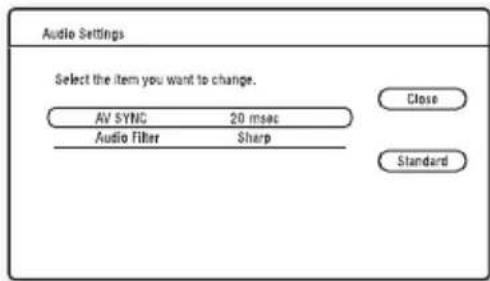
4 Select an item using / , and press . The default settings are underlined.
| Items Details | |
| AV SYNC (short) 0 ~ 20 ~ 120 msec (long) | Adjusts the gap between picture and sound, by delaying the sound output in relation to the picture output (0 to 120 milliseconds). |
| Audio Filter (for analog audio signals only) | • S ha:pPresents a wide frequency range and spatial feeling. Normally select this. • Slow: Provides smooth and warm sound. |
5 Select or adjust the settings using / / and press To adjust any other items, repeat steps 4 and 5.
#
- The "Audio Filter" function does not work for digital audio signals output from the HDMI OUT/DIGITAL OUT (OPTICAL/COAXIAL) jacks.
- There may be little effect by changing the "Audio Filter" setting depending on the disc or playback environment.
Playing Music CDs
1 2 DATA DVD CD DATA CD
1 BD-ROMs and BD-REs/BD-Rs containing MP3 audio tracks
^2 DVD-ROMs and DVD+RWs/DVD+Rs/DVD-RWs/DVD-Rs containing MP3 audio tracks
*3 CD-ROMs and CD-RWs/CD-Rs containing MP3 audio tracks
1 Press HOME.
2 Select (Music) using / .
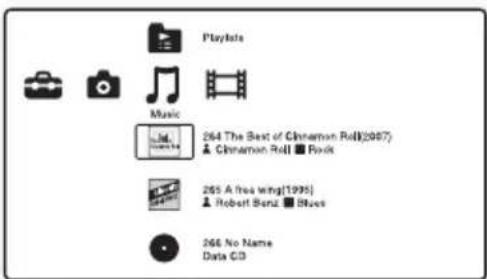
Guide to Disc Information
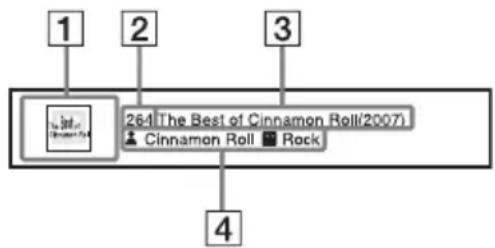
1Disc jacket
2Slot number
3Album name (Release year)
4 Artist name/ Genre
3 Select a disc using / , and press PLAY.
The Music Player screen appears, then playback starts.
To select a track
1 Follow steps 1 to 2 of "Playing Music CDs" (page 42).
2 Select a disc, and press. The music list appears.
3 Select a track using / . To play the selected track, press
▶PLAY.
Available OPTIONS
The options menu appears when you press OPTIONS. The available items differ depending on the situation.
1 Press OPTIONS. The options menu appears.
2 Select an item using / , and press .
Available OPTIONS on the music list screen
| Items Details | |
| Group Content | Displays titles by categories. • A l l A l b u m s • By Genre • B y A r t i s t |
| Sort By Changes the title order. • A l b u m N a m e • Slot Number • Release Year | |
| Items Details | |
| Play All Discs Displays options for Play All Discs. ·On ·Off | |
| Repeat Displays options for Repeat Play (page 44). | |
| Disc Shuffle Displays options for Shuffle Play (page 45). | |
| Load All Discs Loads all disc information (page 49). | |
| Play Starts playback. | |
| Start | Starts version up (page 63). |
| Edit | Edits the disc information (page 51). |
| Load | Loads disc information (page 49). |
| Eject | Ejects the disc. |
| Add to Playlist | Creates and edits the Playlist (page 45). |
| Clear Playlist | |
| Delete from Playlist | |
| Move to top | |
| Move up | |
| Move down | |
| Move to bottom | |
Available OPTIONS during playback
| Items Details | |
| Play All Discs Displays options of Play All Discs. · On · Off | |
| Disc Shuffle Displays options for Shuffle Play (page 45). | |
| Repeat Displays options for Repeat Play (page 44). | |
| Play Plays the selected track. | |
| Stop | Stops playing the track. |
| Eject | Ejects the disc. |
Various music playback operations
| Buttons Operations | |
| ▶PLAY Starts playback. | |
| ■STOP Stops playback. | |
| IIPAUSE Pauses playback. | |
| I►PREV/NEXT► | Skipping to the beginning of the current or next track. To go to the previous track, press PREV twice. |
| Fast reverse/fast forwards when pressed during playback. | |
| TIME Switches time information on the screen and the front panel display. | |
| DISC SKIP+/- Changes the disc. | |
#
When you press STOP, music CD returns to the top of the disc. DATA disc returns to the file of the top of the folder. Playlist returns to the top of creating file.
Playing Music repeatedly
BD*1 DATA DVD*2 CD DATA CD*3
1 BD-ROMs and BD-REs/BD-Rs containing MP3 audio tracks
^2 DVD-ROMs and DVD+RWs/DVD+Rs/DVD-RWs/DVD-Rs containing MP3 audio tracks
*3 CD-ROMs and CD-RWs/CD-Rs containing MP3 audio tracks
You can play all albums/tracks on a disc, or a single album or track repeatedly.
By selecting All Discs mode (page 43), you can repeat all of the discs in the player.
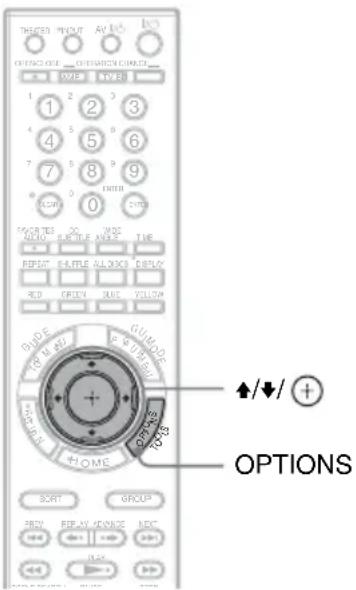
1 Press OPTIONS.
2 Select "Repeat" using / , and press.
3 Select an item using / , and press.
| Items Details |
| All Tracks Plays all tracks on a disc repeatedly. |
| One Track Plays a track repeatedly. |
| Off Disabilities Repeat Play. |
Playing Discs in random order (Shuffle Play)
1 2 DATA DVD CD DATA CD
1 BD-ROMs and BD-REs/BD-Rs containing MP3 audio tracks
^2 DVD-ROMs and DVD+RWs/DVD+Rs/DVD-RWs/DVD-Rs containing MP3 audio tracks
*3 CD-ROMs and CD-RWs/CD-Rs containing MP3 audio tracks
You can have the player "shuffle" discs.
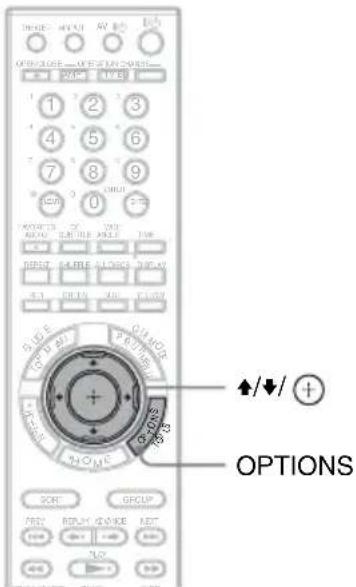
1 Press OPTIONS.
2 Select "Disc Shuffle" using / , and press .
3 Select an item using / , and press .
| Items Details |
| On Plays discs in random order. |
| Off Enables Shuffle Play. |
#
By selecting All Discs mode (page 43), you can shuffle all of the discs in the player.
Creating Playlists
BD *1*2 DATA DVD CD DATA CD
1 BD-ROMs and BD-REs/BD-Rs containing MP3 audio tracks
^2 DVD-ROMs and DVD+RWs/DVD+Rs/DVD-RWs/DVD-Rs containing MP3 audio tracks
*3 CD-ROMs and CD-RWs/CD-Rs containing MP3 audio tracks
You can create eight Playlists by selecting the tracks of the favorite.
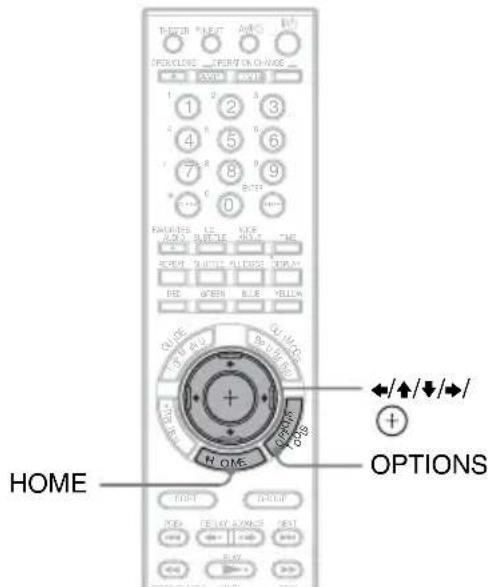
1 Select a track you want to add to a Playlist, and press OPTIONS. The options menu appears.
2 Select "Add to Playlist" using / , and press
3 Select a Playlist number using / and press The selected track is added to the Playlist.
To play a Playlist
1 Press HOME and select Music using
2 Select (Playlists) using / , and press .
3 Select a Playlist using / , and press PLAY.
To change the playing order
1 Select a Playlist using / , and press .
2 Select a track using / , and press OPTIONS.
3 Select an item using / , and press .
Items Details
| Move to top Moves to top of the Playlist. | |
| Move up Moves up one track. | |
| Move down Moves down one track. | |
| Move to bottom | Moves to bottom of the Playlist. |
The selected track moves to a new location.
To delete the selected track
You can delete a track or all tracks from a Playlist.
To delete one track from a Playlist
1 Select a Playlist using / , and press .
2 Select a track using / , and press OPTIONS.
3 Select "Delete from Playlist" using / and press
To delete all tracks from a Playlist
1 Select a Playlist using / , and press OPTIONS.
2 Select "Clear Playlist" using / , and press .
Playing Photo Files
BD
*1 DATA DVD *2 DATA CD *3
1 BD-ROMs and BD-REs/BD-Rs containing JPEG image files
^2 DVD-ROMs and DVD+RWs/DVD+Rs/DVD-RWs/DVD-Rs containing JPEG image files
*3 CD-ROMs and CD-RWs/CD-Rs containing JPEG image files
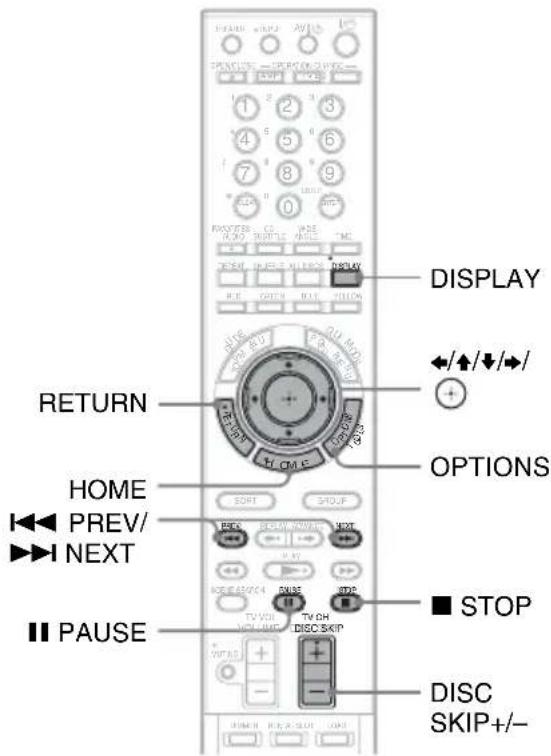
1 Press HOME.
2 Select (Photo) using .
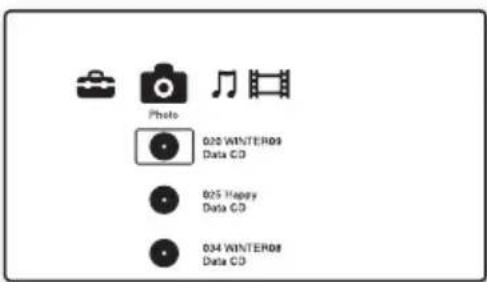
3 Select a disc, and press.
The file list or folder list appears.
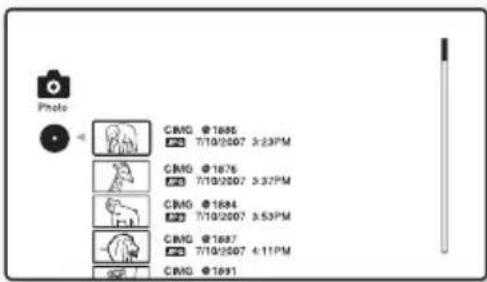
4 Select a file or folder using / , and press .
When you select a folder, select a file in the folder using / , and press .
The selected photo file is displayed.
Available OPTIONS
The options menu appears when you press OPTIONS. The available items differ depending on the situation.
1 Press OPTIONS.
The options menu appears.
2 Select an item using / , and press .
Available OPTIONS on the file list screen
| Items Details | |
| Slideshow Speed | Changes the slideshow speed. • F a s t • Normal • S l o w |
| Play All Discs Displays options for Play All Discs. • On • Off | |
| Load All Discs Loads all disc information. | |
| View Image Shows a selected photo. | |
| Slideshow Plays a slideshow. | |
| Edit Edits disc name (page 52). | |
| Start Starts version up (page 63). | |
| Load | Loads disc information (page 49). |
| Eject | Ejects the disc. |
Available OPTIONS during playback
| Items Details | |
| Slideshow Speed | Changes the slideshow speed. • F a s t • Normal • S l o w |
| Play All Discs | Displays options for Play All Discs. • On • Off |
| Stop | Stops a slideshow. |
| Items Details | |
| Rotate Left | Rotates a photo counterclockwise by 90 degrees. |
| Rotate Right | Rotates a photo clockwise by 90 degrees. |
| Eject | Ejects the disc. |
Various photo playback operations
| Buttons | Operations |
| ■ STOP RETURN | Stops a slideshow. |
| ■ PAUSE | Pauses a slideshow. |
| PRE/ NEXT ⇌ | Displays the previous or next photo. |
| DISC SKIP+/- | Changes the disc. |
| DISPLAY | Displays the file information. |
#
- When you attempt to play the following photo files, the mark appears on the screen and they cannot be played.
photo files larger than 8,192 pixels (width or height)
photo files smaller than 15 pixels (width or height)
photo files exceeding 32 MB
photo files with extreme aspect ratios (greater than 50:1 or 1:50)
photo files in Progressive JPEG format
photo files that have a“.jpeg” or“.jpg” extension, but not in JPEG format
photo files that have an extremely long name - The following photo files cannot be played.
photo files recorded on BD-Rs in any format other than UDF (Universal Disk Format) 2.6
photo files recorded on BD-REs in any format other than UDF (Universal Disk Format) 2.5 - The following photo files or folders cannot be displayed in the file list or folder list.
photo files that have an extension other than“.jpeg” or“.jpg”
photo files that have an extremely long name
photo files in the 5th tree or lower - 501th or more folders when the total number of folders and files in a single tree exceeds 500
- Photo files edited on a PC may not be played.
- Thumbnail images of some photo files may not be displayed.
Large photo files may take some time to display or to start a slideshow.
To view best quality images
If you have a Sony TV compatible with "PhotoTV HD," you can enjoy best quality images by the following connection and settings.
1 Connect the player to the TV using an HDMI cable (not supplied).
2 Set "HDMI Resolution" of "Output Video Format" to "Auto," "1080i," or "1080p" in the "Video Settings" setup (page 65).
3 Set the TV's video setting to [VIDEO-A] mode.
For details on [VIDEO-A], refer to the operating instructions supplied with the TV.
Playing a Slideshow
BD
*1*2*3

DATA CD
^1 BD-ROMs and BD-REs/BD-Rs containing JPEG image files
^2 DVD-ROMs and DVD+RWs/DVD+Rs/DVD-RWs/DVD-Rs containing JPEG image files
*3 CD-ROMs and CD-RWs/CD-Rs containing JPEG image files
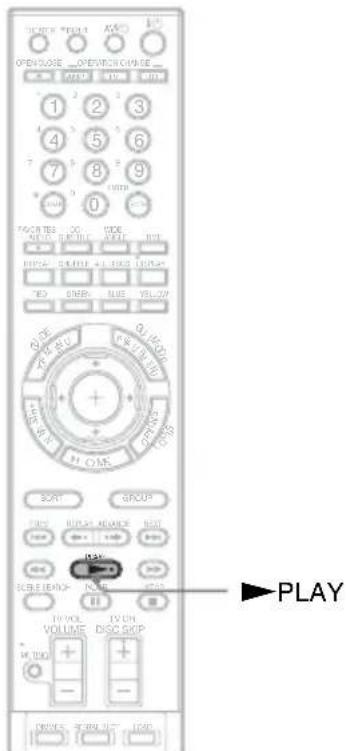
1 Follow steps 1 to 4 of "Playing Photo Files" (page 46).
2 Press▶PLAY.
The slideshow starts.
Organizing Discs
Loading the Disc Information
BD
DVD
CD
DATA DVD
DATA CD
You can view the disc information by loading discs.
Loading the information of all discs
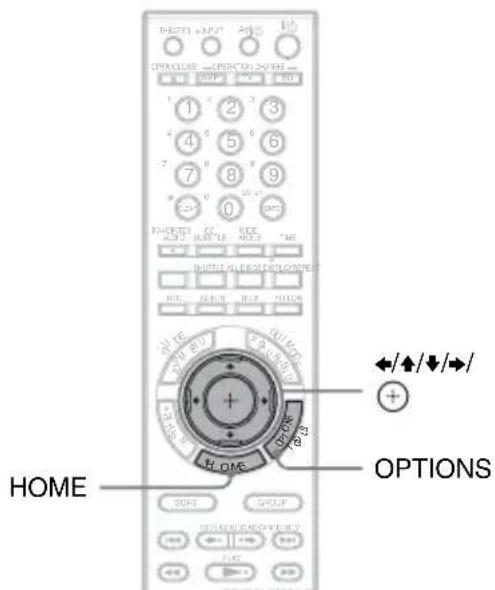
1 Press HOME.
2 Select (Video), (Music), or (Photo) using / , and press OPTIONS.
3 Select "Load All Discs" using / , and press
The player loads the information of all discs. When loading is completed, the information appears on the screen.
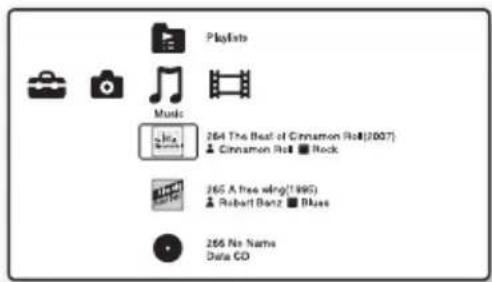
To cancel loading
1 Select "Cancel," and press. The display asks for confirmation.
2 Select "OK" using , and press - "Updating the database." appears and the loaded data is saved.

When pressing LOAD, the player loads the information of unknown discs.
Loading a disc information
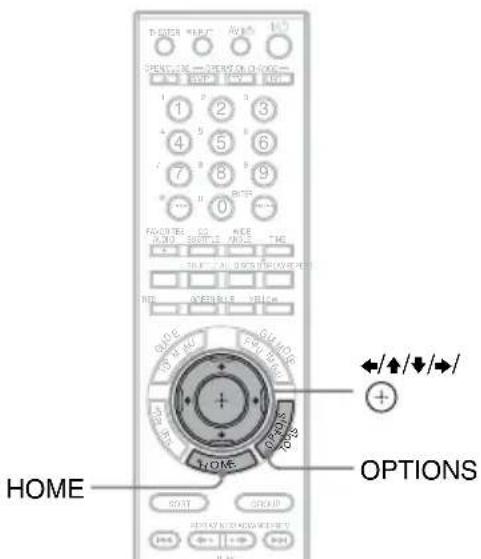

1 Press HOME.
2 Select (Video), (Music), or (Photo) using .
3 Select a disc using / , and press OPTIONS.
4 Select "Load" using / , and press .
The player accesses the Gracenote Database. When obtaining disc information, information options appear on the screen.
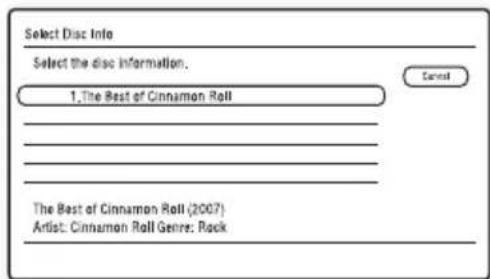
5 Select the desired disc information from options using / , and press .
The information you selected is registered as the disc information.
Editing a Disc/Title/File Information
BD DVD CD DATADVD DATA CD
You can change the information (such title and artist name) of loaded discs.
Editing the video disc information
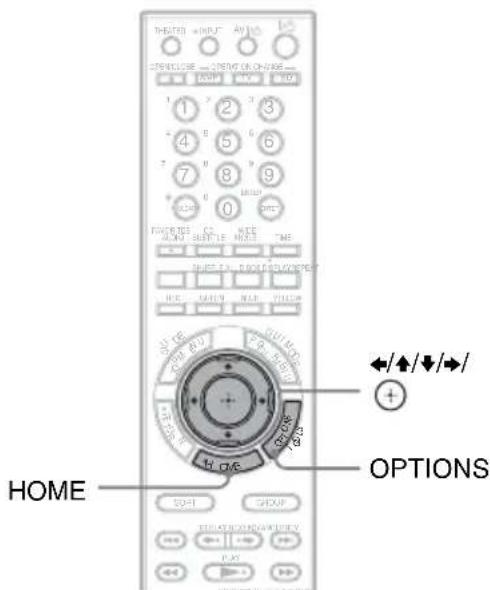
1 Press HOME.
2 Select (Video) using / .
3 Select a disc using / , and press OPTIONS.
4 Select "Edit" using / , and press .
5 Select the item you want to edit and press
For details about entering characters, see "Entering characters" (page 52).
Available OPTIONS
Items Details
| Rename Title/ Rename Disc | Changes the title or disc name. |
| Change Genre | Changes the genre information. |
| Items Details | |
| Re-enter Cast Name | Enters a new name. |
| Re-enter Director Name | Enters a new name. |
| Change Release Year | Enters the release year. |
Editing the music disc information
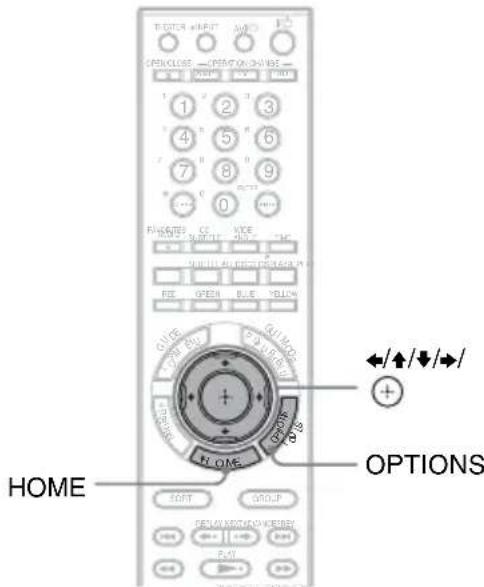
1 Press HOME.
2 Select (Music) using .
3 Select a disc using / , and press OPTIONS.
4 Select "Edit" using / , and press .
5 Select the item you want to edit and press
For details about entering characters, see "Entering characters" (page 52).
Available OPTIONS when selecting an audio album
| Items Details | |
| RenameAlbum/Rename Disc | Changes the album or disc name. |
| ChangeGenre | Changes the genre information. |
| Re-enter Artist Name | Enters a new name. |
| Change Release Year | Enters the release year. |
Available OPTIONS when selecting an audio track
| Items Details | |
| Re-enter Artist Name | Enters a new name. |
| Rename Track | Changes the track name. |
Editing the photo disc name
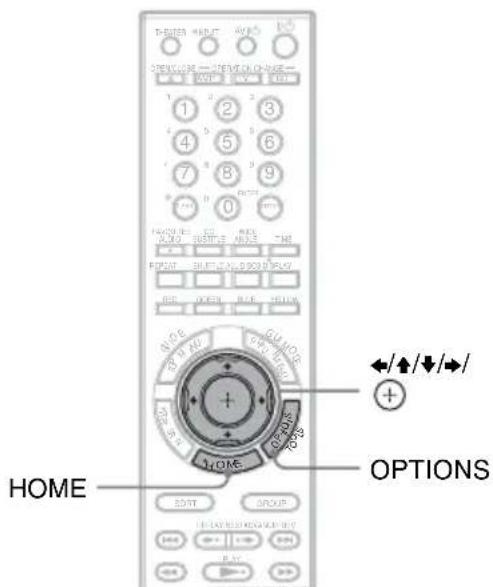
1 Press HOME.
2 Select (Photo) using / .
3 Select a disc using / , and press OPTIONS.
4 Select "Edit" using / , and press .
5 Select "Rename Disc," and press. For details about entering characters, see "Entering characters" (page 52).
Entering characters
The display for entering characters appears when you enter a name for a title, album, etc.
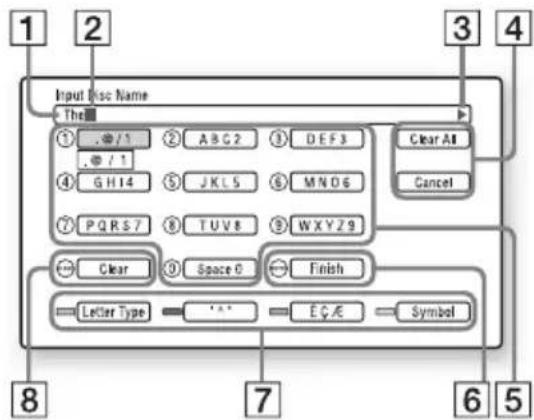
Entry field You can enter up to 64 characters for a disc name, a title name, an album name, an artist name, a track name or a genre name.
2 Cursor
3 Scroll mark Displays when a character string can be scrolled.
4 [Clear All]
Cleared input characters.
[Cancel]
Cancels the setting and ret
previous display.
5Number buttons and assigned characters Each press of the button cycles through the character options.
[Finish] The input is entered and the setting is finished.
Letter type] (RED button) Switches between upper case letters, lower case letters and numbers. [^] (GREEN button) Displays for French. ECAE Displays for French. [Symbol] (YELLOW button) Displays symbols.
8[Clear]
Erases the character to the right of the cursor. Erases the character to the left of the cursor when no character is to the right of the cursor.
To enter characters using / / /
Example: To enter "Sea"
1 Select [PQRS7] and press. Character options appear.
2 Select [S] and press.
3 Select [DEF3] and press. Character options appear.
4 Select [e] and press.
5 Select [ABC2] and press. Character options appear.
6 Select [a] and press.
7 Select [Finish] and press.
To enter characters using number buttons
Example: To enter "Sea"
1 Press "7" four times to select [S].
2 Press RED to switch to the lower case letters.
3 Press "3" twice to select [e].
4 Press "2" once to select [a].
5 Press ENTER.
Available buttons
| Buttons Details | |
| RED(Letter Type) | Switches the keyboard between upper case letters, lower case letters and numbers. |
| GREEN/BLUE Displays the keyboard for French. | |
| YELLOW(Symbol) | Displays the keyboard for symbols. |
| CLEAR(Clear/Clear All) | Erases the selected character.When holding CLEAR for 2 seconds or more, erase all characters to the right of the cursor. Erases all characters to the left of the cursor when no character is to the right of the cursor. |
| RETURN(Cancel) | Returns to the previous display, canceling the input. |
| ←/▲/▼/◆/① | • Select an input function using ↓/▲/▼/◆, and press Ⓞ. • Enter characters as follows: ① Select a character selection panel using ↓/▲/▼/◆, and press Ⓞ. ② Select a character using ←/◆, and press Ⓞ. • Press Ⓞreturn to the previous display after input is complete. |
Available characters
| Type Characters |
| Letters ABCDEFGHJKLMNOP QRSTUVWXYZÉÀÉUÀ ÉIÔUEIùçAE Abcbefghijklmnopqrstuv wxyzéàèuêIôüëiùçAE |
| Symbols . , - ! ? : ' & ; " ~ / @ [ ] < > () # * _ | + = % ¥^ |
About the BRAVIA Sync Features (HDMI connections only)
By connecting Sony components that are compatible with the "Control for HDMI" function with an HDMI cable (not supplied), operation is simplified as below:
- One-Touch Play
With one touch of the following buttons, the connected TV turns on and the input selector on the TV is switched to the player automatically.
-1/0
-
PLAY: Playback starts automatically.
-
System Power-Off
When you turn off the TV using the power button on the TV's remote, the player and HDMI-compatible components turn off automatically.
Theater
When you press THEATER, the player automatically switches to the optimum video mode for watching movies. When connected with an AV amplifier (receiver) using an HDMI cable, the speaker output also switches automatically. When connected with a Theater Mode-compatible TV using an HDMI cable, the TV's video mode switches to Theater Mode. Press the button again to return to the original setting.
Language Follow
If you change the language for the on-screen display on your TV, the player's on-screen display language is also changed after turning the player off and on.
To prepare for the BRAVIA Sync features
Set "Control for HDMI" to "On" in the "System Settings" setup (page 71).
For details on settings of your TV or other connected components, refer to the operating instructions supplied with the TV or components.
BRAVIA Sync Features

- When connecting a Sony TV that is compatible with the "Control for HDMI" Easy Setting function using an HDMI cable, the "Control for HDMI" setting of the player automatically switches to "On" if the "Control for HDMI" setting on the connected TV is set to "On." Refer to the operating instructions supplied with the TV.
- When connecting a Sony TV that is compatible with the BRAVIA Sync features using an HDMI cable, you can control the basic functions of the player with the TV's remote if the "Control for HDMI" setting on the connected TV is set to "On." Refer to the operating instructions supplied with the TV.

- Depending on the connected component, the "Control for HDMI" function may not work. Refer to the operating instructions supplied with the component.
- When using the HDMI connection, there may be a delay before the playback picture appears on the screen, and the beginning portion of the playback picture may not be displayed.
Remote Control Features
Operating the Player and Other Components
You can operate this player, a TV or AV amplifier using the supplied remote.
The remote is factory set to control Sony components. If you have other components listed in the table on page 58, change the remote code to control them (page 58).
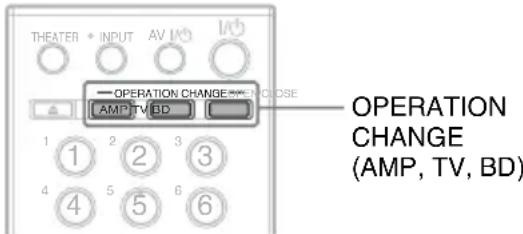
1 Press one of the OPERATION CHANGE buttons to select the operation mode.
BD for the player operation
TV for TV operation
AMP for Sony AV amplifier operation
The remote enters the selected mode and the pressed button lights up for one second.
2 Press a button on the remote that is available for the selected mode.
The selected mode button lights up.
Available buttons
You can use the following buttons to control each component.

Depending on the manufacturer setting, some buttons may not work.
- Depending on the component, control of some or all buttons may not be possible.
- When you press buttons not available for the selected mode, the mode button does not light up.
| Buttons BD TV AMP | ||
| THEATER | ||
| INPUT | ||
| AV I/II | ||
| I/O | ||
| △OPEN/CLOSE | ||
| Number buttons | ||
| CLEAR/(dot) | ||
| ENTER | ||
| AUDIO/ FAVORITES | ||
| SUBTITLE/CC | ||
| ANGLE/WIDE | ||
| TIME | ||
| REPEAT | ||
| SHUFFLE | ||
| ALL DISCS | ||
| DISPLAY | ||
| Color buttons | ||
| TOP MENU/ GUIDE | ||
| POP UP/MENU/ GUI MODE | ||
| RETURN | ||
| OPTIONS/ TOOLS | ||
| HOME | ||
| ←/↓/↑/→/ | ||
| SORT | ||
| GROUP | ||
| PREV/ NEXT | ||
| Buttons BD TV AMP | |||
| ←● REPLAY/ADVANCE ●→ | ● | ● | |
| ←/▶ | ● | ● | |
| ▲ PLAY | ●● | ||
| SCENESEARCH | ● | ||
| II PAUSE | ●● | ||
| ■ STOP | ●● | ||
| MUTING | ● | ● | |
| VOLUME/TV VOL | ● | ● | |
| DISC SKIP/TV CH | ● | ● | |
| DIMMER ● | |||
| RENTAL SLOT | ● | ||
| LOAD | ● | ||
Changing the Remote Code to Operate Other Components
To operate other components by the supplied remote, set the appropriate manufacture's code for each operation mode.
#
When you replace the batteries of the remote, the code number may be reset to the default setting. Set the appropriate code number again.
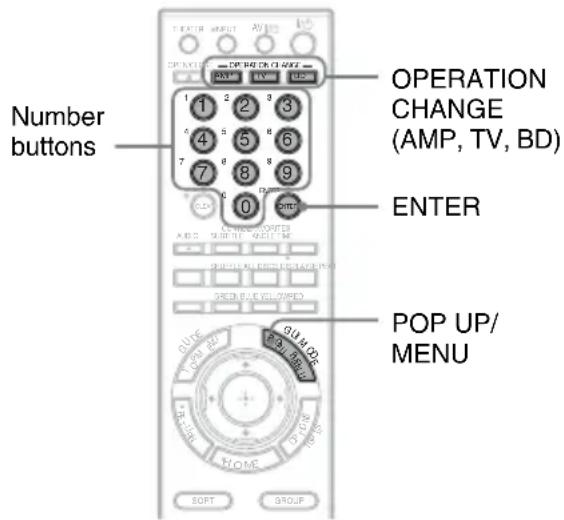
1 Press POP UP/MENU while pressing one of the OPERATION CHANGE buttons.
TV for TV operation
AMP for Sony AV amplifier operation
BD for volume control of a TV
(default) or AV Amplifier
The pressed button flashes.
2 While the button is flashing, enter the manufacturer's code number using the number buttons, then press ENTER.
See "Code numbers of controllable components" (page 58). Note that the code number for BD differs depending on the command mode set for the player. If you successfully set the manufacturer's code, the button will flash twice slowly. If the setting is unsuccessful, the button will flash five times quickly.
Code numbers of controllable components
If more than one code number is listed, try entering them one at a time until you find one that works with the component.
For TV mode
For AMP mode
| Manufacturer | Code number |
| Sony | 501 (default), 502 |
| Daewoo | 503, 506, 515, 544 |
| Emerson | 567 |
| Funai | 548 |
| GE | 503, 509, 510, 544 |
| Goldstar/LG | 503, 515, 517, 544, 568 |
| Grundig | 533 |
| Hitachi | 503, 514, 515, 517, 544, 557, 571 |
| ITT/Nokia | 521, 522 |
| JVC | 516 |
| Loewe | 515, 518 |
| Mitsubishi/MGA | 503, 527, 544, 566, 568 |
| NEC | 503, 517, 544, 564, 566 |
| Nokia | 521, 522, 573, 575 |
| Panasonic | 509, 553, 572 |
| Philips | 515, 518, 557, 570, 571 |
| Pioneer | 509, 526, 551 |
| Radio Shack | 503, 510, 527, 565, 567 |
| RCA/Proscan | 503, 510, 544 |
| Saba | 530, 537, 547, 549, 558 |
| Samsung | 503, 515, 517, 544, 557, 566, 569, 571, 574 |
| Sanyo | 508, 545, 567 |
| Sharp | 517, 535, 565 |
| Telefunken | 530, 537, 547, 549, 558 |
| Thomson | 530, 537, 547, 549 |
| Toshiba | 535, 541, 551 |
| Zenith | 543, 567 |
| Manufacturer | Code number |
| Sony | 011, 012 (default), 013 |
For BD mode
You can set VOLUME + / - and MUTING *1 to control the volume of either a TV (default) or AV amplifier. Select a code number appropriate to the command mode set for the player.
*1 For TVs and Sony AV amplifiers only.
Command mode BD1
| Manufacturer Code number | |
| Sony 321, 322, 323 | |
| Denon 327, 328, 329 | |
| Kenwood 331, 332 | |
| Onkyo 324, 325, 326 | |
| Panasonic 336, 337 | |
| Pioneer 338 | |
| Sansui 330 | |
| Yamaha 333, 334, 335 | |
| (TV) 310 | *2 (default) |
Command mode BD2
| Manufacturer Code number | |
| Sony 341, 342, 343 | |
| Denon 347, 348, 349 | |
| Kenwood 351, 352 | |
| Onkyo 344, 345, 346 | |
| Panasonic 356, 357 | |
| Pioneer 358 | |
| Sansui 350 | |
| Yamaha 353, 354, 355 | |
| (TV) 311 | *2 (default) |
Command mode BD3
| Manufacturer Code number |
| Sony 361, 362, 363 |
| Denon 367, 368, 369 |
| Kenwood 371, 372 |
| Onkyo 364, 365, 366 |
| Panasonic 376, 377 |
| Pioneer 378 |
| Sansui 370 |
| Yamaha 373, 374, 375 |
| (TV) 312 *2 (default) |
*2 You can control the volume of the TV that you set for TV mode.
Changing the Command Mode
When you have more than one Sony Blu-ray disc/DVD player, the supplied remote may interfere with another player. In this case, change the command mode for this player and the supplied remote to one that differs from the other player.
The default command mode for this player and the supplied remote is BD1.
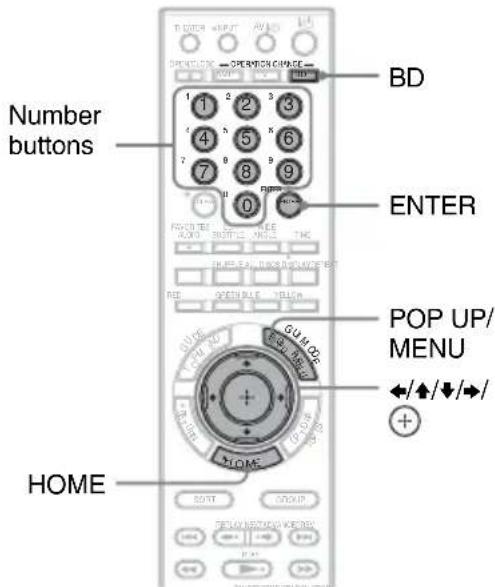
To switch the command mode for the player
1 Press HOME to display the home menu.
2 Select (Setup) using / .
3 Select "System Settings" using / , and press .
4 Select "Command Mode," and press. (+)
5 Select a command mode (BD1, BD2, or BD3), and press The display asks for confirmation.
6 Select "Yes," and press. The command mode for the player is changed to the one you set in step 5.
To switch the command mode for the remote
Set the command mode for the remote so it matches the command mode you set in step 6 above (for the player).
1 Press POP UP/MENU while pressing down BD.
2 While BD is flashing, enter the 3-digit code number using the number buttons, then press ENTER.
| Command mode Code number | |
| BD1 | 310 |
| BD2 | 311 |
| BD3 | 312 |

If the command mode for the player does not match the remote, the command mode for the player appears on the front panel display when you try to operate the remote.
Using the Settings Display
Select Setup) on the home menu when you need to change the settings of the player.
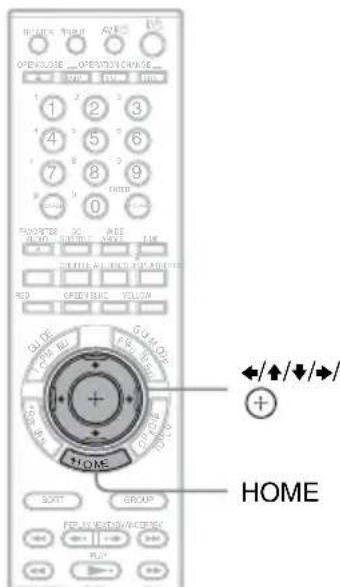
Settings and Adjustments
1 Press HOME.
2 Select (Setup) using / .
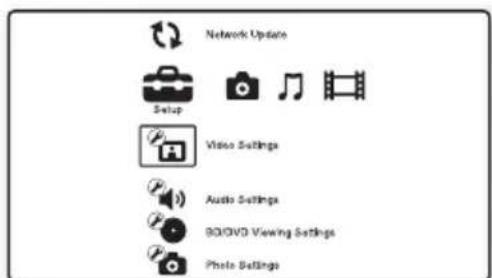
3 Select the setup category icon to change using / , and press
For details on setting options and setup category icons, see "Setting list" (page 62).
Example: Video Settings
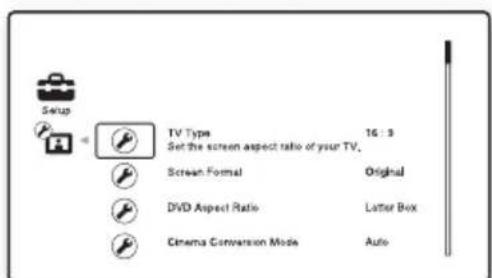
4 Set the options.
Setting list
You can set up the following options.
Icon Explanation
| Network Update (page 62) Updates the software of the player. | |
| Video Settings (page 63) Makes the video settings according to the type of connecting jacks. | |
| Audio Settings (page 66) Makes the audio settings according to the connection used. | |
| BD/DVD Viewing Settings (page 68) Makes detailed settings for BD/ DVD playback. | |
| Photo Settings (page 71) Makes photo-related settings. | |
| System Settings (page 71) Makes player-related settings. | |
| Network Settings (page 73) Makes detailed Internet and network settings. | |
| Easy Setup (page 74) Re-runs Easy Setup to make basic settings. | |
| Resetting (page 74) Reset the player to the factory defaults. |

Network Update
You can update and improve the functions of the player.
For information about update functions, refer to the following website;
The player connects to the network, and the display asks for confirmation.
2 Select "OK" using / , and press .
The player starts downloading, then updates the software automatically. When updating finishes, "FINISH" appears for 5 seconds in the front panel display, then the player automatically turns off.
3 Press I/O to turn on the player.
The player starts up with the updated software.

- The "VERSION UP /9" counter ("") indicates the total number of updates performed in the front panel display also shows update progress.
- You can check the current software version by selecting "System Information" in the "System Settings" setup (page 72).
- The "Setup" settings remain after updating.
- The player informs you of newer software version information when "Software Update Notification" is set to "On" (default) (page 72).

- Do not disconnect the AC power cord or network cable while downloading or updating software.
- Any operations, including opening the front cover, are not available while updating.
- Downloading times may differ depending on the server provider or line status.
- When error messages on network connections appear, check the network settings (see "Internet Settings" on page 73).
To update the software using an update disc
You can update and improve the functions of the player using an update disc provided by Sony dealers or local authorized Sony service facilities.
1 Insert the update disc.
2 Select "Other Discs," and press.
3 Select the update disc using / , and press .
The display asks for confirmation.
4 Select "OK," and press.
The update progress is displayed in the front panel display. When updating finishes, the player automatically turns off.
5 Press I/O to turn the player on.
The player starts up with the updated software.
中
- You can check the current software version by selecting "System Information" in the "System Settings" setup (page 72).
- The "Setup" settings remain after updating.
- For information about other software update methods, refer to the following website or consult your nearest Sony dealer or local authorized Sony Service facility; http://csupport.sony.com
6
- Do not disconnect the AC power cord while updating.
- Any operations, including front panel buttons, are not available while updating.

Video Settings
The default settings are underlined.
TV Type
Selects your TV type.
| 16:9 Select this | when connecting to a wide-screen TV or a TV with a wide mode function. |
| 4:3 Select this | when connecting to a 4:3 screen TV without a wide mode function. |
Screen Format
Selects the display configuration for a 4:3 screen picture on a 16:9 wide screen TV.
| Original Select | this when connecting to a TV with a wide mode function. Displays a 4:3 screen picture in 16:9 aspect ratio even on a wide-screen TV. |
| Fixed Aspect Ratio | Changes the picture size to fit the screen size at the original picture aspect ratio. |
DVD Aspect Ratio
Selects the display configuration for playback of 16:9 screen pictures on a 4:3 screen TV (available when "TV Type" is set to "4:3" and "Screen Format" is set to "Fixed Aspect Ratio").
| Letter Box Display | plays a wide picture with black bands at the top and bottom. |
| Pan & Scan Display | plays a full-height picture on the entire screen, with trimmed sides. |
Letter Box
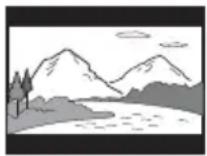
Pan & Scan
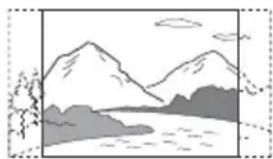
#
Depending on the DVD, "Letter Box" may be selected automatically instead of "Pan & Scan," or vice versa.
Cinema Conversion Mode
Sets the video conversion method for 480p 720p,1080i,or 1080p^* signals from the HDMI OUT jack or the COMPONENT VIDEO OUT jacks.
- HDMI only
| Auto Normally | select this. The player automatically detects whether the material is video-based or film-based, and switches to the appropriate conversion method. |
| Video The conv | ersion method suited for video-based material will always be selected regardless of the material. |
Output Video Format
Selects the jack type to output video signals ("TV Connection Method") and output resolution ("HDMI Resolution"/"Component Resolution").
1 Select "Output Video Format" in "Video Settings," and press
2 Select the jack type to output video signals using / , and press
#
When connecting the HDMI OUT jack and other video output jacks at the same time, select "Component Video."
TV Connection Method
| HDMI Outputs signals from the HDMI OUT jack according to the “HDMI Resolution” setting below. | |
| Component Video | Outputs signals from the COMPONENTVIDEO OUT jacks according to the “Component Resolution” setting below. |
| Video | Outputs signals from the VIDEO OUT jack. |
3 (Setting "HDMI" or "Component Video" only)
Select the signal type for the HDMI OUT jack or COMPONENTVIDEOOUT jacks using / , and press ④
When you change the video output resolution, a picture is displayed in the selected resolution for about 30 seconds, then the display asks for confirmation. Follow the on-screen instructions.
The HD indicator lights up when outputting 720p / 1080i / 1080p video signals.
#
- If the picture is distorted or no picture appears, wait for about 30 seconds without pressing any buttons. The display returns to the resolution setting screen. If the selected video output resolution is incorrect, no picture will appear on the screen when you press any button within that 30 seconds. In this case, press on the player for more than 10 seconds to reset the video output resolution to the lowest resolution.
- When connecting the HDMI OUT jack and other video output jacks at the same time with "Auto" or "1080p" selected, video signals may only output from the HDMI OUT jack.
When connecting other equipment at the same time, press RETURN to return to step 2, and change the "TV Connection Method" setting.
HDMI Resolution/Component Resolution
| Auto (HDMI only) | Normally select this. The player outputs signals starting from the highest resolution acceptable by the TV: 1080p > 1080i > 720p > 480p > 480i If the resulting image format is undesirable, try another setting that suits your TV. |
| 480i Outputs 480i video signals. | |
| 480p Outputs 480p video signals. | |
| 720p Outputs 720p video signals. | |
| 1080i Outputs 1080i video signals. | |
| 1080p (HDMI only) | Outputs 1080p video signals. |
BD-ROM 1080/24p Output
Sets to output 1920 × 1080p / 24Hz video signals when playing film-based materials on BD-ROMs (720p/24 Hz or 1080p/24 Hz). 1920 × 1080p / 24Hz video signals can be output when all of the following conditions are met.
- You connect a 1080/24p-compatible TV using the HDMI OUT jack,
- "Output Video Format" is set to "HDMI," and
-HDMI Resolution" is set to "Auto" or ^1080p.
The 24P indicator lights up when outputting 1920 × 1080p / 24Hz video signals.
| Auto Outputs 19 | 20 × 1080p/ 24 Hz video signals only when connecting a 1080/ 24p-compatible TV using the HDMI OUT jack. |
| On Outputs 1920 | × 1080p/ 24 Hz video signals regardless of the connected TV type. |
| Off Select this w | hen your TV is not compatible with 1080/ 24p video signals. |
#
No BD-ROM picture appears if the connected TV is not compatible with 1080/24p, and "BD-ROM 1080/24p Output" is set to "On." In this case, press HOME to display the home menu, and change the "BD-ROM 1080/24p Output" setting.
YCbCr/RGB (HDMI)
Sets the color for video signals output from the HDMI OUT jack. Select the setting that matches the connected TV type.
| Auto Automatic | ally detects the connected TV type, and switches to the matching color setting. |
| YCbCr (4:2:2) | Outputs YCbCr 4:2:2 video signals. |
| YCbCr (4:4:4) | Outputs YCbCr 4:4:4 video signals. |
| RGB (16-235) | Select this when connecting to a device that only supports RGB limited range. |
| RGB (0-255) | Select this when connecting to an RGB (0-255) device. |
x.v.Color Output
Sets whether to send xvYCC information to the connected TV.
Combining xvYCC-compatible video with a TV that supports x.v.Color display accurately reproduces object colors present in nature.
| Auto Normally | select this. |
| Off Select this w | hen the picture is unstable or colors appear unnatural. |
Pause Mode
Sets the picture mode for DVD playback pause status. For BD-ROMs, "Pause Mode" automatically switches to "Auto."
| Auto Normally | select this. Dynamic moving pictures appear without blurring. |
| Frame Displays | static pictures at high resolution. |

Audio Settings
The default settings are underlined.
Audio Output Priority
Selects the jack type to output audio signals. 2-channel linear PCM signals are output at 48kHz maximum from output jacks other than the priority jacks.
| HDMI Outputs a | Audio signals from the HDMI OUT jack. |
| Coaxial/ Optical | Outputs audio signals from the DIGITAL OUT (OPTICAL/COAXIAL) jack. |
| Stereo Analog | Outputs audio signals from the AUDIO OUT (L/R) jacks. |
Audio (HDMI)
Selects the signal type for the HDMI OUT jack.
| Auto Normally select this. Outputs audio signals according to the status of the connected HDMI device. | |
| 2ch PCM Down mixes to 2-channel Linear PCM signals before outputting from the HDMI OUT jack. |
63
Select "2ch PCM" when connecting a TV or an AV amplifier (receiver) that does not support Dolby Digital or DTS, otherwise noise or no sound may result.
BD Audio Setting
Selects whether to mix or not mix interactive audio and secondary audio (commentary) when playing a BD that contains such audio.
| Mix Mixes the interactive and secondary audio as primary audio. |
| Direct Outputs the primary audio only. |
#
PCM 96kHz and PCM 192kHz audio signals are output as PCM 48kHz audio signals when "BD Audio Setting" is set to "Mix."
Audio ATT
Lowers the audio output level to prevent sound distortion.
| On Enables Audio Attenuation. | |
| Off | Disables Audio Attenuation. |
#
"Audio ATT" does not affect the output from the HDMI OUT jack or DIGITAL OUT (OPTICAL/ COAXIAL) jack.
Dolby Digital
Selects the audio signals output when playing Dolby Digital discs.
This setting affects the output from the DIGITAL OUT (COAXIAL/OPTICAL) jack.
| Downmix PCM | Converts to output Linear PCM signals. Select this when connecting an audio device without a built-in Dolby Digital decoder. |
| Dolby Digital Select this when connecting an audio device with a built- in Dolby Digital decoder. | |
DTS
Selects the audio signals output when playing DTS discs. This setting affects the output from the DIGITAL OUT (COAXIAL/OPTICAL) jack.
| Downmix PCM | Converts to output Linear PCM signals. Select this when connecting to an audio device without a built-in DTS decoder. |
| DTS Select this | when connecting to an audio device with a built-in DTS decoder. |
48kHz/96kHz PCM
Selects the maximum sampling frequency for the PCM signals output from the DIGITAL OUT (OPTICAL/COAXIAL) jack.
| 48kHz/16bit Out | outputs audio signals of 96 kHz sampling as 48 kHz/16 bit. |
| 96kHz/24bit Out | outputs audio signals of 96 kHz sampling as 96 kHz/24 bit. However, the signals will be output as 48 kHz/16 bit if the source is copy-protected. |
#
- If you select "96kHz/24bit" when an AV amplifier (receiver) that does not support 96 kHz is connected, no sound or a loud sound may result.
- "48kHz/96kHz PCM" is not effective when "Audio Output Priority" is set to "HDMI," or "Stereo Analog."
Audio DRC
Selects the dynamic range (compression level of the sound) setting when playing a BD or DVD that conforms to "Audio DRC."
| Auto Performsp | playback at the dynamic range specified by the disc (BD-ROM only). Other discs are played back at the "Standard" level. |
| Standard Performsp | playback at a compression level between "TV Mode" and "Wide Range." |
| TV Mode Sounds | are compressed heavily. Low sounds are easier to hear. |
| Wide Range No | compression works. A more dynamic sound is produced. |
#
- "Audio DRC" is effective only when playing Dolby Digital, Dolby Digital Plus, and Dolby TrueHD audio signals.
- When "Dolby Digital" is set to "Dolby Digital" in the "Audio Settings" setup (page 67), "Audio DRC" has no effect on the audio output from the DIGITAL OUT (OPTICAL/COAXIAL) jack. However, this excludes the following cases.
- when "BD Audio Setting" is set to "Mix" when playing a BD.
- when "Audio Output Priority" is set to "HDMI," or "Stereo Analog."
Downmix
Sets the downmix method of multi-channel to two-channel sound.
| Dolby Surround | Outputs the Dolby Surround (Pro Logic) signals in 2 channels. Select this when connecting an audio device that supports Dolby Surround (Pro Logic). |
| Normal Outputs | audio signals without Dolby Surround (Pro Logic) effect. Select this when connecting an audio device that does not support Dolby Surround (Pro Logic). |
#
"Downmix" has no effect on the bitstream audio output from the DIGITAL OUT (OPTICAL/ COAXIAL)/HDMI OUT jack.

BD/DVD Viewing
Settings
The default settings are underlined.
BD/DVD Menu
Selects the default menu language for BD-ROMs or DVD VIDEOs.
When you select "Select Language Code," the display for entering the language code appears. Enter the code for your language by referring to "Language Code List" (page 85).
Audio
Selects the default track language for BD-ROMs or DVD VIDEOs.
When you select "Original," the language given priority in the disc is selected.
When you select "Select Language Code," the display for entering the language code appears. Enter the code for your language by referring to "Language Code List" (page 85).
Subtitle
Selects the default subtitle language for BD-ROMs or DVD VIDEOs.
When you select "Select Language Code," the display for entering the language code appears. Enter the code for your language by referring to "Language Code List" (page 85).
BD Parental Control
Playback of some BD-ROMs can be limited according to the age of the user. Scenes may be blocked or replaced with different scenes.
1 Select "BD Parental Control" in "BD/DVD Viewing Settings," and press
2 Enter your four-digit password using the number buttons.
3 Select "OK," and press
4 Select the age restriction, and press
The lower the value, the stricter the limitation.
If you select "Select Age Restriction," you can enter a value from "0" to "255" using / / or the number buttons.
- To cancel the Parental Control setting, select "No Restrictions."

You can change the password (see "Password" on page 70).

- The password is not reset even if you reset the player (page 74). Keep a note of your password.
- Discs that do not have the Parental Control function cannot be limited on this player.
- Depending on the disc, you may be asked to change the Parental Control level while playing the disc. In this case, enter your password, then change the level.
- When "255" is selected in "Select Age Restriction," the Parental Control setting is canceled.
To play restricted BDs
When you play a restricted BD, change the setting or enter the age in "Select Age Restriction."
DVD Parental Control
Playback of some DVD VIDEOs can be limited according to the age of the users. Scenes may be blocked or replaced with different scenes.
1 Select "DVD Parental Control" in "BD/DVD Viewing Settings," and press ①
2 Enter your four-digit password using the number buttons.
3 Select "OK," and press
4 Select a level, and press
The lower the value, the stricter the limitation.
- To cancel the Parental Control setting, select "No Restrictions."

You can change the password (see "Password" on page 70).

- The password is not reset even if you reset the player (page 74). Keep a note of your password.
- Discs that do not have the Parental Control function cannot be limited on this player.
Depending on the disc, you may be asked to change the Parental Control level while playing the disc. In this case, enter your password, then change the level.
To play restricted DVDs
When you play a restricted DVD, the display for entering your password appears on the screen. Enter your four-digit password using the number buttons, and press ENTER.
Playback starts.
Parental Control Region Code
Playback of some BD-ROMs or DVD VIDEOs can be limited according to geographic area. Scenes may be blocked or replaced with different scenes.
1 Select "Parental Control Region Code" in "BD/DVD Viewing Settings," and press
2 Enter your four-digit password using the number buttons.
3 Select "OK," and press
4 Select the area restriction, and press
When you select "Select Region Code," the display for entering the region code appears. Enter the code for the area restriction by referring to "Parental Control/Area Code" (page 85).

You can change the password (see "Password" on page 70).
#
- The password is not reset even if you reset the player (page 74). Keep a note of your password.
- Discs that do not have the Parental Control function cannot be limited on this player.
- Depending on the disc, you may be asked to change the Parental Control level while playing the disc. In this case, enter your password, then change the level.
Password
Sets or changes the password for the Parental Control function. A password allows you to set a restriction on BD-ROM or DVD VIDEO playback. If necessary, you can differentiate the restriction levels for BD-ROMs and DVD VIDEOs.
1 Select "Password" in "BD/DVD Viewing Settings," and press
2 Enter your four-digit password using the number buttons.
3 Select "OK," and press
To change the password
1 After step 3, enter a new password using the number buttons.
2 Select "OK," and press.
#
The password is not reset even if you reset the player (page 74). Keep a note of your password.
Hybrid DiscPlayback Layer
Selects the layer priority when playing a Hybrid Disc. To change the setting, turn the player off and on again.
| BD Plays BD layer. | |
| DVD/CD Plays | DVD or CD layer. |
BD Internet Connection
Sets whether to allow Internet connections from the contents of a BD (in BDMV mode) being played. Network connections and settings are required when using this function (page 73).
| Allow Normally | select this. |
| Do not allow | Prohibits Internet connection. |

Photo Settings
The default setting is underlined.
Slideshow Speed
Changes the slideshow speed.
| Fast Photos change rapidly. |
| Normal Photos change at normal speed. |
| Slow Photos change slowly. |

System Settings
The default settings are underlined.
OSD
Selects your language for the player on-screen displays.
Dimmer
Adjusts the lighting of the front panel display.
| Bright Bright light. |
| Dark Low lighting. |
| Off Turns off the lighting during playback. Low lighting other than during playback. |
Control for HDMI
| On Allows you to use the “Control for HDMI” function (page 54). | |
| Off | Turns off the function. |
Quick Start Mode
| On Shortens the | startup time when turning on the player. |
| Off | The default setting. |
#
When "Quick Start Mode" is set to "On,"
power consumption will be higher than when "Quick Start Mode" is set to "Off" and
- the ventilation fan may turn on depending on the surrounding temperature.
Auto Standby
The player automatically turns off if you do not press any of the buttons on the player or remote for more than 30 minutes, unless you are playing BDs/DVDs/CDs/photo files or are updating software.
| On Turns on the | “Auto Standby” function. |
| Off Turns off the | function. |
Auto Display
| On Automatically | ly displays information on the screen when changing the viewing titles, picture modes, audio signals, etc. |
| Off Displays info | formation only when you press DISPLAY. |
Screen Saver
The screen saver image appears when you do not use the player for more than 15 minutes while an on-screen display, such as the home menu, is displayed on your TV screen. The screen saver image helps prevent your display device from becoming damaged (ghosting).
| On Turns on the | screen saver function. |
| Off Turns off the | function. |
Command Mode
Changes the command mode of the player if other equipment is assigned the same command mode. Change the command mode of the supplied remote to match the player. For details, see "Changing the Command Mode" (page 60).
| BD1 The default | command mode of the player. |
| BD2 Select this | if the default command mode conflicts with other equipment. |
| BD3 Select this | if the default command mode conflicts with other equipment. |
Software Update Notification
Informs you of newer software version information. Network connections and settings are required when using this function (page 73).
| On Sets the player to inform you of newer software version information (page 62). |
| Off Turns off the function. |
Child Lock
You can lock the front cover to prevent it being opened by mistake.
| On Locks the front cover. | |
| Off | Unlocks the front cover. |
Accessing Gracenote
When loading the disc, you can acquire disc information from the Gracenote Database. Network connections and settings are required when using this function (page 73).
| On Accesses the | Gracenote Database. |
| Off Does not access | ess the Gracenote Database. |
System Information
Displays the player's software version information and the MAC address.

Network Settings
Internet Settings
These items are necessary when you connect to the Internet via a network cable. Enter the respective (alphanumeric) values for your broadband router or Wireless LAN router. The items that need to be set may differ, depending on the Internet service provider or the router. For details, refer to the instruction manuals that have been provided by your Internet service provider or supplied with the router.
1 Select "Internet Settings" in "Network Settings," and press
2 Select "IP Address Acquisition," and press
3 Select an item, and press .
| Use DHCP Select this when DHCP (Dynamic Host Configuration Protocol) server settings are available from your Internet service provider. The network settings necessary for the player will be assigned automatically. | |
| Use Static IP Address | Set the IP address manually according to your network environment. |
- When you select "Use DHCP" If you set "DNS Server Auto Acquisition" to "Off," set the following item:
- DNS Server (Primary)/DNS Server (Secondary)
- When you select "Use Static IP Address" Set the following items:
- IP Address
- Subnet Mask
- Default Gateway
- DNS Server (Primary)/DNS Server (Secondary)
#
When you set the "DNS Server (Primary)/" DNS Server (Secondary) addresses manually, enter the "DNS Server (Primary)" address. Otherwise, the "Internet Settings" will be set incorrectly.
4 If your ISP has a specific proxy server setting, select "Proxy Settings" using / , and press
The "Proxy Settings" display appears. If the proxy server does not have a specific setting, go to step 8.
5 Set "Use of Proxy Server" to "On."
6 Select "Proxy Server" and "Port," and enter the settings.
To enter the proxy server, see "Entering characters" (page 52).
7 Press RETURN.
8 Select "Network Diagnostic" using / , and press
9 Select "Start," and press
10 Check that the message "Network connections are correct." appears.
The setup is finished. If the message does not appear, follow the on-screen messages.
Re-runs Easy Setup to make the basic settings.
1 Select "Easy Setup," and press
2 Select "Start" using / , and press .
3 Follow the instructions for "Step 7: Easy Setup" (page 30) from step 4.

Resetting
You can return a specific group of player settings to their factory defaults. All the settings within the group will be reset.
1 Select "Resetting," and press
2 Select "Reset to Factory Default Settings," and press
3 Select the settings you want to reset to default, and press
The display asks for confirmation.
You can reset the following settings:
Video Settings
Audio Settings
- BD/DVD Viewing Settings
- Photo Settings
- System Settings
Network Settings
- All Settings
4 Select "Start" using , and press ①
#
- When "All Settings" is selected in step 3,
- the Blu-ray Disc indicator lights up, then turns off when Easy Setup is complete.
- all settings within setup) are reset.
-A/V Settings" that can be adjusted by pressing OPTIONS during playback (page 37) are not reset. - The password for "BD Parental Control" or "DVD Parental Control" in "BD/DVD Viewing Settings" (page 68) is not reset.
Troubleshooting
If you experience any of the following difficulties while using the player, use this troubleshooting guide to help remedy the problem before requesting repairs. Should any problem persist, consult your nearest Sony dealer.
Power
The power does not turn on.
- Check that the AC power cord is connected securely.
It takes a short while before the player turns on.
The message "A new software version has been found on the network. Perform version update?" appears on the screen when turning the player on.
See "Network Update" (page 62) to update the player to a newer software version.
When turning the player on, appears on the screen, and "SYSTEM ERROR" appears in the front panel display.
Disconnect the power cord and wait for a while, then re-connect the power cord. If the condition persists, contact your nearest Sony dealer or local authorized Sony service facility.
Disc
The disc does not play.
The disc is dirty.
The disc is reversed. Insert the disc with the playback side facing left.
The disc is skewed.
You are attempting to play a disc with a format that cannot be played back by this player (page 81).
The region code on the BD or DVD does not match the player.
The player cannot play a recorded disc that is not correctly finalized (page 81).
Disc playback is limited according to user age. To change the restriction, you need the "BD Parental Control" or "DVD Parental Control" password in "BD/DVD Viewing Settings" (page 68). Keep a note of your password. The password is not reset even if you reset the player (page 74). If you forget the password, contact our Customer Information Service Center.
Picture
See also "Connecting to an HDMI jack" (page 19) when connecting equipment using an HDMI cable.
There is no picture/picture noise appears.
Check that all the connecting cables are securely connected.
Check whether the connecting cables are damaged.
Check the connection to your TV (page 18) and switch the input selector on your TV so that the signal from the player appears on the TV screen.
When playing a double-layer BD/DVD, the video and audio may be momentarily interrupted at the point where the layers switch.
No picture appears when the video output resolution selected in "Output Video Format" is incorrect.
Press on the player for more than 10 seconds to reset the video output resolution to the lowest resolution.
The picture does not fill the screen, even though the aspect ratio is set in "DVD Aspect Ratio" under "Video Settings."
The aspect ratio of the disc is fixed on your DVD (page 64).
Video signals are not output from the jacks, other than from the HDMI OUT jack, when connecting the HDMI OUT jack and other video output jacks at the same time.
Set "Output Video Format" to "Component Video" in the "Video Settings" setup (page 64).
The dark area of the picture is too dark/the bright area is too bright or unnatural.
Set "Picture Quality Mode" to "Standard" (default) (see "Adjusting picture and sound for videos" on page 40).
The picture is not output correctly.
Check the "Output Video Format" settings in the "Video Settings" setup (page 64).
No BD-ROM picture appears.
Check the "BD-ROM 1080/24p Output" setting in the "Video Settings" setup (page 65).
Sound
See also "Connecting to an HDMI jack" (page 24) when connecting equipment using an HDMI cable.
There is no sound.
- Check that all the connecting cables are securely connected.
- Check whether the connecting cables are damaged.
Check the connection to your AV amplifier (receiver) (page 23) and switch the input selector on your AV amplifier (receiver) so that the audio signals of the player are output from your AV amplifier (receiver).
The player is in scan mode.
If the audio signal does not come through the DIGITAL OUT (OPTICAL/ COAXIAL)/HDMI OUT jack, check the audio settings (page 66).
The sound is not output correctly.
Check the "Audio Output Priority" setting in the "Audio Settings" setup (page 66).
The volume is low.
The volume is low on some BDs or DVDs.
Try setting "Audio DRC" to "TV Mode" in the "Audio Settings" setup (page 67).
Set "Audio ATT" to "Off" in the "Audio Settings" setup (page 67).
The HD Audio (Dolby Digital Plus, Dolby TrueHD, DTS-HD High Resolution Audio, and DTS-HD Master Audio) is not output by bitstream.
Set "BD Audio Setting" to "Direct" in the "Audio Settings" setup (page 66).
Check that the connected AV amplifier (receiver) is compatible with each HD Audio format.
The interactive audio is not output.
Set "BD Audio Setting" to "Mix" in the "Audio Settings" setup (page 66).
HDMI
There is no picture or no sound when connected to the HDMI OUT jack.
Try the following: ①Turn the player off and on again. ②Turn the connected equipment off and on again. ③Disconnect and then reconnect an HDMI cable.
There is no picture or picture noise appears when connected to the HDMI OUT jack.
The HDMI OUT jack is connected to a DVI device that does not support copyright protection technology.
If the HDMI OUT jack is used for video output, changing the video output resolution may solve the problem (page 64).
No sound is output from the HDMI OUT jack.
The HDMI OUT jack is connected to a DVI device (DVI jacks do not accept audio signals).
The sound is not output correctly when connected to the HDMI OUT jack.
The device connected to the HDMI OUT jack does not support the audio format of the player. Check the audio settings (page 66).
The display language on the screen switches automatically when connected to the HDMI OUT jack.
When "Control for HDMI" is set to "On" (page 71), the display language on the screen automatically switches according to the language setting of the connected TV (if you change the setting on your TV, etc.).
The "Control for HDMI" function does not work (BRAVIA Sync).
Check that the AC power cord of the connected component is securely connected.
If the HDMI indicator does not appear in the front panel display, check the HDMI connection (page 19, 24).
Set "Control for HDMI" to "On" (page 71).
Make sure that the connected component is compatible with the "Control for HDMI" function. For details, refer to the operating instructions supplied with the component.
Check the connected component's setting for the "Control for HDMI" function. For details, refer to the operating instructions supplied with the component.
If you change the HDMI connection, turn the player off and on again.
If power failure occurs, set "Control for HDMI" to "Off," then set "Control for HDMI" to "On" (page 71).
For details on the "Control for HDMI" function, see "About the BRAVIA Sync Features (HDMI connections only)" (page 54).
If you connect the player to a TV through an AV amplifier (receiver) that is not compatible with the "Control for HDMI" function, you may be unable to control the TV from the player.
External memory (local storage)
The external memory is not recognized.
Try the following: ① Turn the player off. ② Insert the external memory. (In the case of the USM1GH/USM2GH, insert with the mark facing up towards the mark at the top left of the EXT slot.) ③ Turn the player on. ④ Check that the EXT indicator lights up in the front panel display.
Bonus contents or other data that are contained in a BD-ROM cannot be played.
Try the following: ① Remove the disc. ② Turn the player off. ③ Remove and reinsert the external memory (page 27). ④ Turn the player on. ⑤ Check that theEXTindicator lights up in the front panel display. ⑥ Insert the BD-ROM with BonusView/BD-Live.
A message indicating that the local storage does not have enough space appears on the screen.
Delete unnecessary data in the external memory (page 39).
Operation
The remote does not function.
The batteries in the remote are weak (page 30).
The distance between the remote and the player is too far.
The remote is not pointed at the remote sensor on the player.
Different command modes are set for the player and remote. Set the same command mode (page 60).
The file name is not correctly displayed.
The player can only display ISO 8859-1-compliant character formats. Other character formats may be displayed differently.
Depending on the writing software used, the input characters may be displayed differently.
The disc does not start playing from the beginning.
Resume Play is on (page 37).
Some functions such as Stop or Search cannot be performed.
Depending on the disc, you may not be able to do some of the operations above. Refer to the operating manual supplied with the disc.
The language for the soundtrack/subtitle or angles cannot be changed.
Try using the BD's or DVD's menu instead of the direct selection button on the remote (page 38).
Multi-lingual tracks/subtitles or multiangles are not recorded on the BD or DVD being played.
The BD or DVD prohibits the changing of the language for the sound track/subtitle or angles.
The front cover does not open and "LOCKED" appears in the front panel display.
When "LOCKED" appears, the player is locked. To cancel the Child Lock, hold down on the player until "UNLOCK" appears in the front panel display (page 10).
The player does not respond to any button.
Moisture has condensed inside the player (page 3).
Hold down / on the player for more than 10 seconds until the indicators in the front panel display turn off. If the player still does not respond to any button, disconnect then reconnect the AC power cord.
Self-Diagnosis Function
When the self-diagnosis function is activated to prevent the player from malfunctioning, an error code appears in the front panel display, or just appears without any messages on the entire screen.
In these cases, check the following.
When an error code appears in the front panel display
Error code Corrective action
| Exxxx SYS ERR | Contact your nearest Sony dealer or local authorized Sony service facility and give the error code. “xxxx” represents an error code (number). |
| FAN ERR • Check that the ventilation holes on the rear of the player are not blocked. • Place the player in a location with adequate ventilation to prevent heat build-up in the player. | |
When just appears without any messages on the entire screen
Depending on the situation, the remedy in "Power" of "Troubleshooting" (page 75) may solve the problem. If any problem persists, contact your nearest Sony dealer or local authorized Sony service facility.
Playable Discs
| Type Disc Logo | Icon used in this manual | Characteristics | |
| Blu-ray Disc | Blu-ray Disc | BD | BD-ROMs and BD-REs/BD-Rs in BDMV and BDAV mode, and DL discs |
| DVD VIDEO | DVDVIDEO | DVD | Discs such as movies that can be purchased or rented |
| DVD | DVDRWDVDR4.7DVD+ReWritable | DVD | DVD+RWs/DVD+Rs in +VR mode or DVD-RWs/DVD-Rs in video and VR mode, and DVD+R DL/DVD-R DL discs |
| DATA DVD | DATA DVD | DVD+RWs/DVD+Rs/DVD-RWs/DVD-Rs containing MP3*1 audio tracks and JPEG*2 image files | |
| CD | COMPACTDISCGDIGITAL AUDIO | CD | Music CDs or CD-Rs/CD-RWs in music CD format |
| DATA CD— | DATA CD | CD-Rs/CD-RWs containing MP3*1 audio tracks and JPEG*2 image files |
1 MPEG Layer-3 audio coding technology and patents licensed from Fraunhofer IIS and Thomson.
2 JPEG format conforming to UDF (Universal Disk Format).
Notes about BD-ROM compatibility
Since the Blu-ray Disc specifications are new and evolving, some discs may not be playable depending on the disc type and the version. The audio output differs depending on the source, connected output jack, and selected audio settings. For details, see page 83.
Discs that cannot be played
- BDs with cartridge
DVD-RAMs
HD DVDs
DVD Audio discs
PHOTO CDs
Data part of CD-Extras
VCDs/Super VCDs - HD layer on Super Audio CDs
- DualDiscs
- BD-ROMs/DVD VIDEOs with a different region code (page 81).
- A disc recorded in a color system other than NTSC, such as PAL (this player conforms to the NTSC color system).
- 8cm discs
Note on playback operations of BDs/DVDs
Some playback operations of BDs/DVDs may be intentionally set by software producers. Since this player plays BDs/DVDs according to the disc contents the software producers designed, some playback features may not be available. Refer to the instructions supplied with the BDs/DVDs.
Region code (BD-ROM/DVDVIDEO only)
Your player has a region code printed on the rear of the unit and will only play BD-ROMs/ DVD VIDEOs (playback only) labeled with identical region codes. This system is used to protect copyrights.
DVD VIDEOs labeled also play on this player.
Depending on the BD-ROM/DVD VIDEO, no region code may be indicated even though playing the BD-ROM/DVD VIDEO is prohibited by area restrictions.
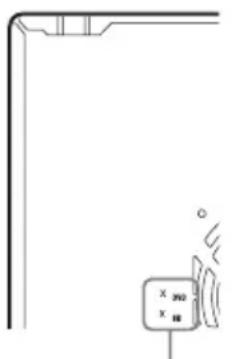
Region code
#
- Notes about BD-REs/BD-Rs, DVD+RWs/DVD+Rs, DVD-RWs/DVD-Rs, or CD-Rs/CD-RWs
Some BD-REs/BD-Rs, DVD+RWs/DVD+Rs, DVD-RWs/DVD-Rs, or CD-Rs/CD-RWs cannot be played on this player due to the recording quality or physical condition of the disc, or the characteristics of the recording device and authoring software.
A CD or DVD disc will not play if it has not been correctly finalized. For more information, refer to the operating instructions supplied with the recording device. Note that some playback functions may not work with some DVD+RWs/DVD+Rs, even if they have been correctly finalized. In this case, view the disc using normal playback.
- Music discs encoded with copyright protection technologies
This product is designed to play back discs that conform to the Compact Disc (CD) standard. Various music discs encoded with copyright protection technologies are being marketed by some record companies. Please be aware that among those discs, there are some that do not conform to the CD standard and may not be playable by this product.
Note on DualDiscs
Using a DualDisc with this product may scratch or abrade the surface of the video side of the DualDisc and affect its playability and should not be used with this product.
Note about double-layer BDs/DVDs
The playback pictures and sound may be momentarily interrupted when the layers switch.
Note about BD-REs/BD-Rs
This player supports Ver. 2.1 BD-RE and Ver. 1.1 and 1.2 BD-R including organic pigment type BD-R (LTH type).
Note about DTS 5.1 MUSIC DISCs
This player can play DTS 5.1 MUSIC DISCs. Audio signals are output in the formats specified under the "Audio Output Signals" table on page 83.
Video Output Resolution
Output resolution differs depending on the "Output Video Format" setting in the "Video Settings" setup (page 63).
| Resolution setting | When “Output Video Format” is set to “HDMI” | When “Output Video Format” is set to “Component Video” | ||||
| VIDEO OUT jack | COMPONENTVIDEO jack | HDMI OUT jack | VIDEO OUT jack | COMPONENTVIDEO jack | HDMI OUT jack | |
| 480i | 480i 480i | 480i 480i 480i | 480i | |||
| 480p | 480i 480i | 480p 480i 480p | 480p | |||
| 720p | 480i 480i | 720p 480i 720p | *1 | 720p *1 | ||
| 1080i | 480i 480i | 1080i 480i 1080i | *1 | 1080i *1 | ||
| 1080p | 480i *2 | 480i *2 | 1080p unavailable | available unavailable | available unavailable | |
1 Protected contents on DVDs are output at 480p resolution.
2 No picture appears when outputting at 1080/24p resolution.
When "Output Video Format" is set to "Video"
480i video signals are output from the VIDEO OUT or COMPONENT VIDEO
jack, and 480p video signals are output from the HDMI OUT jack.
Audio Output Signals
The audio output differs as follows, depending on the source, output jack, and the selected settings.
| Disc/source\Jacks/ settings*1 | Digital Analog | |||||
| HDMI OUT jack*2 | DIGITAL OUT (OPTICAL/ COAXIAL) jacks*2 | AUDIO OUT (L/R) jacks | ||||
| Auto*3 | 2ch PCM*3 | Bitstream*4 | PCM | |||
| BD LPC | CM 2ch LPCM 2ch | LPCM 2ch LPCM 2ch | M 2ch LPCM 2ch | 2ch | ||
| LPCM 5.1ch LPCM 5.1ch LPCM 2ch | M 5.1ch LPCM 2ch | LPCM 2ch LPCM 2ch | 2ch | |||
| LPCM 7.1ch LPCM 7.1ch LPCM 2ch | M 7.1ch LPCM 2ch | LPCM 2ch LPCM 2ch | 2ch | |||
| Dolby Digital LPCM 5.1ch *5 | LPCM 2ch | LPCM 2ch | Dolby Digital/ LPCM 2ch*6 | LPCM 2ch 2ch | ||
| Dolby Digital Plus | LPCM 7.1ch*5 | LPCM 2ch | Dolby Digital/ LPCM 2ch*6 | LPCM 2ch 2ch | ||
| Dolby TrueHD LPCM 7.1ch *5 | LPCM 2ch | LPCM 2ch | Dolby Digital/ LPCM 2ch*6 | LPCM 2ch 2ch | ||
| DTS LPCM 5.1ch *5 | LPCM 2ch | LPCM 2ch | DTS/ LPCM 2ch*6 | LPCM 2ch 2ch | ||
| DTS-HD High Resolution Audio | LPCM 7.1ch*5 | LPCM 2ch | DTS/ LPCM 2ch*6 | LPCM 2ch 2ch | ||
| DTS-HD Master Audio | LPCM 7.1ch*5 | LPCM 2ch | DTS/ LPCM 2ch*6 | LPCM 2ch 2ch | ||
| DVD L | PCM LPCM 2ch LPCM 2ch LPCM 2ch LPCM 2ch LPCM 2ch LPCM 2ch LPCM 2ch LPCM 2ch LPCM 2ch LPCM 2ch LPCM 2ch LPCM 2ch LPCM 2ch LPCM 2ch LPCM 2ch LPCM 2ch LPCM 2ch LPCM 2ch LPCM 2ch LPCM 2ch LPCM 2CH | LPCM 2ch LPCM 2ch LPCM 2ch LPCM 2ch | LPCM 2ch LPCM 2ch LPCM 2ch | |||
| Dolby Digital Dolby Digital LPCM 2ch Dolby Digital LPCM 2ch Dolby Digital LPCM 2ch Dolby Digital LPCM 2ch Dolby Digital LPCM 2ch Dolby Digital LPCM 2ch Dolby Digital LPCM 2ch Dolby Digital LPCM 2ch Dolby Digital LPCM 2ch Dolby Digital LPCM 2ch Dolby Digital LPCM 2ch Dolby Digital LPCM 2ch Dolby Digital LPCM 2ch Dolby Digital LTCM 2ch Dolby Digital LTCM 2ch Dolby Digital LTCM 2ch Dolby Digital LTCM 2ch Dolby Digital LTCM 2ch Dolby Digital LTCM 2ch Dolby Digital LTCM 2ch Dolby Digital LTCM 2ch Dolby Digital LTCM 2ch Dolby Digital LTCM 2ch Dolby Digital LTCM 2ch Dolby Digital LTCM 2ch Dolby Digital LTCM 2CH | LPCM 2ch LPCM 2ch LPCM 2ch LPCM 2ch | LPCM 2ch LPCM 2ch LPCM 2ch | ||||
| DTS DTS LPCM 2ch DTS LPCM 2ch DTS LPCM 2ch DTS LPCM 2ch DTS LPCM 2ch DTS LPCM 2ch DTS LPCM 2ch DTS LPCM 2ch DTS LPCM 2ch DTS LPCM 2ch DTS LPCM 2ch DTS LPCM 2ch DTS LPCM 2ch DTS LPCM 2ch DTS LPCM 2ch DTC | LPCM 2ch LPCM 2ch LPCM 2ch LPCM 2ch | LPCM 2ch LPCM 2ch LPCM 2ch | ||||
| CD LPC | LPCM LPCM LPCM 2ch LPCM 2ch LPCM 2ch LPCM 2ch LPCM 2ch LPCM 2ch LPCM 2ch LPCM 2ch LPCM 2ch LPCM 2ch LPCM 2ch LPCM 2ch LPCM 2ch LPCM 2ch LPCM 2ch LPCM 2ch LPCM 2ch LPCM 2ch LPCM 2ch LPCM 20 | LPCM 2ch LPCM 2ch LPCM 2ch LPCM 2ch | LPCM 2ch LPCM 2ch LPCM 2ch | |||
| DTS 5.1 MUSIC DISC | DTS LPCM 2ch | DTS LPCM 2ch | 2ch | |||
1 When "Audio Output Priority" is set to "Stereo Analog," LPCM 2ch signals are output from each jack.
2 When "Audio Output Priority" is set to "HDMI" or "Coaxial/Optical," LPCM 2ch signals are output from jacks other than the selected jack.
3 Auto: when "Audio (HDMI)" is set to "Auto" in the "Audio Settings" setup (page 66). 2ch PCM: when "Audio (HDMI)" is set to "2ch PCM" in the "Audio Settings" setup (page 66).
^4 Bitstream: when "Dolby Digital" is set to "Dolby Digital" or "DTS" is set to "DTS" in the "Audio Settings" setup (page 67).
*5 When "BD Audio Setting" is set to "Direct," audio recorded by the source is output by bitstream. However, this audio may be output as follows depending on the audio formats supported by the AV amplifier (receiver).
- When the AV amplifier (receiver) does not support HD Audio (Dolby Digital Plus, Dolby TrueHD, DTS-HD High Resolution Audio and DTS-HD Master Audio) but supports Multi-ch LPCM, up to LPCM 7.1ch is output.
-
When the AV amplifier (receiver) does not support HD Audio or Multi-ch LPCM but supports Dolby Digital/DTS, a Dolby Digital or DTS bitstream is output.
-
When the AV amplifier (receiver) does not support HD Audio, Multi-ch LPCM or Dolby Digital/DTS, LPCM 2ch is output.
*6 The 2-channel or less-channel primary/ secondary audio signals are output as LPCM 2ch signals.
#
When outputting 480i / 480p video signals from the HDMI OUT jack, Dolby TrueHD and DTS-HD Master Audio are output as LPCM, Dolby Digital, or DTS bitstream signals even if "BD Audio Setting" is set to "Direct" in the "Audio Settings" setup (page 66).
Specifications
System
Laser: Semiconductor laser
Outputs
(Jack name: Jack type/Output level/Load impedance)
Analog Audio Output: Stereo Output: Phono jack/2 Vrms/ 10 kilohms
Digital Audio Output: Optical Output: Optical output jack/ -18 dBm (wave length 660 nm) Coaxial Output: Phono jack/0.5 Vp-p/ 75 ohms
Analog Video Output Component Output (Y / PB / PR) :Phono jack/ Y:1.0 Vp-p/PB,PR:0.7 Vp-p/75 ohms Composite Output:Phono jack/1.0 Vp-p/ 75 ohms
HDMI Output HDMI 19-pin standard connector
LAN (100): 100BASE-TX Terminal
EXT: External memory slot (For connecting the external memory) DC output: 5V500mA Max
General
Power requirements: 120 V AC, 60 Hz
Power consumption: 28 W
Dimensions (approx.): 430mm× 240mm× 535mm (17in.× 9^1 / 2in.× 21^1 / 8in.) width/height/depth) incl. projecting parts
Mass (approx.): 13.4 kg (29 lb 9 oz)
Operating temperature: 5^ to 35^ (41^ to 95^)
Operating humidity: 25% to 80%
Supplied accessories
See page 17.
Specifications and design are subject to change without notice.
- Standby power consumption 0.3W .
- Halogenated flame retardants are not used in the certain printed wiring boards.
Language Code List
For details, see page 68.
The language spellings conform to the ISO 639: 1988 (E/F) standard.
| Number, Language | |||||||
| 1027 | Afar | 1186 | Scotts Gaelic | 1349 | Macedonian | 1511 | Albanian |
| 1028 | Abkhazian | 1194 | Galician | 1350 | Malayalam | 1512 | Serbian |
| 1032 | Afrikaans | 1196 | Guarani | 1352 | Mongolian | 1513 | Siswati; Swati |
| 1039 | Amharic | 1203 | Gujarati | 1353 | Moldavian | 1514 | Sesotho; Sotho |
| 1044 | Arabic | 1209 | Hausa | 1356 | Marathi | southern | |
| 1045 | Assamese | 1217 | Hindi | 1357 | Malay | 1515 | Sundanese |
| 1051 | Aymara | 1226 | Croatian | 1358 | Malese; Maltese | 1516 | Swedish |
| 1052 | Azerbaijani | 1229 | Hungarian | 1363 | Burmese | 1517 | Swahili |
| 1053 | Bashkir | 1233 | Armenian | 1365 | Nauru | 1521 | Tamil |
| 1057 | Byelorussian | 1235 | Interlingua | 1369 | Nepali | 1525 | Telugu |
| 1059 | Bulgarian | 1239 | Interlingue | 1376 | Dutch | 1527 | Tajik |
| 1060 | Bihari | 1245 | Inupiak | 1379 | Norwegian | 1528 | Thai |
| 1061 | Bislama | 1248 | Indonesian | 1393 | Occitan | 1529 | Tigrinya |
| 1066 | Bengali | 1253 | Icelandic | 1403 | Oromo | 1531 | Turkmen |
| 1067 | Tibetan | 1254 | Italian | 1408 | Oriya | 1532 | Tagalog |
| 1070 | Breton | 1257 | Hebrew | 1417 | Punjabi; Panjabi | 1534 | Setswana; Tswana |
| 1079 | Catalan | 1261 | Japanese | 1428 | Polish | 1535 | Tonga; |
| 1093 | Corsican | 1269 | Yiddish | 1435 | Pashto; Pushto | Tonga islands | |
| 1097 | Czech | 1283 | Javanese | 1436 | Portuguese | 1538 | Turkish |
| 1103 | Welsh | 1287 | Georgian | 1463 | Quechua | 1539 | Tsonga |
| 1105 | Danish | 1297 | Kazakh | 1481 | Rhaeto-Romance | 1540 | Tatar |
| 1109 | German | 1298 | Greenlandic; | 1482 | Kirundi; Rundi | 1543 | Twi |
| 1130 | Bhutani; Dzongkha | Kalaallisut | 1483 | Romanian | 1557 | Ukrainian | |
| 1142 | Greek | 1299 | Cambodian; Khmer | 1489 | Russian | 1564 | Urdu |
| 1144 | English | 1300 | Kannada | 1491 | Kinyarwanda | 1572 | Uzbek |
| 1145 | Esperanto | 1301 | Korean | 1495 | Sanskrit | 1581 | Vietnamese |
| 1149 | Spanish | 1305 | Kashmiri | 1498 | Sindhi | 1587 | Volapuk |
| 1150 | Estonian | 1307 | Kurdish | 1501 | Sangho; Sango | 1613 | Wolof |
| 1151 | Basque | 1311 | Kirghiz | 1502 | Serbo-Croatian | 1632 | Xhosa |
| 1157 | Persian | 1313 | Latin | 1503 | Singhalese; | 1665 | Yoruba |
| 1165 | Finnish | 1326 | Lingala | Sinhalese | 1684 | Chinese | |
| 1166 | Fiji | 1327 | Laothian; Lao | 1505 | Slovak | 1697 | Zulu |
| 1171 | Faroeese | 1332 | Lithuanian | 1506 | Slovenian | 1703 | not specified |
| 1174 | French | 1334 | Latvian | 1507 | Samoan | ||
| 1181 | Frisian | 1345 | Malagasy | 1508 | Shona | ||
| 1183 | Irish | 1347 | Maori | 1509 | Somali | ||
Parental Control/Area Code
For details, see page 68.
| Number, Area (Code) | ||
| 2044, Argentina (ar) | 2200, Greece (gr) | 2379, Norway (no) |
| 2047, Australia (au) | 2219, Hong Kong (hk) | 2427, Pakistan (pk) |
| 2046, Austria (at) | 2248, India (in) | 2424, Philippines (ph) |
| 2057, Belgium (be) | 2238, Indonesia (id) | 2428, Poland (pl) |
| 2070, Brazil (br) | 2239, Ireland (ie) | 2436, Portugal (pt) |
| 2079, Canada (ca) | 2254, Italy (it) | 2489, Russia (ru) |
| 2090, Chile (cl) | 2276, Japan (jp) | 2501, Singapore (sg) |
| 2092, China (cn) | 2304, Korea (kr) | 2149, Spain (es) |
| 2093, Colombia (co) | 2333, Luxembourg (lu) | 2499, Sweden (se) |
| 2115, Denmark (dk) | 2363, Malaysia (my) | 2086, Switzerland (ch) |
| 2165, Finland (fi) | 2362, Mexico (mx) | 2543, Taiwan (tw) |
| 2174, France (fr) | 2376, Netherlands (nl) | 2528, Thailand (th) |
| 2109, Germany (de) | 2390, New Zealand (nz) | 2184, United Kingdom (gb) |
Terms and Conditions of Use and End User License Agreement
The Sony Blu-ray Disc player ("Product") and associated software ("Software") are provided and maintained by Sony Electronics Inc. and its affiliates ("Sony"). Sony also provides and maintains associated service (the "Service"), including any subsite accessible through the Service's Internet homepage (the "Site"). The Software includes software embedded in the Product; stored on any media, bundled with the Product or otherwise provided by Sony; downloaded from the Site or otherwise made accessible or provided by Sony; any such media and any printed or "on-line" or electronic documentation associated with the Product and all updates and upgrades thereto.
WHEN YOU ACCESS, BROWSE, OR USE THE SERVICE, PRODUCT, SOFTWARE, AND/OR SITE, YOU ACCEPT, WITHOUT LIMITATION OR QUALIFICATION, THE TERMS AND CONDITIONS SET FORTHIEREIN, SONY'S PRIVACY POLICY POSTED ON THE SITE, AND ANY ADDITIONAL TERMS AND CONDITIONS OF USE SET FORTH IN ANY PORTION OF THE SERVICE AND SITE (COLLECTIVELY THE "AGREEMENT"). IF YOU DO NOT AGREE WITH THE TERMS AND CONDITIONS OF THIS AGREEMENT, SONY DOES NOT GRANT THE LIMITED RIGHTS HEREIN, AND PLEASE DO NOT USE THE SERVICE, PRODUCT, SOFTWARE, AND/OR SITE.
1. Ownership
The Software and all materials on the Service and/or Site, including but not limited to images, software and text (the "Content") are protected by copyright under U.S. copyright law, international conventions, and other copyright laws. You cannot use the Software, Service, Product, Content, and Site except as specified herein. There may be proprietary logos, service marks, and trademarks found on this Service or Site. By making them available on the Service and/or Site, Sony is not granting you any license to utilize those proprietary logos, service marks, or trademarks. Any unauthorized use of the Service, Site, Content or Software may violate copyright laws, trademark laws, the laws of privacy and publicity, and civil and criminal statutes. All title and copyright in and to the Software or materials on the Service/Site and any copies of the Software, are owned by Sony, its licensors, or suppliers. All rights not specifically granted under this Agreement are reserved by Sony, its licensors, and suppliers.
2. Your Rights & Limited License
The Service, Site, Software, Content, and Product are only for your personal use. You are responsible for all your activities hereunder, including all legal liability incurred from your use of the Service or others who use the Service via your Product or Account (as defined below). You may use the Service, Site, Software, Content and Product for lawful purposes only. You may not distribute, exchange, modify, sell, or transmit anything you may copy from the Service or Site, including but not limited to any text, images, audio, and video, for any business, commercial, or public purpose. As long as you comply with the terms of this Agreement, Sony grants you a non-exclusive, nontransferable, limited right to enter, display, and use the Service, Site, and Software as set forth in this Agreement. You agree not to interrupt/disrupt or attempt to interrupt/disrupt the operation of this Service, Site or Software in any way.
3. User Account & Privacy
As part of your usage of the Product, Service, Site, and/or Software, Sony may require that you establish a user account ("Account") for which you must provide Sony true, accurate, current, and complete information about yourself and maintain/promptly update such information. You are responsible for maintaining the confidentiality of any and all of your passwords associated with the Account. You agree to notify Sony immediately of any unauthorized use of your password or any other breach of security related to the Service, Site, and/or Software.
Sony's Privacy Policy is posted on the Site and at http://products.sel.sony.com/SEL/legal/privacy.html, the terms of which are incorporated herein, and applies to your use of the Account, Product, Service, Site, and Software.
4. Automatic Update
The Software contains a functionality by which it is updated automatically when the Product is connected to a server belonging to Sony or to a third party designated by Sony. When you specify your intention not to use this automatic update functionality, or when the setting asking whether you wish to update automatically is activated and you decline to execute updates, it is assumed that you agree that the security functionality improvements, error corrections, other functional updates or any other changes offered by Sony through such updates would not be made to the Software and that your current and further use of the Software may be affected thereby.
When the automatic update functionality described in the previous paragraph is activated, it is assumed that you agree (a) that the Software will be automatically updated as necessary to improve security functionality, to correct errors, to improve update functionality, or for other purposes, and (b) that this updating of the Software may be accompanied by the augmenting, modifying, or removing of functionality of the Software.
5. Additional Terms Governing Product Software
You may use the Software solely in conjunction with the Product that accompanied the Software. The Software is licensed, not sold. In addition to the terms set forth in other portions of this Agreement, the Software is subject to the following:
Use of Software. You may use the Software in conjunction with the Product for personal use.
Limitation on Reverse Engineering, Decomposition and Disassembly. You may not modify, reverse engineer, decompile, or disassemble the Software in whole or in part. Separation of Components. The Software is licensed as a single product. Its component parts may not be separated for use on more than one device unless expressly authorized by Sony. Data Files. The Software may create data files automatically for use with the Software. Any such data files will be deemed as part of the Software.
Rental. You may not rent or lease the Software.
Software Transfer. You may permanently transfer all of your rights under this Agreement only as part of a sale or transfer of Software accompanying the sale or transfer of your Product, provided you retain no copies, transfer all of the Software (including all copies, component parts, the media and printed materials, all versions and any upgrades of the Software and this Agreement), and the recipient agrees to the terms of this Agreement.
Dependent Software. The software, network services or other products other than Software upon which the Software's performance depends on might be interrupted or discontinued at the discretion of the suppliers (software suppliers, service providers or Sony).
High Risk Activities. The Software is not fault-tolerant and is not designed, manufactured or intended for use or resale as online control equipment in hazardous environments requiring fail-safe performance, such as in the operation of nuclear facilities, aircraft navigation or communication systems, air traffic control, direct life support machines, or weapons systems, in which the failure of the Software could lead to death, personal injury, or severe physical or environmental damage ("High Risk Activities"). Sony and its suppliers specifically disclaim any express or implied warranty of fitness for High Risk Activities.
U.S. Government Restricted Rights. The Software is provided with RESTRICTED RIGHTS. Use, duplication, or disclosure by the United States Government is subject to restriction as set forth in subparagraph (c) (1) and (2) of the Commercial Computer Software-Restricted Rights at 48 CFR 52.227-19, as applicable. Manufacturer is Sony Electronics Inc., 16530 Via Esprillo, San Diego, CA 92127.
GNU General Public, Lesser General Public, & Other Licenses. Notwithstanding terms in this Agreement, certain portions of the Software are governed by the GNU Lesser General Public License, Version 2.1 (LGPL), GNU General Public License Version 2 (GPL), and other open source code licenses ("Open Source Licenses"), copies of which are attached hereto and incorporated herein. For such portions of the Software, to the extent there is any conflict between this Agreement and the Open Source Licenses, the Open Source Licenses shall govern as applicable.
Certain Source Code Availability. Sony is making available the source code of certain portions of the SOFTWARE per the GPL/ LGPL LICENSES. Please see http://www.sony.com/linux for access to and instructions on obtaining such source code.
6. Changes to Service
Sony reserves the right to discontinue one, some, or all of the features of the Service you receive at any time at its discretion. Sony may, at its discretion and from time to time change, add or remove features and functionality, upgrade or modify the Service, Site and/or Software without notice. You may, at Sony's discretion, receive messages regarding these changes and new features/functionality. Any new text, content, file, data, product, services, information, software, software tool or other feature provided by Sony (through the network or by CD-ROM or other means) (including, but not limited to, any update to Software provided to you automatically pursuant to Section 4 of this Agreement) will be subject to this Agreement; provided that, if separate terms and conditions applicable to such feature are provided to you, such terms and conditions shall apply to such feature in priority to this Agreement.
7. Confidentiality
You shall maintain the confidentiality of any information with regard to the Product and Documentation that is provided under this Agreement and is not publicly known. You agree not to disclose such information to any third party without the prior written consent.
8. Sony's Right to Terminate or Modify Terms or Conditions of this Agreement
Sony may add to, change, or remove any part, term, or condition of this Agreement at any time, without prior notice. Any changes to this Agreement or any terms posted on the Service and/or Site apply as soon as they are posted. By continuing to use the Service, Product, Software and/or Site after any changes are posted, you are indicating your acceptance of those changes. SONY MAY ADD, CHANGE, DISCONTINUE, REMOVE, OR SUSPEND ANY OTHER CONTENT POSTED ON THE SERVICE AND/OR SITE, INCLUDING FEATURES AND SPECIFICATIONS OF PRODUCTS DESCRIBED OR DEPICTED ON THE SERVICE AND/OR SITE, TEMPORARILY OR PERMANENTLY, AT ANY TIME, WITHOUT NOTICE AND WITHOUT LIABILITY. WITHOUT PREJUDICE TO ANY OTHER RIGHTS, SONY MAY SUSPEND OR TERMINATE THIS AGREEMENT IMMEDIATELY UPON NOTICE IF YOU FAIL TO COMPLY WITH THE TERMS AND CONDITIONS OF THIS AGREEMENT. Upon termination, you shall destroy the Software within fourteen (14) days after the date of such termination, and upon Sony's request, provide Sony with the certification of such destruction. Sony may take any legal and technical remedies to prevent the violation of and/or to enforce this Agreement, including without limitation, immediate termination of your access to the Service if we believe in our discretion you are violating this Agreement.
9. Indemnification
You agree to indemnify, defend, and hold Sony and all of its agents, directors, employees, information providers, licensors and licensees, affiliates, content providers, officers, and parent (collectively, "Indemnified Parties"), harmless from and against any and all liability and costs (including, without limitation, attorneys' fees and costs), incurred by the Indemnified Parties in connection with any claim arising out of (i) any breach or alleged breach by you of this Agreement in any manner, (ii) any information you submit to Sony hereunder, (iii) any breach or alleged breach by you of a third party's rights or (iv) any damage caused by or alleged to have been caused by you to the Service. You will cooperate as fully as reasonably required in Indemnified Party(s) defense of any claim. Sony and/or Indemnified Parties reserve the right, at its own expense, to assume the exclusive defense and control of any matter otherwise subject to indemnification by you and you shall not in any event settle any matter without the written consent of Sony and/or Indemnified Parties.
10. DISCLAIMER OF WARRANTYES AND DAMAGES; LIMITATION OF LIABILITY
YOU UNDERSTAND THAT USAGE OF THE PRODUCT AND SERVICE REQUIRES INTERNET SERVICE PROVIDED BY YOU, FOR WHICH YOU ARE SOLELY RESPONSIBLE. OPERATION OF THE PRODUCT AND/OR SERVICE MAY BE LIMITED OR RESTRICTED DEPENDING UPON THE CAPABILITIES OR TECHNICAL LIMITATIONS OF YOUR INTERNET SERVICE.
YOUR USE OF THE SOFTWARE, SERVICE, PRODUCT, CONTENT AND/OR SITE IS AT YOUR OWN RISK. THE SOFTWARE, SERVICE, CONTENT AND SITE ARE PROVIDED "AS IS" AND, TO THE FULLEST EXTENT PERMISSIBLE BY LAW, SONY MAKES NO REPRESENTATIONS OR WARRANTYES OF ANY KIND WHATSOEVER (1) FOR THE ACCURACY, MERCHANTABILITY, FITNESS FOR A PARTICULAR PURPOSE, OR NON-INFRINGEMENT ASSOCIATED WITH THE SERVICE, SITE, AND/OR SOFTWARE; (2) THAT THE SERVER(S) THAT MAKES THE SERVICE, SOFTWARE, AND/OR SITE AVAILABLE ARE FREE OF VIRUSES OR OTHER COMPONENTS THAT MAY INFECT, HARM, OR CAUSE DAMAGE TO YOUR COMPUTER, TELEVISION, OTHER EQUIPMENT, OR ANY OTHER PROPERTY. FURTHERMORE, SONY DOES NOT WARRANTY OR MAKE ANY REPRESENTATIONS REGARDING THE USE OR THE RESULTS OF THE USE OF THE SOFTWARE, SERVICE, AND/OR SITE IN TERMS OF ITS CORRECTNESS, ACCURACY, RELIABILITY, OR OTHERWISE. NO ORAL OR WRITTEN INFORMATION OR ADVICE GIVEN BY SONY OR A SONY AUTHORIZED REPRESENTATIVE SHALL CREATE A WARRANTY OR IN ANY WAY INCREASE THE SCOPE OF THIS WARRANTY. SHOULD THE SOFTWARE, SERVICE, AND/ OR SITE PROVE DEFECTIVE YOU (AND NOT SONY OR A SONY AUTHORIZED REPRESENTATIVE) ASSUME THE ENTIRE COST OF ALL NECESSARY SERVICING, REPAIR OR CORRECTION.
UNDER NO CIRCUMSTANCES, INCLUDING BUT NOT LIMITED TO SONY'S NEGLIGENCE OR ISSUES RELATED TO THIRD PARTY CONTENT PROVIDERS, SHALL SONY BE LIABLE FOR ANY CONSEQUENTIAL, DIRECT, INCIDENTAL, INDIRECT, PUNITIVE, OR SPECIAL DAMAGES RELATED TO (A) THE USE OF, (B) THE INABILITY TO USE, OR (C) ERRORS OR OMISSIONS IN THE SOFTWARE, SERVICE, PRODUCT, AND/OR SITE, EVEN IF SONY OR AN AUTHORIZED REPRESENTATIVE THEREOF HAS BEEN ADVISED OF THE POSSIBILITY OF SUCH DAMAGES. SOME STATES DO NOT ALLOW THE EXCLUSION OR LIMITATION OF CONSEQUENTIAL OR INCIDENTAL DAMAGES, SO THE ABOVE LIMITATION OR EXCLUSION MAY NOT APPLY TO YOU. IN NO EVENT SHALL SONY'S TOTAL LIABILITY TO YOU FOR ALL DAMAGES, LOSSES, AND CAUSES OF ACTION (WHETHER IN CONTRACT OR TORT, INCLUDING, BUT NOT LIMITED TO, NEGLIGENCE OR OTHERWISE) EXCEED $100.00.
11. General Provisions
This Agreement, the limited warranty accompanying the Product, plus any additional terms posted on the Service or Site, together constitute the entire agreement between Sony and you with respect to your use of the Product, Service, Site, Content, and Software. Any notice by Sony hercunder may be made by letter, email, or posting on the Service or Site. Any cause of action you may have with respect to your use of this Site must be commenced within one (1) year after the claim or cause of action arises. If for any reason a court of competent jurisdiction finds any provision of this Agreement, or portion thereof, to be unenforceable, that provision shall be enforced to the maximum extent permissible so as to affect the intent of this Agreement, and the remaining terms and conditions of the Agreement shall continue in full force and effect. This Agreement shall be governed by and construed in accordance with the laws of the State of Delaware, United States of America, without reference to its conflicts of law rules. You agree to submit to the personal and exclusive jurisdiction of federal or state courts in Delaware.
Gracenote® End User License Agreement
This application or device contains software from Gracenote, Inc. of Emeryville, California ("Gracenote"). The software from Gracenote (the "Gracenote Software") enables this application to perform disc and/or file identification and obtain music-related information, including name, artist, track, and title information ("Gracenote Data") from online servers or embedded databases (collectively, "Gracenote Servers") and to perform other functions. You may use Gracenote Data only by means of the intended End-User functions of this application or device.
You agree that you will use Gracenote Data, the Gracenote Software, and Gracenote Servers for your own personal non-commercial use only. You agree not to assign, copy, transfer or transmit the Gracenote Software or any Gracenote Data to any third party. YOU AGREE NOT TO USE OR EXPLOIT GRACENOTE DATA, THE GRACENOTE SOFTWARE, OR GRACENOTE SERVERS, EXCEPT AS EXPRESSLY PERMITTED HEREIN.
You agree that your non-exclusive license to use the Gracenote Data, the Gracenote Software, and Gracenote Servers will terminate if you violate these restrictions. If your license terminates, you agree to cease any and all use of the Gracenote Data, the Gracenote Software, and Gracenote Servers. Gracenote reserves all rights in Gracenote Data, the Gracenote Software, and the Gracenote Servers, including all ownership rights. Under no circumstances will Gracenote become liable for any payment to you for any information that you provide. You agree that Gracenote, Inc. may enforce its rights under this Agreement against you directly in its own name.
The Gracenote service uses a unique identifier to track queries for statistical purposes. The purpose of a randomly assigned numeric identifier is to allow the Gracenote service to count queries without knowing anything about who you are. For more information, see the web page for the Gracenote Privacy Policy for the Gracenote service.
The Gracenote Software and each item of Gracenote Data are licensed to you "AS IS." Gracenote makes no representations or warranties, express or implied, regarding the accuracy of any Gracenote Data from in the Gracenote Servers. Gracenote reserves the right to delete data from the Gracenote Servers or to change data categories for any cause that Gracenote deems sufficient. No warranty is made that the Gracenote Software or Gracenote Servers are error-free or that functioning of Gracenote Software or Gracenote Servers will be uninterrupted. Gracenote is not obligated to provide you with new enhanced or additional data types or categories that Gracenote may provide in the future and is free to discontinue its services at any time.
GRACENOTE DISCLAIMS ALL WARRANTYES EXPRESS OR IMPLIED, INCLUDING, BUT NOT LIMITED TO, IMPLIED WARRANTYES OF MERCHANTABILITY, FITNESS FOR A PARTICULAR PURPOSE, TITLE, AND NON-INFRINGEMENT. GRACENOTE DOES NOT
WARRANT THE RESULTS
THAT WILL BE OBTAINED BY YOUR USE OF THE GRACENOTE SOFTWARE OR ANY GRACENOTE SERVER. IN NO CASE WILL GRACENOTE BE LIABLE FOR ANY CONSEQUENTIAL OR INCIDENTAL DAMAGES OR FOR ANY LOST PROFITS OR LOST REVENUES.
Software License Information
Required public statement & License for GPL/LGPL licensed software used in this product
This product contains software that is subject to the following GNU General Public License ("GPL") or GNU Lesser General Public License ("LGPL"). These establish that customers have the right to acquire, modify, and redistribute the source code of said software in accordance with the terms of the GPL or the LGPL.
Package List
linux-kernel.tar.gz
pump
Ir7s7
busybox
GCC
glibc
netbase
dosfstools
Izo
mkramfs
hostname
scfs
The source code for the above-listed software is available on the Web.
To download, please access the following URL:
http://www.sony.net/Products/Linux
Please note that Sony cannot answer or respond to any inquiries regarding the content of this source code.
GNU GENERAL PUBLIC LICENSE
Version 2, June 1991
Copyright (C) 1989, 1991 Free Software Foundation, Inc.
51 Franklin Street, Fifth Floor, Boston, MA 02110-1301 USA
Everyone is permitted to copy and distribute verbatim copies of this license document, but changing it is not allowed.
Preamble
The Licenses for most software are designed to take away your freedom to share and change it. By contrast, the GNU General Public License is intended to guarantee your freedom to share and change free software--to make sure the software is free for all its users. This General Public License applies to most of the Free Software Foundation's software and to any other program whose authors commit to using it. (Some other Free Software Foundation software is covered by the GNU Lesser General Public License instead.) You can apply it to your programs, too.
When we speak of free software, we are referring to freedom, not price. Our General Public Licenses are designed to make sure that you have the freedom to distribute copies of free software (and charge for this service if you wish), that you receive source code or can get it if you want it, that you can change the software or use pieces of it in new free programs; and that you know you can do these things.
To protect your rights, we need to make restrictions that forbid anyone to deny you these rights or to ask you to surrender the rights. These restrictions translate to certain responsibilities for you if you distribute copies of the software, or if you modify it.
For example, if you distribute copies of such a program, whether gratis or for a fee, you must give the recipients all the rights that you have. You must make sure that they, too, receive or can get the source code. And you must show them these terms so they know their rights.
We protect your rights with two steps: (1) copyright the software, and (2) offer you this license which gives you legal permission to copy, distribute and/or modify the software.
Also, for each author's protection and ours, we want to make certain that everyone understands that there is no warranty for this free software. If the software is modified by someone else and passed on, we want its recipients to know that what they have is not the original, so that any problems introduced by others will not reflect on the original authors' reputations.
Finally, any free program is threatened constantly by software patents. We wish to avoid the danger that redistributors of a free program will individually obtain patent licenses, in effect making the program proprietary. To prevent this, we have made it clear that any patent must be licensed for everyone's free use or not licensed at all.
The precise terms and conditions for copying, distribution and modification follow.
GNU GENERAL PUBLIC LICENSE TERMS AND CONDITIONS FOR COPYING, DISTRIBUTION AND MODIFICATION
- This License applies to any program or other work which contains a notice placed by the copyright holder saying it may be distributed under the terms of this General Public License. The "Program", below, refers to any such program or work, and a "work based on the Program" means either the Program or any derivative work under copyright law: that is to say, a work containing the Program or a portion of it, either verbatim or with modifications and/or translated into another language. (Hereinafter, translation is included without limitation in the term "modification".) Each licensee is addressed as "you".
Activities other than copying, distribution and modification are not covered by this License; they are outside its scope. The act of running the Program is not restricted, and the output from the Program is covered only if its contents constitute a work based on the Program (independent of having been made by running the Program). Whether that is true depends on what the Program does.
- You may copy and distribute verbatim copies of the Program's source code as you receive it, in any medium, provided that you conspicuously and appropriately publish on each copy an appropriate copyright notice and disclaimer of warranty; keep intact all the notices that refer to this License and to the absence of any warranty; and give any other recipients of the Program a copy of this License along with the Program.
You may charge a fee for the physical act of transferring a copy, and you may at your option offer warranty protection in exchange for a fee.
- You may modify your copy or copies of the Program or any portion of it, thus forming a work based on the Program, and copy and distribute such modifications or work under the terms of Section 1 above, provided that you also meet all of these conditions:
a) You must cause the modified files to carry prominent notices stating that you changed the files and the date of any change.
b) You must cause any work that you distribute or publish, that in whole or in part contains or is derived from the Program or any part thereof, to be licensed as a whole at no charge to all third parties under the terms of this License.
c) If the modified program normally reads commands interactively when run, you must cause it, when started running for such interactive use in the most ordinary way, to print or display an announcement including an appropriate copyright notice and a notice that there is no warranty (or else, saying that you provide a warranty) and that users may redistribute the program under these conditions, and telling the user how to view a copy of this License. (Exception: if the Program itself is interactive but does not normally print such an announcement, your work based on the Program is not required to print an announcement.)
These requirements apply to the modified work as a whole. If identifiable sections of that work are not derived from the Program, and can be reasonably considered independent and separate works in themselves, then this License, and its terms, do not apply to those sections when you distribute them as separate works. But when you distribute the same sections as part of a whole which is a work based on the Program, the distribution of the whole must be on the terms of this License, whose permissions for other licensees extend to the entire whole, and thus to each and every part regardless of who wrote it.
Thus, it is not the intent of this section to claim rights or contest your rights to work written entirely by you; rather, the intent is to exercise the right to control the distribution of derivative or collective works based on the Program.
In addition, mere aggregation of another work not based on the Program with the Program (or with a work based on the Program) on a volume of a storage or distribution medium does not bring the other work under the scope of this License.
- You may copy and distribute the Program (or a work based on it, under Section 2) in object code or executable form under the terms of Sections 1 and 2 above provided that you also do one of the following:
a) Accompany it with the complete corresponding machine-readable source code, which must be distributed under the terms of Sections 1 and 2 above on a medium customarily used for software interchange; or,
b) Accompany it with a written offer, valid for at least three years, to give any third party, for a charge no more than your cost of physically performing source distribution, a complete machine-readable copy of the corresponding source code, to be distributed under the terms of Sections 1 and 2 above on a medium customarily used for software interchange; or,
c) Accompany it with the information you received as to the offer to distribute corresponding source code. (This alternative is allowed only for noncommercial distribution and only if you received the program in object code or executable form with such an offer, in accord with Subsection b above.)
The source code for a work means the preferred form of the work for making modifications to it. For an executable work, complete source code means all the source code for all modules it contains, plus any associated interface definition files, plus the scripts used to control compilation and installation of the executable. However, as a special exception, the source code distributed need not include anything that is normally distributed (in either source or binary form) with the major components (compiler, kernel, and so on) of the operating system on which the executable runs, unless that component itself accompanies the executable.
If distribution of executable or object code is made by offering access to copy from a designated place, then offering equivalent access to copy the source code from the same place counts as distribution of the source code, even though third parties are not compelled to copy the source along with the object code.
- You may not copy, modify, sublicense, or distribute the Program except as expressly provided under this License. Any attempt otherwise to copy, modify, sublicense or distribute the Program is void, and will automatically terminate your rights under this License. However, parties who have received copies, or rights, from you under this License will not have their licenses terminated so long as such parties remain in full compliance.
-
You are not required to accept this License, since you have not signed it. However, nothing else grants you permission to modify or distribute the Program or its derivative works. These actions are prohibited by law if you do not accept this License. Therefore, by modifying or distributing the Program (or any work based on the Program), you indicate your acceptance of this License to do so, and all its terms and conditions for copying, distributing or modifying the Program or works based on it.
-
Each time you redistribute the Program (or any work based on the Program), the recipient automatically receives a license from the original licensor to copy, distribute or modify the Program subject to these terms and conditions. You may not impose any further restrictions on the recipients' exercise of the rights granted herein. You are not responsible for enforcing compliance by third parties to this License.
- If, as a consequence of a court judgment or allegation of patent infringement or for any other reason (not limited to patent issues), conditions are imposed on you (whether by court order, agreement or otherwise) that contradict the conditions of this License, they do not excuse you from the conditions of this License. If you cannot distribute so as to satisfy simultaneously your obligations under this License and any other pertinent obligations, then as a consequence you may not distribute the Program at all. For example, if a patent license would not permit royalty-free redistribution of the Program by all those who receive copies directly or indirectly through you, then the only way you could satisfy both it and this License would be to refrain entirely from distribution of the Program.
If any portion of this section is held invalid or unenforceable under any particular circumstance, the balance of the section is intended to apply and the section as a whole is intended to apply in other circumstances.
It is not the purpose of this section to induce you to infringe any patents or other property right claims or to contest validity of any such claims; this section has the sole purpose of protecting the integrity of the free software distribution system, which is implemented by public license practices. Many people have made generous contributions to the wide range of software distributed through that system in reliance on consistent application of that system; it is up to the author/donor to decide if he or she is willing to distribute software through any other system and a licensee cannot impose that choice.
This section is intended to make thoroughly clear what is believed to be a consequence of the rest of this License.
- If the distribution and/or use of the Program is restricted in certain countries either by patents or by copyrighted interfaces, the original copyright holder who places the Program under this License may add an explicit geographical distribution limitation excluding those countries, so that distribution is permitted only in or among countries not thus excluded. In such case, this License incorporates the limitation as if written in the body of this License.
- The Free Software Foundation may publish revised and/or new versions of the General Public License from time to time. Such new versions will be similar in spirit to the present version, but may differ in detail to address new problems or concerns.
Each version is given a distinguishing version number. If the Program specifies a version number of this License which applies to it and "any later version", you have the option of following the terms and conditions either of that version or of any later version published by the Free Software Foundation. If the Program does not specify a version number of this License, you may choose any version ever published by the Free Software Foundation.
- If you wish to incorporate parts of the Program into other free programs whose distribution conditions are different, write to the author to ask for permission. For software which is copyrighted by the Free Software Foundation, write to the Free Software Foundation; we sometimes make exceptions for this. Our decision will be guided by the two goals of preserving the free status of all derivatives of our free software and of promoting the sharing and reuse of software generally.
NO WARRANTY
- BECAUSE THE PROGRAM IS LICENSED FREE OF CHARGE, THERE IS NO WARRANTY FOR THE PROGRAM, TO THE EXTENT PERMITTED BY APPLICABLE LAW. EXCEPT WHEN OTHERWISE STATED IN WRITING THE COPYRIGHT HOLDERS AND/OR OTHER PARTIES PROVIDE THE PROGRAM "AS IS" WITHOUT WARRANTY OF ANY KIND, EITHER EXPRESSED OR IMPLIED, INCLUDING, BUT NOT LIMITED TO, THE IMPLIED WARRANTYES OF MERCHANTABILITY AND FITNESS FOR A PARTICULAR PURPOSE. THE ENTIRE RISK AS TO THE QUALITY AND PERFORMANCE OF THE PROGRAM IS WITH YOU. SHOULD THE PROGRAM PROVE DEFECTIVE, YOU ASSUME THE COST OF ALL NECESSARY SERVICING, REPAIR OR CORRECTION.
- IN NO EVENT UNLESS REQUIRED BY APPLICABLE LAW OR AGREED TO IN WRITING WILL ANY CopyrightHOLDER,OR ANY OTHER PARTY WHO MAY MODIFY AND/OR REDISTRIBUTE THE PROGRAM AS PERMITTED ABOVE,BE LIABLE TO YOU FOR DAMAGES, INCLUDING ANY GENERAL, SPECIAL,INCIDENTAL OR CONSEQUENTIAL DAMAGESARISINGOUT OFTHEUSEORINABILITY TO USE THE PROGRAM (INCLUDING BUT NOT LIMITEDTO LOSS OF DATA OR DATA BEING RENDERED INACCURATE OR LOSSES SUSTAINED BY YOU OR THIRD PARTIES OR A FAILURE OF THE PROGRAM TO OPERATE WITH ANY OTHER PROGRAMS),EVEN IF SUCH HOLDER OR OTHER PARTY HAS BEEN ADVISED OF THE POSSIBILITY OF SUCH DAMAGES.
END OF TERMS AND CONDITIONS
How to Apply These Terms to Your New Programs
If you develop a new program, and you want it to be of the greatest possible use to the public, the best way to achieve this is to make it free software which everyone can redistribute and change under these terms.
To do so, attach the following notices to the program. It is safest to attach them to the start of each source file to most effectively convey the exclusion of warranty; and each file should have at least the "copyright" line and a pointer to where the full notice is found.
Copyright (C)
This program is free software; you can redistribute it and/or modify it under the terms of the GNU General Public License as published by the Free Software Foundation; either version 2 of the License, or (at your option) any later version.
This program is distributed in the hope that it will be useful, but WITHOUT ANY WARRANTY; without even the implied warranty of MERCHANTABILITY or FITNESS FOR A PARTICULAR PURPOSE. See the GNU General Public License for more details.
You should have received a copy of the GNU General Public License along with this program; if not, write to the Free Software Foundation, Inc., 59 Temple Place - Suite 330, Boston, MA 02111-1307, USA.
Also add information on how to contact you by electronic and paper mail.
If the program is interactive, make it output a short notice like this when it starts in an interactive mode:
Gnomovision version 69, Copyright (C) year name of author Gnomovision comes with ABSOLUTELY NO WARRANTY; for details type 'show w'. This is free software, and you are welcome to redistribute it under certain conditions; type 'show c' for details.
The hypothetical commands 'show w' and 'show c' should show the appropriate parts of the General Public License. Of course, the commands you use may be called something other than 'show w' and 'show c'; they could even be mouse-clicks or menu items--whatever suits your program.
You should also get your employer (if you work as a programmer) or your school, if any, to sign a "copyright disclaimer" for the program, if necessary. Here is a sample; alter the names:
Yoyodyne, Inc., hereby disclaims all copyright interest in the program 'Gnomovision' (which makes passes at compilers) written by James Hacker.
Ty Coon, President of Vice
This General Public License does not permit incorporating your program into proprietary programs. If your program is a subroutine library, you may consider it more useful to permit linking proprietary applications with the library. If this is what you want to do, use the GNU Lesser General Public License instead of this License.
GNU LESSER GENERAL PUBLIC LICENSE
Version 2.1, February 1999
Copyright (C) 1991, 1999 Free Software Foundation, Inc.
51 Franklin Street, Fifth Floor, Boston, MA 02110-1301 USA
Everyone is permitted to copy and distribute verbatim copies of this license document, but changing it is not allowed.
[This is the first released version of the Lesser GPL. It also counts as the successor of the GNU Library Public License, version 2, hence the version number 2.1.]
Preamble
The licenses for most software are designed to take away your freedom to share and change it. By contrast, the GNU General Public Licenses are intended to guarantee your freedom to share and change free software--to make sure the software is free for all its users.
This license, the Lesser General Public License, applies to some specially designated software packages--typically libraries--of the Free Software Foundation and other authors who decide to use it. You can use it too, but we suggest you first think carefully about whether this license or the ordinary General Public License is the better strategy to use in any particular case, based on the explanations below.
When we speak of free software, we are referring to freedom of use, not price. Our General Public Licenses are designed to make sure that you have the freedom to distribute copies of free software (and charge for this service if you wish); that you receive source code or can get it if you want it; that you can change the software and use pieces of it in new free programs; and that you are informed that you can do these things.
To protect your rights, we need to make restrictions that forbid distributors to deny you these rights or to ask you to surrender these rights. These restrictions translate to certain responsibilities for you if you distribute copies of the library or if you modify it.
For example, if you distribute copies of the library, whether gratis or for a fee, you must give the recipients all the rights that we gave you. You must make sure that they, too, receive or can get the source code. If you link other code with the library, you must provide complete object files to the recipients, so that they can relink them with the library after making changes to the library and recomposing it. And you must show them these terms so they know their rights.
We protect your rights with a two-step method: (1) we copyright the library, and (2) we offer you this license, which gives you legal permission to copy, distribute and/or modify the library. To protect each distributor, we want to make it very clear that there is no warranty for the free library. Also, if the library is modified by someone else and passed on, the recipients should know that what they have is not the original version, so that the original author's reputation will not be affected by problems that might be introduced by others.
Finally, software patents pose a constant threat to the existence of any free program. We wish to make sure that a company cannot effectively restrict the users of a free program by obtaining a restrictive license from a patent holder. Therefore, we insist that any patent license obtained for a version of the library must be consistent with the full freedom of use specified in this license.
Most GNU software, including some libraries, is covered by the ordinary GNU General Public License. This license, the GNU Lesser General Public License, applies to certain designated libraries, and is quite different from the ordinary General Public License. We use this license for certain libraries in order to permit linking those libraries into non-free programs.
When a program is linked with a library, whether statically or using a shared library, the combination of the two is legally speaking a combined work, a derivative of the original library. The ordinary General Public License therefore permits such linking only if the entire combination fits its criteria of freedom. The Lesser General Public License permits more lax criteria for linking other code with the library.
We call this license the "Lesser" General Public License because it does Less to protect the user's freedom than the ordinary General Public License. It also provides other free software developers Less of an advantage over competing non-free programs. These disadvantages are the reason we use the ordinary General Public License for many libraries. However, the Lesser license provides advantages in certain special circumstances.
For example, on rare occasions, there may be a special need to encourage the widest possible use of a certain library, so that it becomes a de-facto standard. To achieve this, non-free programs must be allowed to use the library. A more frequent case is that a free library does the same job as widely used non-free libraries. In this case, there is little to gain by limiting the free library to free software only, so we use the Lesser General Public License.
In other cases, permission to use a particular library in non-free programs enables a greater number of people to use a large body of free software. For example, permission to use the GNU C Library in non-free programs enables many more people to use the whole GNU operating system, as well as its variant, the GNU/Linux operating system.
Although the Lesser General Public License is Less protective of the users' freedom, it does ensure that the user of a program that is linked with the Library has the freedom and the wherewithal to run that program using a modified version of the Library.
The precise terms and conditions for copying, distribution and modification follow. Pay close attention to the difference between a "work based on the library" and a "work that uses the library". The former contains code derived from the library, whereas the latter must be combined with the library in order to run.
GNU GENERAL PUBLIC LICENSE TERMS AND CONDITIONS FOR COPYING, DISTRIBUTION AND MODIFICATION
- This License Agreement applies to any software library or other program which contains a notice placed by the copyright holder or other authorized party saying it may be distributed under the terms of this Lesser General Public License (also called "this License"). Each licensee is addressed as "you".
A "library" means a collection of software functions and/or data prepared so as to be conveniently linked with application programs (which use some of those functions and data) to form executables.
The "Library", below, refers to any such software library or work which has been distributed under these terms. A "work based on the Library" means either the Library or any derivative work under copyright law: that is to say, a work containing the Library or a portion of it, either verbatim or with modifications and/or translated straightforwardly into another language. (Hereinafter, translation is included without limitation in the term "modification".)
"Source code" for a work means the preferred form of the work for making modifications to it. For a library, complete source code means all the source code for all modules it contains, plus any associated interface definition files, plus the scripts used to control compilation and installation of the library.
Activities other than copying, distribution and modification are not covered by this License; they are outside its scope. The act of running a program using the Library is not restricted, and output from such a program is covered only if its contents constitute a work based on the Library (independent of the use of the Library in a tool for writing it). Whether that is true depends on what the Library does and what the program that uses the Library does.
- You may copy and distribute verbatim copies of the Library's complete source code as you receive it, in any medium, provided that you conspicuously and appropriately publish on each copy an appropriate copyright notice and disclaimer of warranty; keep intact all the notices that refer to this License and to the absence of any warranty; and distribute a copy of this License along with the Library.
You may charge a fee for the physical act of transferring a copy, and you may at your option offer warranty protection in exchange for a fee.
- You may modify your copy or copies of the Library or any portion of it, thus forming a work based on the Library, and copy and distribute such modifications or work under the terms of Section 1 above, provided that you also meet all of these conditions:
a) The modified work must itself be a software library.
b) You must cause the files modified to carry prominent notices stating that you changed the files and the date of any change.
c) You must cause the whole of the work to be licensed at no charge to all third parties under the terms of this License.
d) If a facility in the modified Library refers to a function or a table of data to be supplied by an application program that uses the facility, other than as an argument passed when the facility is invoked, then you must make a good faith effort to ensure that, in the event an application does not supply such function or table, the facility still operates, and performs whatever part of its purpose remains meaningful.
(For example, a function in a library to compute square roots has a purpose that is entirely well-defined independent of the application. Therefore, Subsection 2d requires that any application-supplied function or table used by this function must be optional: if the application does not supply it, the square root function must still compute square roots.)
These requirements apply to the modified work as a whole. If identifiable sections of that work are not derived from the Library, and can be reasonably considered independent and separate works in themselves, then this License, and its terms, do not apply to those sections when you distribute them as separate works. But when you distribute the same sections as part of a whole which is a work based on the Library, the distribution of the whole must be on the terms of this License, whose permissions for other licensees extend to the entire whole, and thus to each and every part regardless of who wrote it.
Thus, it is not the intent of this section to claim rights or contest your rights to work written entirely by you; rather, the intent is to exercise the right to control the distribution of derivative or collective works based on the Library.
In addition, mere aggregation of another work not based on the Library with the Library (or with a work based on the Library) on a volume of a storage or distribution medium does not bring the other work under the scope of this License.
- You may opt to apply the terms of the ordinary GNU General Public License instead of this License to a given copy of the Library. To do this, you must alter all the notices that refer to this License, so that they refer to the ordinary GNU General Public License, version 2, instead of to this License. (If a newer version than version 2 of the ordinary GNU General Public License has appeared, then you can specify that version instead if you wish.) Do not make any other change in these notices.
Once this change is made in a given copy, it is irreversible for that copy, so the ordinary GNU General Public License applies to all subsequent copies and derivative works made from that copy.
This option is useful when you wish to copy part of the code of the Library into a program that is not a library.
- You may copy and distribute the Library (or a portion or derivative of it, under Section 2) in object code or executable form under the terms of Sections 1 and 2 above provided that you accompany it with the complete corresponding machine-readable source code, which must be distributed under the terms of Sections 1 and 2 above on a medium customarily used for software interchange.
If distribution of object code is made by offering access to copy from a designated place, then offering equivalent access to copy the source code from the same place satisfies the requirement to distribute the source code, even though third parties are not compelled to copy the source along with the object code.
- A program that contains no derivative of any portion of the Library, but is designed to work with the Library by being compiled or linked with it, is called a "work that uses the Library". Such a work, in isolation, is not a derivative work of the Library, and therefore falls outside the scope of this License.
However, linking a "work that uses the Library" with the Library creates an executable that is a derivative of the Library (because it contains portions of the Library), rather than a "work that uses the library". The executable is therefore covered by this License. Section 6 states terms for distribution of such executables.
When a "work that uses the Library" uses material from a header file that is part of the Library, the object code for the work may be a derivative work of the Library even though the source code is not. Whether this is true is especially significant if the work can be linked without the Library, or if the work is itself a library. The threshold for this to be true is not precisely defined by law.
If such an object file uses only numerical parameters, data structure layouts and assessors, and small macros and small inline functions (ten lines or less in length), then the use of the object file is unrestricted, regardless of whether it is legally a derivative work. (Executables containing this object code plus portions of the Library will still fall under Section 6.)
Otherwise, if the work is a derivative of the Library, you may distribute the object code for the work under the terms of Section 6. Any executables containing that work also fall under Section 6, whether or not they are linked directly with the Library itself.
- As an exception to the Sections above, you may also combine or link a "work that uses the Library" with the Library to produce a work containing portions of the Library, and distribute that work under terms of your choice, provided that the terms permit modification of the work for the customer's own use and reverse engineering for debugging such modifications.
You must give prominent notice with each copy of the work that the Library is used in it and that the Library and its use are covered by this License. You must supply a copy of this License. If the work during execution displays copyright notices, you must include the copyright notice for the Library among them, as well as a reference directing the user to the copy of this License. Also, you must do one of these things:
a) Accompany the work with the complete corresponding machine-readable source code for the Library including whatever changes were used in the work (which must be distributed under Sections 1 and 2 above); and, if the work is an executable linked with the Library, with the complete machine-readable "work that uses the Library", as object code and/or source code, so that the user can modify the Library and then relink to produce a modified executable containing the modified Library. (It is understood that the user who changes the contents of definitions files in the Library will not necessarily be able to recompile the application to use the modified definitions.)
b) Use a suitable shared library mechanism for linking with the Library. A suitable mechanism is one that (1) uses at run time a copy of the library already present on the user's computer system, rather than copying library functions into the executable, and (2) will operate properly with a modified version of the library, if the user installs one, as long as the modified version is interface-compatible with the version that the work was made with.
c) Accompany the work with a written offer, valid for at least three years, to give the same user the materials specified in Subsection 6a, above, for a charge no more than the cost of performing this distribution.
d) If distribution of the work is made by offering access to copy from a designated place, offer equivalent access to copy the above specified materials from the same place.
c) Verify that the user has already received a copy of these materials or that you have already sent this user a copy.
For an executable, the required form of the "work that uses the Library" must include any data and utility programs needed for reproducing the executable from it. However, as a special exception, the materials to be distributed need not include anything that is normally distributed (in either source or binary form) with the major components (compiler, kernel, and so on) of the operating system on which the executable runs, unless that component itself accompanies the executable.
It may happen that this requirement contradicts the license restrictions of other proprietary libraries that do not normally accompany the operating system. Such a contradiction means you cannot use both them and the Library together in an executable that you distribute.
- You may place library facilities that are a work based on the Library side-by-side in a single library together with other library facilities not covered by this License, and distribute such a combined library, provided that the separate distribution of the work based on the Library and of the other library facilities is otherwise permitted, and provided that you do these two things:
a) Accompany the combined library with a copy of the same work based on the Library, uncombined with any other library facilities. This must be distributed under the terms of the Sections above.
b) Give prominent notice with the combined library of the fact that part of it is a work based on the Library, and explaining where to find the accompanying uncombined form of the same work.
-
You may not copy, modify, sublicense, link with, or distribute the Library except as expressly provided under this License. Any attempt otherwise to copy, modify, sublicense, link with, or distribute the Library is void, and will automatically terminate your rights under this License. However, parties who have received copies, or rights, from you under this License will not have their licenses terminated so long as such parties remain in full compliance.
-
You are not required to accept this License, since you have not signed it. However, nothing else grants you permission to modify or distribute the Library or its derivative works. These actions are prohibited by law if you do not accept this License. Therefore, by modifying or distributing the Library (or any work based on the Library), you indicate your acceptance of this License to do so, and all its terms and conditions for copying, distributing or modifying the Library or works based on it.
- Each time you redistribute the Library (or any work based on the Library), the recipient automatically receives a license from the original licensor to copy, distribute, link with or modify the Library subject to these terms and conditions. You may not impose any further restrictions on the recipients' exercise of the rights granted herein. You are not responsible for enforcing compliance by third parties with this License.
- If, as a consequence of a court judgment or allegation of patent infringement or for any other reason (not limited to patent issues), conditions are imposed on you (whether by court order, agreement or otherwise) that contradict the conditions of this License, they do not excuse you from the conditions of this License. If you cannot distribute so as to satisfy simultaneously your obligations under this License and any other pertinent obligations, then as a consequence you may not distribute the Library at all. For example, if a patent license would not permit royalty-free redistribution of the Library by all those who receive copies directly or indirectly through you, then the only way you could satisfy both it and this License would be to refrain entirely from distribution of the Library.
If any portion of this section is held invalid or unenforceable under any particular circumstance, the balance of the section is intended to apply, and the section as a whole is intended to apply in other circumstances.
It is not the purpose of this section to induce you to infringe any patents or other property right claims or to contest validity of any such claims; this section has the sole purpose of protecting the integrity of the free software distribution system which is implemented by public license practices. Many people have made generous contributions to the wide range of software distributed through that system in reliance on consistent application of that system; it is up to the author/donor to decide if he or she is willing to distribute software through any other system and a licensee cannot impose that choice.
This section is intended to make thoroughly clear what is believed to be a consequence of the rest of this License.
- If the distribution and/or use of the Library is restricted in certain countries either by patents or by copyrighted interfaces, the original copyright holder who places the Library under this License may add an explicit geographical distribution limitation excluding those countries, so that distribution is permitted only in or among countries not thus excluded. In such case, this License incorporates the limitation as if written in the body of this License.
- The Free Software Foundation may publish revised and/or new versions of the Lesser General Public License from time to time. Such new versions will be similar in spirit to the present version, but may differ in detail to address new problems or concerns.
Each version is given a distinguishing version number. If the Library specifies a version number of this License which applies to it and "any later version", you have the option of following the terms and conditions either of that version or of any later version published by the Free Software Foundation. If the Library does not specify a license version number, you may choose any version ever published by the Free Software Foundation.
- If you wish to incorporate parts of the Library into other free programs whose distribution conditions are incompatible with these, write to the author to ask for permission. For software which is copyrighted by the Free Software Foundation, write to the Free Software Foundation; we sometimes make exceptions for this. Our decision will be guided by the two goals of preserving the free status of all derivatives of our free software and of promoting the sharing and reuse of software generally.
NO WARRANTY
- BECAUSE THE LIBRARY IS LICENSED FREE OF CHARGE, THERE IS NO WARRANTY FOR THE LIBRARY, TO THE EXTENT PERMITTED BY APPLICABLE LAW. EXCEPT WIEN OTHERWISE STATED IN WRITING THE COPYRIGHT HOLDERS AND/OR OTHER PARTIES PROVIDE THE LIBRARY "AS IS" WITHOUT WARRANTY OF ANY KIND, EITHER EXPRESSED OR IMPLIED, INCLUDING, BUT NOT LIMITED TO, THE IMPLIED WARRANTYES OF MERCHANTABILITY AND FITNESS FOR A PARTICULAR PURPOSE. THE ENTIRE RISK AS TO THE QUALITY AND PERFORMANCE OF THE LIBRARY IS WITH YOU. SHOULD THE LIBRARY PROVE DEFECTIVE, YOU ASSUME THE COST OF ALL NECESSARY SERVICING, REPAIR OR CORRECTION.
- IN NO EVENT UNLESS REQUIRED BY APPLICABLE LAW OR AGREED TO IN WRITING WILL ANY CopyrightHOLDER,OR ANY OTHER PARTY WHO MAY MODIFY AND/OR REDISTRIBUTE THE LIBRARY AS PERMITTED ABOVE,BE LIABLE TO YOU FOR DAMAGES, INCLUDING ANY GENERAL, SPECIAL,INCIDENTAL OR CONSEQUENTIAL DAMAGESARISINGOUT OF THE USE ORINABILITY TO USE THE LIBRARY (INCLUDING BUT NOT LIMITED TO LOSS OF DATA OR DATA BEING RENDERED INACCURATE OR LOSSES SUSTAINED BY YOU OR THIRD PARTIES OR A FAILURE OF THE LIBRARY TO OPERATE WITH ANY OTHER SOFTWARE),EVEN IF SUCH HOLDER OR OTHER PARTY HAS BEEN ADVISED OF THE POSSIBILITY OF SUCH DAMAGES.
END OF TERMS AND CONDITIONS
How to Apply These Terms to Your New Libraries
If you develop a new library, and you want it to be of the greatest possible use to the public, we recommend making it free software that everyone can redistribute and change. You can do so by permitting redistribution under these terms (or, alternatively, under the terms of the ordinary General Public License).
To apply these terms, attach the following notices to the library. It is safest to attach them to the start of each source file to most effectively convey the exclusion of warranty; and each file should have at least the "copyright" line and a pointer to where the full notice is found.
This library is free software; you can redistribute it and/or modify it under the terms of the GNU Lesser General Public License as published by the Free Software Foundation; either version 2.1 of the License, or (at your option) any later version.
This library is distributed in the hope that it will be useful, but WITHOUT ANY WARRANTY; without even the implied warranty of MERCHANTABILITY or FITNESS FOR A PARTICULAR PURPOSE. See the GNU Lesser General Public License for more details.
You should have received a copy of the GNU Lesser General Public License along with this library; if not, write to the Free Software Foundation, Inc., 59 Temple Place, Suite 330, Boston, MA 02111-1307 USA
Also add information on how to contact you by electronic and paper mail.
You should also get your employer (if you work as a programmer) or your school, if any, to sign a "copyright disclaimer" for the library, if necessary. Here is a sample; alter the names:
Yoyodyne, Inc., hereby disclaims all copyright interest in the library 'Frob' (a library for tweaking knobs) written by James Random Hacker.
signature of Ty Coon, 1 April 1990
Ty Coon, President of Vice
That's all there is to it!
Required statements for OpenSSL project used in this product
This product contains OpenSSL (including the library Original SSLay), which Sony uses under license with the copyright holder. In compliance with a request by the copyright holder of said software, Sony conveys the following notice and asks that you read it.
Package name: sony-target-grel-openssl-0.9.8g-020201/src.rpm
OpenSSL
Copyright (c) 1998-2006 The OpensSL Project. All rights reserved.
Redistribution and use in source and binary forms, with or without modification, are permitted provided that the following conditions are met:
- Redistributions of source code must retain the above copyright notice, this list of conditions and the following disclaimer.
- Redistributions in binary form must reproduce the above copyright notice, this list of conditions and the following disclaimer in the documentation and/or other materials provided with the distribution.
- All advertising materials mentioning features or use of this software must display the following acknowledgment: "This product includes software developed by the OpenSSL Project for use in the OpenSSL Toolkit. (http:// www.openssll.org/)
- The names "OpenSSL Toolkit" and "OpenSSL Project" must not be used to endorse or promote products derived from this software without prior written permission. For written permission, please contact opensssl-core@openssl.org.
- Products derived from this software may not be called "OpenSSL" nor may "OpenSSL" appear in their names without prior written permission of the OpenSSL Project.
- Redistributions of any form whatsoever must retain the following acknowledgment: "This product includes software developed by the OpenSSL Project for use in the OpenSSL Toolkit (http:// www.openssll.org/)
THIS SOFTWARE IS PROVIDED BY THE OpensSL PROJECT "AS IS" AND ANY EXPRESSED OR IMPLIED WARRANTY, INCLUDING, BUT NOT LIMITED TO, THE IMPLIED WARRANTY OF MERCHANTABILITY AND FITNESS FOR A PARTICULAR PURPOSE ARE DISCLAIMED. IN NO EVENT SHALL THE OpensSL PROJECT OR ITS CONTRIBUTORS BE LIABLE FOR ANY DIRECT, INDIRECT, INCIDENTAL, SPECIAL, EXEMPLARY, OR CONSEQUENTIAL DAMAGES (INCLUDING, BUT NOT LIMITED TO, PROCEDURE OF SUBSTITUTE GOODSOR SERVICES;LOSSOFUSE, DATA,OR PROFITS;OR BUSINESS INTERRUsION) HOWEVER CAUSED AND ON ANY THEORY OF LIABILITY, WHETHER IN CONTRACT, STRICT LIABILITY, OR TORT (INCLUDING NEGLIGENCE OR OTHERWISE)
ARISING IN ANY WAY OUT OF THE USE OF THIS SOFTWARE, EVEN IF ADVISED OF THE POSSIBILITY OF SUCH DAMAGE.
This product includes cryptographic software written by Eric Young (eay@cryptsoft.com). This product includes software written by Tim Hudson (tjh@cryptsoft.com).
Original SSLeay License
Original SSLeay
Copyright (C) 1995-1998 Eric Young (eay@cryptsoft.com) All rights reserved.
This package is an SSL implementation written by Eric Young (eay@cryptsoft.com).
The implementation was written so as to conform with Netscapes SSL.
This library is free for commercial and non-commercial use as long as the following conditions are aheared to. The following conditions apply to all code found in this distribution, be it the RC4, RSA, Ihash, DES, etc., code; not just the SSL code. The SSL documentation included with this distribution is covered by the same copyright terms except that the holder is Tim Hudson (tjh@cryptsoft.com).
Copyright remains Eric Young's, and as such any Copyright notices in the code are not to be removed. If this package is used in a product, Eric Young should be given attribution as the author of the parts of the library used. This can be in the form of a textual message at program startup or in documentation (online or textual) provided with the package.
Redistribution and use in source and binary forms, with or without modification, are permitted provided that the following conditions are met:
- Redistributions of source code must retain the copyright notice, this list of conditions and the following disclaimer.
- Redistributions in binary form must reproduce the above copyright notice, this list of conditions and the following disclaimer in the documentation and/or other materials provided with the distribution.
- All advertising materials mentioning features or use of this software must display the following acknowledgement: "This product includes cryptographic software written by Eric Young (eay@cryptsoft.com)" The word 'cryptographic' can be left out if the routines from the library being used are not cryptographic related :-).
- If you include any Windows specific code (or a derivative thereof) from the apps directory (application code) you must include an acknowledgement: "This product includes software written by Tim Hudson (tjh@cryptsoft.com)"
THIS SOFTWARE IS PROVIDED BY ERIC YOUNG "AS IS" AND ANY EXPRESS OR IMPLIED WARRANTYES, INCLUDING, BUT NOT LIMITED TO, THE IMPLIED WARRANTYES OF MERCHANTABILITY AND FITNESS FOR A PARTICULAR PURPOSE ARE DISCLAIMED. IN NO EVENT SHALL THE AUTHOR OR COLLECTORS BE LIABLE FOR ANY DIRECT, INDIRECT, INCIDENTAL, SPECIAL, EXEMPLARY, OR CONSEQUENTIAL DAMAGES (INCLUDING, BUT NOT LIMITED TO, PROCEDURE OF SUBSTITUTE GOODS OR SERVICES; LOSS OF USE, DATA, OR PROFITS; OR BUSINESS INTERRUPTION) HOWEVER CAUSED AND ON ANY THEORY OF LIABILITY, WHETHER IN CONTRACT, STRICT LIABILITY, OR TORT (INCLUDING NEGLIGENCE OR OTHERWISE) ARISING IN ANY WAY OUT OF THE USE OF THIS SOFTWARE, EVEN IF ADVISED OF THE POSSIBILITY OF SUCH DAMAGE.
The licence and distribution terms for any publicly available version or derivative of this code cannot be changed. i.e. this code cannot simply be copied and put under another distribution licence [including the GNU Public Licence.]
FreeType
The FreeType Project is copyright (C) 1996-2000 by David Turner, Robert Wilhelm, and Werner Lemberg. All rights reserved except as specified below.
THE FREETYPE PROJECT IS PROVIDED 'AS IS' WITHOUT WARRANTY OF ANY KIND, EITHER EXPRESS OR IMPLIED, INCLUDING, BUT NOT LIMITED TO, WARRANTYES OF MERCHANTABILITY AND FITNESS FOR A PARTICULAR PURPOSE. IN NO EVENT WILL ANY OF THE AUTHORS OR COPYRIGHT HOLDERS BE LIABLE FOR ANY DAMAGES CAUSED BY THE USE OR THE INABILITY TO USE, OF THE FREETYPE PROJECT.
Notice about NetBSD Software
BSD License
Copyright (c) 1994-2004 The NctBSD Foundation, Inc. All rights reserved.
Redistribution and use in source and binary forms, with or without modification, are permitted provided that the following conditions are met:
- Redistributions of source code must retain the above copyright notice, this list of conditions and the following disclaimer.
- Redistributions in binary form must reproduce the above copyright notice, this list of conditions and the following disclaimer in the documentation and/or other materials provided with the distribution.
- All advertising materials mentioning features or use of this software must display the following acknowledgement: This product includes software developed by the NetBSD Foundation, Inc. and its contributors.
- Neither the name of The NetBSD Foundation nor the names of its contributors may be used to endorse or promote products derived from this software without specific prior written permission.
THIS SOFTWARE IS PROVIDED BY THE REGENTS AND
CONTRIBUTORS "AS IS" AND ANY EXPRESS OR
IMPLIED WARRANTYES, INCLUDING, BUT NOT
LIMITED TO, THE IMPLIED WARRANTYES OF
MERCHANTABILITY AND FITNESS FOR A
PARTICULAR PURPOSE ARE DISCLAIMED. IN NO
EVENT SHALL THE REGENTS OR CONTRIBUTORS BE
LIABLE FOR ANY DIRECT, INDIRECT, INCIDENTAL, SPECIAL, EXEMPLARY, OR CONSEQUENTIAL
DAMAGES (INCLUDING, BUT NOT LIMITED TO,
PROCUREMENT OF SUBSTITUTE GOODS OR SERVICES;
LOSS OF USE, DATA, OR PROFITS; OR BUSINESS
INTERRUPTION)
HOWEVER CAUSED AND ON ANY THEORY OF
LIABILITY, WHETHER IN CONTRACT, STRICT
LIABILITY, OR TORT (INCLUDING NEGLIGENCE OR
OTHERWISE) ASING IN ANY WAY OUT OF THE USE
OF THIS SOFTWARE, EVEN IF ADVISED OF THE
POSSIBILITY OF SUCH DAMAGE.
The following notices are required to satisfy the license terms of the software that we have mentioned in this document:
This product includes software developed by Adam Glass. This product includes software developed by Bill Paul. This product includes software developed by Charles M. Hannum.
This product includes software developed by Christian E. Hopps.
This product includes software developed by Christopher G. Demetriou.
This product includes software developed by Christopher G. Demetriou for the NetBSD Project.
This product includes software developed by Christos Zoulas. This product includes software developed by Gardner Buchanan.
This product includes software developed by Gordon W. Ross This product includes software developed by Jonathan Stone for the NetBSD Project.
This product includes software developed by Manuel Bouyer. This product includes software developed by Rolf Grossmann. This product includes software developed by TooLs GmbH. This product includes software developed by the NetBSD
Foundation, Inc. and its contributors.
This product includes software developed by the University of California, Berkeley and its contributors.
This product includes software developed by the University of California, Lawrence Berkeley Laboratory and its contributors. This product includes software developed by the University of California, Lawrence Berkeley Laboratory.
This product includes software developed for the NetBSD Project by Wasabi Systems, Inc.
This product includes software developed for the NetBSD Project by Matthias Drochner..
Notice about JPEG
Parts of this product utilize the research results of the Independent JPEG Group.
Package name:SONY-target-grel-libjpeg-6b-020201/src.rpm.
In plain English:
- We don't promise that this software works. (But if you find any bugs, please let us know!)
- You can use this software for whatever you want. You don't have to pay us.
- You may not pretend that you wrote this software. If you use it in a program, you must acknowledge somewhere in your documentation that you've used the IJG code.
In legalese:
The authors make NO WARRANTY or representation, either express or implied, with respect to this software, its quality, accuracy, merchantability, or fitness for a particular purpose. This software is provided "AS IS", and you, its user assume the entire risk as to its quality and accuracy.
This software is copyright (c) 1991-1998, Thomas G. Lane. All Rights Reserved except as specified below.
Permission is hereby granted to use, copy, modify, and distribute this software (or portions thereof) for any purpose, without fee, subject to these conditions:
(1) If any part of the source code for this software is distributed, then this README file must be included, with this copyright and no-warranty notice unaltered; and any additions, deletions, or changes to the original files must be clearly indicated in accompanying documentation.
(2) If only executable code is distributed, then the accompanying documentation must state that "this software is based in part on the work of the Independent JPEG Group".
(3) Permission for use of this software is granted only if the user accepts full responsibility for any undesirable consequences; the authors accept NO LIABILITY for damages of any kind.
These conditions apply to any software derived from or based on the IJG code, not just to the unmodified library. If you use our work, you ought to acknowledge us.
Permission is NOT granted for the use of any IJG author's name or company name in advertising or publicity relating to this software or products derived from it. This software may be referred to only as "the Independent JPEG Group's software".
We specifically permit and encourage the use of this software as the basis of commercial products, provided that all warranty or liability claims are assumed by the product vendor.
Notice about PuTTY Software
This product contains some code of the application PuTTY. Source package: putty-0.58.tar.gz License text: http://www.chiark.greenend.org.uk/~sgtatham/ putty/ licence.html
PuTTY is copyright 1997-2006 Simon Tatham.
Portions copyright Robert de Bath, Joris van Rantwijk, Delian Delchev, Andreas Schultz, Jeroen Massar, Wez Furlong, Nicolas Barry, Justin Bradford, Ben Harris, Malcolm Smith, Ahmad Khalifa, Markus Kuhn, and CORE SDI S.A.
Permission is hereby granted, free of charge, to any person obtaining a copy of this software and associated documentation files (the "Software"), to deal in the Software without restriction, including without limitation the rights to use, copy, modify, merge, publish, distribute, sublicense, and/or sell copies of the Software, and to permit persons to whom the Software is furnished to do so, subject to the following conditions: The above copyright notice and this permission notice shall be included in all copies or substantial portions of the Software.
THE SOFTWARE IS PROVIDED "AS IS", WITHOUT WARRANTY OF ANY KIND, EXPRESS OR IMPLIED, INCLUDING BUT NOT LIMITED TO THE WARRANTYES OF MERCHANTABILITY, FITNESS FOR A PARTICULAR PURPOSE AND NONINFRINGEMENT. IN NO EVENT SHALL SIMON TATHAM BE LIABLE FOR ANY CLAIM, DAMAGES OR OTHER LIABILITY, WHETHER IN AN ACTION OF CONTRACT, TORT OR OTHERWISE, ARISING FROM, OUT OF OR IN CONNECTION WITH THE SOFTWARE OR THE USE OR OTHER DEALINGS IN THE SOFTWARE.
Notice about fdlibm Software
Copyright (C) 1993 by Sun Microsystems, Inc. All rights reserved.
Developed at SunSoft, a Sun Microsystems, Inc. business. Permission to use, copy, modify, and distribute this software is freely granted, provided that this notice is preserved.
Notice about Root Certificates
In addition, the Runtimes and Runtime Components may contain one or more root certificates (herein referred to as "Root Certificates"). You may not modify the Root Certificates.
Notice about Nano-XML
Copyright (C) 2000-2002 Marc De Scheemaeker, All Rights Reserved.
This software is provided 'as-is', without any express or implied warranty. In no event will the authors be held liable for any damages arising from the use of this software.
Permission is granted to anyone to use this software for any purpose, including commercial applications, and to alter it and redistribute it freely, subject to the following restrictions:
- The origin of this software must not be misrepresented; you must not claim that you wrote the original software. If you use this software in a product, an acknowledgment in the product documentation would be appreciated but is not required.
- Altered source versions must be plainly marked as such, and must not be misrepresented as being the original software.
- This notice may not be removed or altered from any source distribution.
About MPEG-4 AVC and VC-1
THIS PRODUCT IS LICENSED UNDER THE AVC PATENT PORTFOLIO LICENSE AND VC-1 PATENT PORTFOLIO LICENSE FOR THE PERSONAL AND NON-COMMERCIAL USE OF A CONSUMER TO DECODE VIDEO IN COMPLIANCE WITH THE AVC STANDARD ("AVC VIDEO") AND/OR THE VC-1 STANDARD ("VC-1 VIDEO") THAT WAS ENCODED BY A CONSUMER ENGAGED IN A PERSONAL AND NON-COMMERCIAL ACTIVITY AND/OR WAS OBTAINED FROM A VIDEO PROVIDER LICENSED TO PROVIDE AVC VIDEO AND/OR VC-1 VIDEO. NO LICENSE IS GRANTED OR SHALL BE IMplied FOR ANY OTHER USE. ADDITIONAL INFORMATION MAY BE OBTAINED FROM MPEG LA, L.L.C.
SEE HTTP://WWW.MPEGLA.COM
Notice about expat
Copyright (c) 1998, 1999, 2000 Thai Open Source Software Center Ltd and Clark Cooper Copyright (c) 2001, 2002, 2003 Expat maintainers.
Permission is hereby granted, free of charge, to any person obtaining a copy of this software and associated documentation files (the "Software"), to deal in the Software without restriction, including without limitation the rights to use, copy, modify, merge, publish, distribute, sublicense, and/or sell copies of the Software, and to permit persons to whom the Software is furnished to do so, subject to the following conditions:
The above copyright notice and this permission notice shall be included in all copies or substantial portions of the Software.
THE SOFTWARE IS PROVIDED "AS IS", WITHOUT WARRANTY OF ANY KIND, EXPRESS OR IMPLIED, INCLUDING BUT NOT LIMITED TO THE WARRANTY OF MERCHANTABILITY, FITNESS FOR A PARTICULAR PURPOSE AND NONINFRINGEMENT. IN NO EVENT SHALL THE AUTHORS OR COPYRIGHT HOLDERS BE LIABLE FOR ANY CLAIM, DAMAGES OR OTHER LIABILITY, WHETHER IN AN ACTION OF CONTRACT, TORT OR OTHERWISE, ARISING FROM, OUT OF OR IN CONNECTION WITH THE SOFTWARE OR THE USE OR OTHER DEALINGS IN THE SOFTWARE.
Glossary
AACS
"Advanced Access Content System" is a specification for managing digital entertainment contents stored on the next generation of prerecorded and recorded optical media. The specification enables consumers to enjoy digital entertainment content, including high-definition content.
BD-J application
The BD-ROM format supports Java for interactive functions.
"BD-J" offers content providers almost unlimited functionality when creating interactive BD-ROM titles.
BD-R (page 80)
BD-R (Blu-ray Disc Recordable) is a recordable, write-once Blu-ray Disc, available in the same capacities as the BD below. Since contents can be recorded and cannot be overwritten, a BD-R can be used to archive valuable data or storing and distributing video material.
BD-RE (page 80)
BD-RE (Blu-ray Disc Rewritable) is a recordable and rewritable Blu-ray Disc, available in the same capacities as the BD below. The re-recordable feature makes extensive editing and time-shifting applications possible.
BD-ROM (page 80)
BD-ROMs (Blu-ray Disc Read-Only Memory) are commercially produced discs and are available in the same capacities as the BD below. Other than conventional movie and video contents, these discs have enhanced features such as interactive content, menu operations using pop-up menus, selection of subtitle display, and slideshow. Although a BD-ROM may contain any form of data, most BD-ROM discs will contain movies in High Definition format, for playback on Blu-ray Disc/DVD players.
Blu-ray Disc (BD) (page 80)
A disc format developed for recording/ playing high-definition (HD) video (for HDTV, etc.), and for storing large amounts of data. A single layer Blu-ray Disc holds up to 25 GB, and a dual-layer Blu-ray Disc holds up to 50 GB of data.
Dolby Digital Plus (page 83)
Developed as an extension to Dolby Digital, the audio coding technology supports 7.1 multi-channel surround sound.
Dolby TrueHD (page 83)
Dolby TrueHD is a lossless coding technology that supports up to 8 channels of multi-channel surround sound for the next generation optical discs. The reproduced sound is true to the original source bit-for-bit.
DTS (page 83)
Digital audio compression technology that DTS, Inc. developed. This technology conforms to multi-channel surround sound. The rear channel is stereo and there is a discrete subwoofer channel in this format. DTS provides the same discrete channels of high quality digital audio.
Good channel separation is realized because all of the channel data is recorded discretely and little deterioration occurs because all channel data processing is digital.
DTS-HD High Resolution Audio (page 83)
Developed as an extension to DTS Digital Surround format. It supports a maximum sampling frequency of 96kHz and 7.1 multichannel surround.
DTS-HD High Resolution Audio has a maximum transmission rate of 6 Mbps, with lossy compression (Lossy).
DTS-HD Master Audio (page 83)
DTS-HD Master Audio has a maximum transmission rate of 24.5 Mbps, and uses lossless compression (Lossless), and DTS-HD Master Audio corresponds to a maximum sampling frequency of 192kHz and maximum of 7.1ch.
HDMI (High-Definition Multimedia Interface) (page 19)
HDMI is an interface that supports both video and audio on a single digital connection. The HDMI connection carries standard- to high-definition video signals and multi-channel audio signals to AV components such as HDMI equipped TVs, in digital form without degradation.
The HDMI specification supports HDCP (High-bandwidth Digital Contents Protection), a copy protection technology for digital entertainment contents for HDMI.
LPCM (Linear PCM) (page 83)
A digital audio format that does not cause deterioration in data compression and expansion.
LTH (Low to High) (page 81)
LTH is a recording system that supports organic pigment type BD-R.
PhotoTV HD (page 48)
"PhotoTV HD" allows for a highly-detailed pictures, and photo-like expression of subtle textures and colors. By connecting Sony "PhotoTV HD" compatible devices using an HDMI cable, whole new world of photos can be enjoyed in breathtaking Full HD quality. For instance, the delicate texture of the human skin, flowers, sand and waves can now be displayed on a large screen in beautiful photo-like quality.
Pop-up menu (page 38)
An enhanced menu operation available on BD-ROMs. The pop-up menu appears when POP UP/MENU is pressed during playback, and can be operated while playback is in progress.
x.v.Color (page 66)
x.v.Color is a familiar term for the xvYCC standard proposed by Sony.
xvYCC is an international standard for Color space in video.
This standard can express a wider color range than the currently used broadcast standard.
24p True Cinema (page 65)
Movies shot with a film camera consist of 24 frames per second.
Since conventional televisions (both CRT and flat panels) display frames either at 1/60 or 1/50 second intervals, the 24 frames do not appear at an even pace.
When connected to a TV with 24p capabilities, the player displays each frame at 1/24 second intervals - the same interval originally shot with the film camera, thus faithfully reproducing the original cinema image.
Index
Words in quotations appear in the on-screen displays.
Numerics
24p True Cinema 99
A
"A/V Settings" 40
AACs 98
"Accessing Gracenote" 72
Angle 13
Audio 12
"Audio Output Priority" 66
Audio output signals 83
"Audio Settings" 42, 66
"Auto Standby" 72
B
Batteries 30
"BD Data" 39, 78
"BD/DVD Viewing
Settings" 68
BD-Live 27,38
BD-R80,98
BD-RE 80,98
Bitstream 83
Blu-rayDisc80,98
BonusView 38
BRAVIA Sync 54, 77
C
CD 80
Chapter Search 40
"Child Lock" 72
Child Lock 10, 78
Color buttons 13
"Command Mode" 72
Connecting
AV amplifier
(receiver) 23
TV 18
"Control for HDMI" 54, 71, 77
D
"Dimmer" 71
DISC LOAD35
DISPLAY 13
Dolby Digital 25, 67
Dolby Digital Plus 83, 98
Dolby TrueHD 83, 98
DTS 25, 67
DTS-HD 83,98
DVD 80
E
Easy Setup 30, 74
"Edit" 51
External memory 27, 38, 77
F
Front panel display 10
G
Genre 51
"Group Content" 37, 43
H
HDMI 19,24,31,64,66, 77,99
HOME 13
Home menu 42, 46, 61
L
Language Follow 54
LOAD 50
Local storage 27, 38, 77
LTH 99
M
MP3 80
MPEG-4 97
"Music" 42
N
"Network Diagnostic" 73
"Network Settings" 73
"Network Update" 28, 62
0
One-Touch Play 54
OPTIONS 13, 37, 43, 47
"OSD" 71
P
Parental Control 68
"Photo" 46
"Photo Settings" 71
PhotoTV HD 48, 99
Playable discs 80
POPUP/MENU13,38
Q
"Quick Start Mode" 71
R
Region code 81
Remote 12, 30
RENTAL SLOT 34
"Resetting" 74
Resetting the player 74
Resume 14, 37
s
SCENE SEARCH 14
Searching 39, 40
Self-diagnosis function 79
"Setup" 61
"Software Update
Notification"28,62,72
"Sort By" 37, 43
Subtitle 12
System Power-Off 54
"System Settings" 71
T
THEATER 12, 54
Title Search 40
TOP MENU 13, 38
Troubleshooting 75
"TV Type" 63
U
Update 28, 62
V
"Video" 36
Video output resolution 82
"Video Settings" 40, 63
X
x.v.Color 66,99
AVERTISSEMENT
Raccordement aux prises audio L/R 27
Raccordement aux prises audio L/R
OPTIONS dispensibles
La lecture commence.
OPTIONS dispensibles
OPTIONS dispensibles
[^A"] (Touche GREEN)
[Symbole] (Touche YELLOW)
| Touches BD TV AMP | |||
| PREV/NEXT | ● | ● | |
| REPLAY/ADVANCE | ● | ● | |
| /▲ | ● | ● | |
| PLAY | ●● | ||
| SCENESEARCH | ● | ||
| PAUSE | ●● | ||
| STOP | ●● | ||
| MUTING | ● | ● | |
| VOLUME/TV VOL | ● | ● | |
| DISC SKIP/TV CH | ● | ● | |
| DIMMER | ● | ||
| RENTAL SLOT | ● | ||
| LOAD | ● | ||
Specifications techniques
Système
Dimensions (approx.):
430mm× 240mm× 535mm
(17po× 9^1 / 2po× 21^1 / 8po)
saillantes comprises
Poids (approx.):
13,4 kg (29 lb 9 oz)
Copyright ©1989, 1991 Free Software Foundation, Inc.
51 Franklin Street, Fifth Floor, Boston MA 02110-1301 U.S.A.
http://www.chiark.greenend.org.uk/~sgtatham/putty/ licence.html
Copyright (c) 1998, 1999, 2000 Thai Open Source Software Center Ltd et Clark Cooper Copyright (c) 2001, 2002, 2003 Expat maintainers.
Mémoire externe 28, 39, 80
OPTIONS 13, 38, 44, 48
OSD 73
P
« Photo» 47
PhotoTV HD 49, 104
Piles 31
POPUP/MENU13,39
«Priorité de sortie audio» 67
R
Raccordement
Amplificateur (amplituner) AV 24
Televiseur 19
Rech.Chap.41
Rech. Titre 41
Rechercher 40, 41
Verrouillage infant 10, 80
« Video37
X
x.v.Color 67,104